QuickBooks Error “The File Exists”: Effective Methods to Fix the Issue

Users often get QuickBooks Error “The File Exists” while trying to update payroll or tax forms. This issue may happen due to a lack of admin permissions or a background process locking the file. As a result, this issue prevents accessing the company file. Therefore, it’s crucial to resolve this error and regain access to your ongoing business activity.
Herein, in this blog, we have covered all the possible causes, symptoms and solutions to fix the File Specified error in QuickBooks.
Quick Overview of QuickBooks Error “The File Exists”
| Parameter | Details |
|---|---|
| Error Name | QuickBooks Error “The File Exists” |
| Error Code | File Exists Error |
| Error Message | “The file exists” |
| Description | Occurs when QuickBooks cannot access or overwrite a required file during printing, payroll processing, or software updates. |
| Category | Printing / Permission / Windows Error |
| Common Causes | Permission issues, damaged printer settings, User Account Control (UAC) restrictions, or corrupted QuickBooks components. |
| Affected Versions | All versions of QuickBooks Desktop |
| Quick Fix | Run QuickBooks as Administrator |
How to Identify QuickBooks “The File Exists” Error?
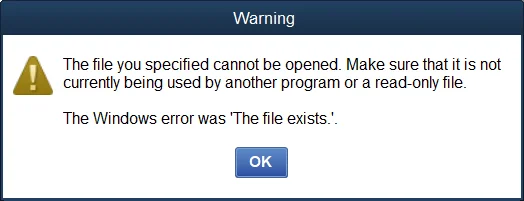
QuickBooks usually displays several unusual behaviours before or during the appearance of this error. Recognizing these warning signs can help diagnose the issue quickly.
- An error message appears while printing payroll checks or forms
- QuickBooks freezes when creating PDF files
- Unable to reconcile accounts or process payroll
- The printer stops responding while using QuickBooks
- Transactions fail to save properly
- Certain reports or forms refuse to open
These symptoms generally indicate that QuickBooks is unable to access required system or printer-related files.
You May Also Like: 5 Easy Ways to Fix QuickBooks Error 1406 During Installation
Main Causes Behind QuickBooks Error File Specified Cannot Be opened
QuickBooks Error “The File Exists” mainly occurs because the software cannot access or modify files required for printing or transaction processing. However, there are numerous other reasons that cause this issue, which are discussed below.
- Insufficient Windows Permissions
A lack of Windows administrator rights may prevent QuickBooks from accessing required folders and system resources. This restriction often triggers the error when generating payroll forms, reports, or other company files.
- Damaged Printer Settings
QuickBooks depends on printer settings even when creating PDF documents. Corrupted printer drivers or incorrect printer configurations can stop QuickBooks from processing forms correctly and lead to this error.
- User Account Control (UAC) Restrictions
Windows User Account Control (UAC) may block QuickBooks from modifying files or accessing protected system locations. This issue is commonly encountered in restricted office or enterprise environments.
- Damaged or Corrupt QuickBooks Components
Corrupted installation files, damaged program components, or incomplete QuickBooks updates can affect printing and payroll-related functions, resulting in the “The File Exists” error message.
- Interference from Third-Party Applications
Security software, background applications, antivirus programs, or PDF management tools may interfere with QuickBooks processes and block file access, causing the error to appear.
How to Fix QuickBooks Desktop Windows Error “The File Exists”?
1. Run QuickBooks as Administrator
One of the simplest and most effective solutions is to run QuickBooks with administrator privileges. This gives the software full access to the required files and folders.
Step-by-Step Instructions:
- Close QuickBooks completely
- After this, look for the QuickBooks Desktop icon on your desktop.
- Right-click the icon
- Select Run as Administrator
- Click Yes if prompted by Windows.
- Open the task that previously caused the error.
Why This Works:
Running QuickBooks as an administrator removes Windows permission restrictions and allows the program to create, edit, or overwrite files properly.
2. Update Printer Drivers and Verify Printer Setup
Printer-related issues are one of the most common reasons behind this error. Even when generating PDFs, QuickBooks depends on printer drivers.
Step-by-Step Instructions:
- Open the Control Panel and from there choose Devices and Printers.
- Search for your default printer.
- After that, right-click on the printer and click Printer Properties.
- Click Update Driver.
- Now, start installing the latest driver updates.
- Once done, relaunch your system.
- At last, launch QuickBooks and try to run a test print again.
Why This Works:
Updated printer drivers improve communication between QuickBooks and Windows printing services. Thus, it eliminates the conflicts that are causing this issue.
Learn More: QuickBooks Error 15271 – Multi-User Mode Not Working Fix Guide
3. Disable User Account Control Temporarily
Windows security settings may prevent QuickBooks from accessing protected files.
Step-by-Step Instructions:
- First, open the Control Panel and click the User Account Control Settings.
- Move the slider to Never Notify.
- Click OK and restart the computer.
- Open QuickBooks and test the affected function.
Why This Works:
Disabling UAC temporarily removes security restrictions that may prevent QuickBooks from accessing or modifying files.
4. Repair the Damaged QuickBooks Installation
Corrupted QuickBooks files can affect payroll, printing, and transaction processing.
Step-by-Step Instructions:
- Initially, launch the Run window and type appwiz.cpl in the search console.
- Locate QuickBooks Desktop in the programs list.
- After this, hit the Uninstall/Change and choose the Repair option.
- Follow the on-screen instructions carefully.
- Restart the computer after completion.
Why This Works:
The repair process replaces damaged QuickBooks files without causing any damage to company data.
5. Use QuickBooks Print & PDF Repair Tool
QuickBooks includes tools specifically designed to fix printing and PDF-related errors.
Step-by-Step Instructions:
- Download and install QuickBooks Tool Hub.
- Open the Tool Hub application.
- Go to Program Problems
- Select QuickBooks PDF & Print Repair Tool
- Allow the scan to complete
- Restart QuickBooks and test printing
Why This Works:
The tool repairs damaged PDF components, printer settings, and Windows printing services automatically.
6. Review Your Folder Permissions
If QuickBooks lacks permission to access certain folders, file-related errors may occur.
Step-by-Step Instructions:
- Search for the QuickBooks installation folder and right-click on it.
- Choose the Properties and then open the Security tab.
- Select your user account.
- Enable Full Control permissions.
- At last, save the changes done and restart QuickBooks to see if the issue still exists.
Why This Works:
Correct folder permissions ensure QuickBooks can access and modify files without restrictions.
7. Reinstall QuickBooks PDF Converter
QuickBooks uses a built-in PDF converter for printing forms and reports. If this component is damaged, errors may appear.
Step-by-Step Instructions:
- Open Devices and Printers.
- After this, remove the existing QuickBooks PDF Converter.
- Restart the system
- Open QuickBooks and let it reinstall the converter automatically.
- Test PDF generation again.
Why This Works:
Reinstalling the PDF converter fixes corrupted print and document generation settings.
Preventive Tips to Prevent “The File Exists” Error
- Run QuickBooks with Proper Permissions
Using proper admin rights ensures QuickBooks can access the system files and printer services without interruption.
- Keep Your Printer Drivers Updated
Outdated printer drivers can create compatibility problems with QuickBooks printing functions and PDF generation.
- Update QuickBooks Regularly
Getting the latest QuickBooks Desktop updates helps fix bugs. Also, it helps to improve software compatibility with Windows systems.
- Avoid Interrupting Printing or Payroll Processes
Sometimes, sudden shutdown of QuickBooks during printing tasks may cause damage to the temporary files or printer configurations.
- Maintain Healthy Windows System Settings
Performing the regular updates of Windows and reviewing security settings helps prevent permission-related conflicts.
- Use Reliable Antivirus Software with Proper Exceptions
Security software should allow QuickBooks services and folders to function without unnecessary restrictions.
Discover More: QuickBooks Error PS033: Complete Troubleshooting Guide
Conclusion
QuickBooks Error “The File Exists” is related to Windows permissions, printer configurations, or damaged PDF components. No matter how complex this issue is, but it can be fixed with simple troubleshooting steps. By following the detailed solutions above, you can restore smooth printing and payroll operations in QuickBooks Desktop without interruptions.
FAQs
-
What does QuickBooks Error “The File Exists” mean?
This error indicates that QuickBooks cannot access or overwrite a file needed for printing, payroll, or PDF generation. It mainly appears due to insufficient permission or printer-related issues.
-
Why does this error appear while printing checks?
QuickBooks depends on printer drivers even for internal PDF creation. Damaged printer settings may cause the software to display the “The File Exists” error during printing tasks.
-
Can User Account Control trigger this issue?
Yes, Windows User Account Control can block QuickBooks from accessing protected system files. Temporarily disabling UAC often helps resolve the issue.
-
Is QuickBooks Tool Hub useful for this error?
Yes, the PDF & Print Repair Tool inside QuickBooks Tool Hub is highly effective. This tool automatically repairs print-related and PDF-related components.
-
What is the fastest way to fix this error?
Running QuickBooks as Administrator is usually the quickest solution. It removes permission restrictions immediately and resolves the issue in many cases.
About The Author

Elora Havencrest
Elora Havencrest is an accomplished Accounting Writer with over 12 years of experience crafting clear, engaging, and informative financial content. She specializes in bookkeeping, tax planning, and financial analysis, making complex accounting concepts easy to understand for business owners and finance professionals.
Elora's dedication to accuracy and clarity ensures her writing not only educates but also empowers readers to make confident and informed financial decisions.
Recent Posts
-

How to Fix QuickBooks Error 6129 When Opening a Company File?
-
QuickBooks Error “The File Exists”: Effective Methods to Fix the Issue
-
QuickBooks Missing PDF Component – Fix PDF & Printing Issues
-
A Comprehensive Guide To Fix QuickBooks Error 7149
-
How to Fix QuickBooks Error 6177, 0 (Easy Step-by-Step Guide)