QuickBooks Error PS033: Complete Troubleshooting Guide
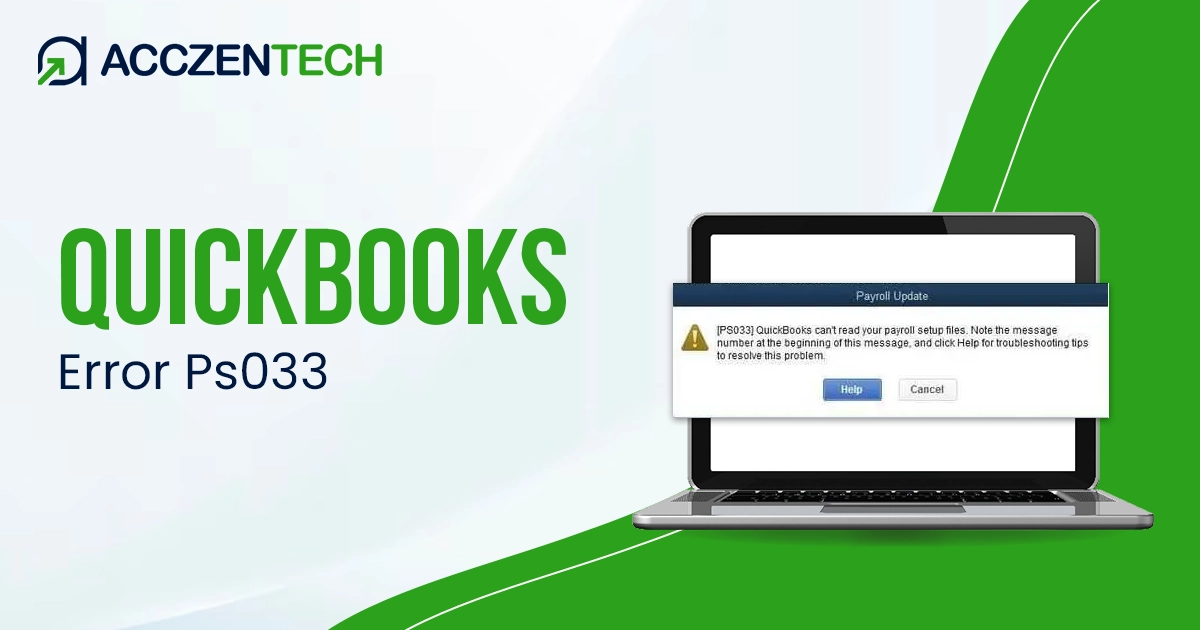
Facing issues while downloading the latest QuickBooks payroll updates not only prevents you from computing payroll taxes correctly but also causes a delay in processing employees’ payroll. But sometimes, while downloading payroll updates, users may encounter QuickBooks Error PS033. It flashes the following warning message on the screen stating;
“[PS033] QuickBooks can’t read your payroll setup files.”
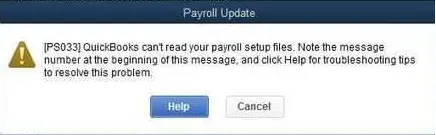
This issue may arise when the software fails to read software setup files, which may be caused by a damaged CPS folder or an inactive payroll subscription. Read this guide to understand the causes and troubleshooting methods to fix QuickBooks Error Code PS033.
Quick Overview of QuickBooks Error PS033
|
Parameter |
Details |
|
Error Name |
QuickBooks Error PS033 |
|
Error Code |
PS033 |
|
Error Message |
“QuickBooks can’t read your payroll setup files” or “PS033: QuickBooks Payroll update failed.” |
|
Description |
QuickBooks Error PS033 mainly occurs when users try to download or install payroll updates. The error prevents QuickBooks from verifying payroll subscription details or reading payroll setup files correctly. |
|
Category |
Payroll Update Error |
|
Common Causes |
Corrupted CPS folder, inactive payroll subscription, outdated QuickBooks Desktop, damaged company files, incorrect billing information, or incomplete payroll updates. |
|
Affected Versions |
QuickBooks Desktop Pro, Premier, Enterprise, and Accountant versions (including Windows 10 & Windows 11 systems). |
|
Quick Fix |
Update QuickBooks Desktop, verify payroll subscription status, rename the CPS folder, run QuickBooks Tool Hub, and download payroll updates again. |
Users’ Experience While Getting PS033 Error in QuickBooks Desktop
When the PS033 error appears in QuickBooks Desktop, users may encounter several payroll- and software-related issues. Here, we are discussing the common symptoms of this error.
- Payroll Updates fail to download or install properly.
- Users may face issues verifying payroll subscription.
- Quickbooks Desktop may close automatically during payroll processing.
- The QuickBooks program freezes or becomes unresponsive during payroll updates.
- You may experience slow system performance.
- Users are unable to update payroll tax tables.
Read More: QuickBooks Error 15271 – Multi-User Mode Not Working Fix Guide
Main Causes Behind QuickBooks Desktop Error PS033
QuickBooks Desktop Error PS033 mainly arises due to issues related to payroll subscription, damaged files, or incorrect system settings. The following are the major reasons causing the error.
- Using the inactive QuickBooks payroll subscription.
- If the QuickBooks CPS folder is either damaged or corrupt.
- Running the older version of QuickBooks Desktop.
- Issues with the installation or damaged QuickBooks program files.
- Windows Firewall or other system security applications are blocking QuickBooks.
- Insufficient User Account Control settings are hampering the updates.
- Misconfiguration of the internet connection settings.
How to Resolve QuickBooks Payroll PS033 Error Smoothly?
After understanding the causes of the QuickBooks Payroll PS033 error, let’s study the effective solutions to fix the issue. Below, we discuss all troubleshooting methods in detail.
Method 1: Check Your Payroll Service Subscription
Before moving ahead, ensure that your payroll service subscription is active and up to date. An invalid or outdated payroll subscription is one of the reasons why QuickBooks Payroll Error PS033 occurs.
- Exit all open company files and restart your computer.
- Launch QuickBooks, move to the Employees menu > My Payroll Service > Manage Service key.
- Verify that your Service Name and Status are up to the mark and will show as Active.
- Click Edit, and check your service key number. If it’s incorrect, provide the right service key.
- Select the Next option and make sure to keep the checkbox of the Open Payroll Setup box unmarked. Then, hit the Finish tab.
- As a result, it will start downloading the entire payroll update. If the error is still unresolved, move on to the next solution.
Method 2: Rename the QuickBooks CPS Folder
A damaged CPS folder is another major reason why the QuickBooks PS033 error arises. So, to repair the damaged CPS folder, you must rename it.
- Open the Windows File Explorer and hit This PC
option. - Choose the Local Disk C: and move to Run Program Files (x86).
- After this, access the Intuit folder and open the QB folder again. Later on, match it with the version of QuickBooks you are using.
- Click the Components and then the Payroll folder.
- Now, right-click the CPS folder and select Rename.
- Continuing further by adding a new folder name and hitting the Enter key to change the file name.
- Finally, disable User Account Control by setting it to the Never Notify option.
More Topics: QuickBooks Error 1328: Causes, Symptoms, and Complete Fix Guide
Method 3: Turn Off User Account Control
You can make certain changes to your User Account Control settings that are creating issues while downloading QuickBooks Desktop or payroll updates. Follow these steps to change the UAC settings.
- Open the Run dialog box and insert Control Panel in the search box.
- Move to User Accounts and hit the User Accounts once again.
- Now, pick the Change User Account Control settings. When asked, click Yes to move further.
- After this, adjust the slider accordingly.
- Click Never Notify and hit OK to turn UAC off.
- Select the Always Notify option and then OK to turn UAC on.
- When all the changes are done, restart your PC to save the changes.
Method 4: Register & Update Your QuickBooks Desktop
You must ensure that you are working on the latest security and software improvements. Follow these steps to check if your software is registered.
- From your keyboard, press the F2 key to open Product Information.
- Now, next to the license number, see if it says Activated.
- Once done with the registration, update QuickBooks Desktop to the latest version.
- Conclude the process by installing the latest payroll tax table update. If the error still exists, then try another solution.
Method 5: Add Defender Exclusion & Run Quick Fix My Program
- Before starting, close all your company files, and make sure QuickBooks is open.
- After that, add the Defender exclusion or turn off Windows Defender antivirus protection.
- Make sure to download and install the latest QuickBooks Tool Hub version.
- From the Tool Hub, choose Program Problems.
- Go with the Quick Fix My Program tab.
- Try to open the QuickBooks application again and then update it to the latest release.
- At last, try to download and install the latest tax table.
Precautions To Prevent the Payroll Update Error Code PS033 in QuickBooks
The following are the preventive measures that will help minimize the chance of getting Payroll Update Error Code PS033 in QuickBooks.
- Keep your QuickBooks Desktop updated to the latest version.
- Make sure to use a valid and active QuickBooks payroll subscription.
- Verify that your Internet connection is stable.
- Check that you have created a backup of the company file.
- Provide the correct Employer Identification Number.
Conclusion
QuickBooks Error PS033 can hamper the payroll update process and cause a delay in processing payroll. But it can be fixed easily by performing the solutions described above. Whether this issue occurred due to an invalid payroll subscription or insufficient folder permissions, you can fix it using the above solutions. This will let you run the latest payroll updates without any interruption.
About The Author

Elora Havencrest
Elora Havencrest is an accomplished Accounting Writer with over 12 years of experience crafting clear, engaging, and informative financial content. She specializes in bookkeeping, tax planning, and financial analysis, making complex accounting concepts easy to understand for business owners and finance professionals.
Elora's dedication to accuracy and clarity ensures her writing not only educates but also empowers readers to make confident and informed financial decisions.
Frequently Asked Questions
What is QuickBooks Error PS033?
QuickBooks Error PS033 usually appears while updating payroll. This issue may appear when QuickBooks fails to read payroll setup files or verify payroll subscription.
What is the CPS folder in QuickBooks?
The QuickBooks CPS folder is used to store payroll-related update files. In case these files get corrupted, users may get QuickBooks Error Code PS033. So, to fix the issue, rename the CPS folder.
Can repairing the company file fix the QB payroll error code PS033?
Corruption in the company file can give rise to payroll update issues such as QuickBooks Error PS033. So, to fix the issue, repair the company file using the QB File Doctor tool.
Why is my payroll service not working in QuickBooks Desktop?
This issue may appear due to the interference of firewall settings, which are blocking payroll updates in QuickBooks Desktop.
Why am I getting a payroll error code in QuickBooks Desktop?
The payroll error code in QuickBooks Desktop may occur due to incorrect internet settings and a firewall blocking the payroll updates.