How To Fix QuickBooks Compile Error in Hidden Module? (Outdated Version Issue)
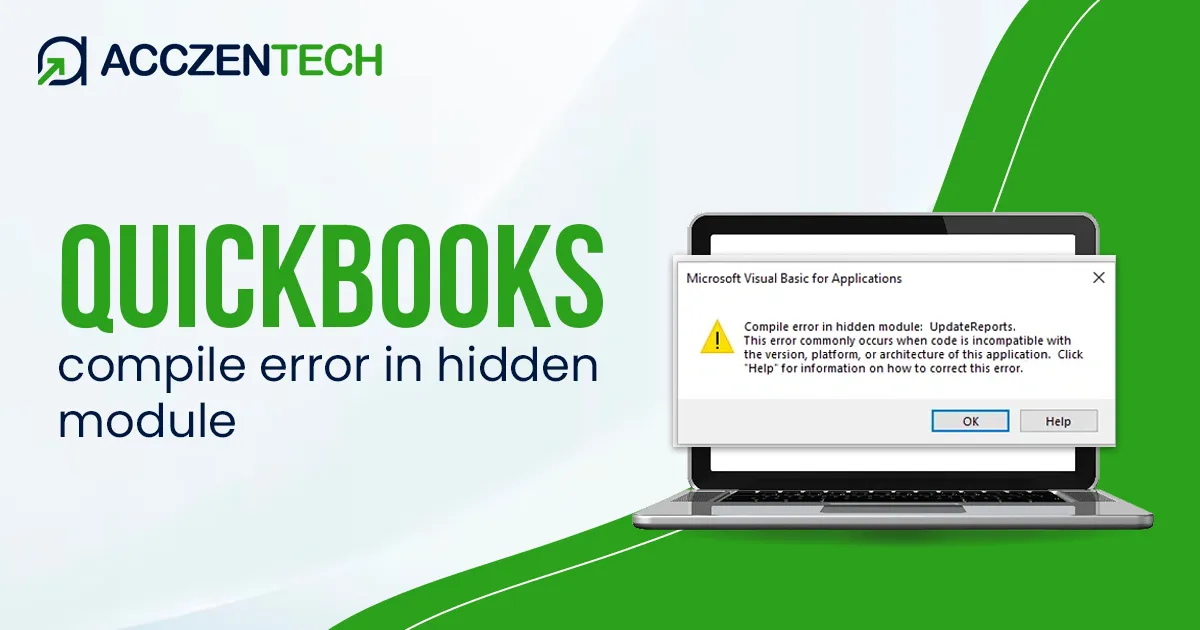
The “Compile Error in Hidden Module” in QuickBooks Desktop is a common issue that usually appears when QuickBooks conflicts with Microsoft Office components or when program files are damaged. The error may appear with an error message during startup, when exporting reports to Excel, or when opening certain QuickBooks features.
- Compile Error in Hidden Module: AutoExec
- Compile Error in Hidden Module: Link
- Compile Error in Hidden Module: DistMon
This problem is often caused by outdated QuickBooks or Office applications, corrupted VBA files, incompatible add-ins, or damaged company file data. Although the error can disrupt normal accounting operations, it can usually be resolved with simple troubleshooting steps such as updating software, repairing Office files, or rebuilding the company file.

Overview QuickBooks Compile Error in Hidden Module
| Parameter | Details |
| Error Name | QuickBooks Compile Error in Hidden Module |
| Error Code | N/A |
| Error Message | Compile error in hidden module when opening QuickBooks or running Excel-linked features |
| Description | Occurs when QuickBooks fails to run VBA or Excel-integrated components due to damaged add-ins or incompatible updates |
| Category | Installation / Integration / Microsoft Office compatibility error |
| Common Causes | Corrupted Microsoft Office add-ins, outdated QuickBooks version, damaged template files (like .xlb), or conflicting Excel macros |
| Quick Fix | Disable Excel add-ins, rename or reset the Excel XLB file, update QuickBooks and Microsoft Office, and reinstall conflicting components if needed |
Causes of QuickBooks Compile Error When Exporting
Let’s explore all the possible reasons why exporting or saving the data outside of QuickBooks can trigger a compile error in the Hidden Module:
- You might be using an outdated version of QuickBooks Desktop
- Payroll services are not up-to-date
- Possible damages or corruption to your company file
- Outdated MS Office
- Damaged or corrupted MC Office installation
Learn More: How to Fix QuickBooks Error PS033?
Easy Steps to Fix QuickBooks Compile Error in Hidden Module
Follow the solutions below to eliminate the QuickBooks Compile error in Hidden Module and prevent it from interrupting your QuickBooks operations again:
1. Update QuickBooks Desktop
An up-to-date version of QuickBooks Desktop is required to run various operations without interruption, such as exporting or saving a PDF file.
- Close your QuickBooks Desktop application.
- Go to Help in the top menu bar.
- Choose Update QuickBooks Desktop from the search results.
- Navigate to the Update Now tab.
- Mark the Reset Updates checkbox to clear the updates.
- Hit on Get updates to download the updates.
- Once the download finishes, close your QuickBooks completely.
- Reopen QuickBooks and click Yes on the prompt to install.
2. Get the payroll service updates
Here’s how to ensure the payroll service updates to the latest version:
- Open QuickBooks Desktop.
- Go to the Employees menu.
- Click on Get Payroll Updates.
- Hit on Download Latest Update.
- When done, close and reopen the software.
3. Verify and Rebuild the company file data
Once the software-related fixes are complete, the next step is to verify the integrity of your company file data to identify and repair any potential corruption.
a. Verify the company file data
To check your company file for errors or data issues:
- Open the Window menu and choose Close All.
- Open the File menu and select Utilities.
- Click Verify Data to start the verification process.
Results:
- QuickBooks detected no problems with your data – This means your company file is error-free, and no further action is required.
- An error message appeared – If QuickBooks displays a specific error, search for the message on the official QuickBooks Support site to find the recommended troubleshooting steps.
- Your data has lost integrity – This indicates data damage within the company file. In this case, proceed with the Rebuild Data utility to repair the file and restore data integrity.
b. Rebuild the company file data
If Verify Data detects damage in your company file, use Rebuild Data to repair it. A backup must be created before the rebuild process can begin.
Note: If you use Assisted Payroll, contact support before rebuilding your data.
To rebuild your company file:
- Open the File menu, select Utilities, and then choose Rebuild Data.
- When prompted to create a backup, select OK.
- Choose a location to save the backup and select OK. Avoid overwriting an existing backup file.
- Enter a new name for the backup file and select Save.
- Once the rebuild process is complete, select OK when the confirmation message appears.
Detailed Guide: QuickBooks Error 1406: Complete Troubleshooting Guide
4. Run QuickBooks File Doctor
The QuickBooks File Doctor verifies the company file data and network connectivity, then runs a quick repair to resolve issues. Proceed below to learn how to run the utility:
a. Download and install QuickBooks Tool Hub
For the best experience, use Windows 11 (64-bit).
- Close QuickBooks Desktop.
- Download the latest version of the QuickBooks Tool Hub.
- Save the downloaded file in an easy-to-find location, such as the Downloads folder or your Desktop. If you cannot locate it later, search your computer for QuickBooksToolHub.
- Open the downloaded file (QuickBooksToolHub.exe).
- Follow the installation prompts and accept the terms and conditions.
- After installation is complete, double-click the QuickBooks Tool Hub icon on your desktop to launch the application.
To view the installed version, open the Home tab within the Tool Hub.
b. Run the QuickBooks File Doctor tool
- Launch the QuickBooks Tool Hub.
- Go to Company File Issues in the left pane.
- Hit on Run QuickBooks File Doctor. The tool may take up to a minute or more to open.
Note: If you fail to open the QuickBooks File Doctor, search for QuickBooks Desktop File Doc and open it manually.
- In QuickBooks File Doctor, search for your company file in the drop-down menu. If you don’t see the file, click Browse and locate your data file.
- Hit Check your file, then Continue.
- Type the QuickBooks admin password and click Next.
The duration of the scan varies with your file size and may take approximately 10–15 minutes to complete. In some cases, the scan may display an unsuccessful result even if it has resolved the problem. After the process is finished, reopen QuickBooks and access your company file.
5. Update MS Office
You may encounter the QuickBooks Compile Error in Hidden Module due to an outdated version of MS Office when exporting your data. Let’s ensure the MS Office apps are up-to-date with these steps:
- Launch any Microsoft 365 app such as Word.
- Create a new document.
- Navigate to File and then choose Account.
- In the prompted Product Information section, choose Update Options.
- Now, select Update Now.
Note: If the Update Now option is not immediately visible, select Enable Updates first.
- Once Microsoft 365 or Office finishes checking for and installing available updates, close the confirmation window displaying either “You’re up to date!” or “Updates were installed.”
- The Update Options menu can also be used to turn automatic updates on or off and to review previously installed updates.
6. Repair MS Office
Since QuickBooks integrates with Microsoft Office applications, repairing the Office installation may resolve underlying issues that contribute to the compile error.
- Right-click on the Windows icon button.
- Choose Installed Apps on the pop-up menu.
- Select the Microsoft 365 or Office product you want to repair.
- Now, click on ellipses, and then select Modify.
- Depending on the type of Microsoft 365 or Office installation, you see the following options. You will need to choose the one to repair. Proceed below to repair MS Office accordingly:
Click-to-run
- In the How would you like to repair your Microsoft 365 and Office Programs dialog box, choose Online Repair and then click Repair to perform a complete repair of the Office installation. Although Quick Repair is a faster alternative, it only identifies and replaces damaged files rather than conducting a full repair.
MSI-based
- In the Change your installation window, choose Repair and then select Continue to begin the repair process.
- Follow the instructions on your screen to finish the repair.
Must Read: Why QuickBooks Error 6000 832 Occurs & How To Fix It?
Summing Up
QuickBooks Compile Error in Hidden Module can interrupt tasks such as exporting reports, opening QuickBooks, or working with Microsoft Office integrations.
By updating QuickBooks and Microsoft Office, verifying and rebuilding company data, and running QuickBooks File Doctor, you can resolve the error and restore normal functionality. If the error persists, contacting a QuickBooks expert can help prevent further disruptions and ensure smooth business operations.
Frequently Asked Questions
-
What does “Compile Error in Hidden Module” mean in QuickBooks?
This error typically indicates that QuickBooks is unable to communicate properly with Microsoft Excel due to a problem with a hidden VBA module, add-in, or compatibility issue within Microsoft Office.
-
Why am I seeing the “Compile Error in Hidden Module: faqs” message?
The error may occur because of a corrupted Excel add-in, outdated Microsoft Office components, damaged VBA files, or compatibility issues between QuickBooks and Excel.
-
Does this error originate from QuickBooks or Excel?
In most cases, the issue originates from Microsoft Excel rather than QuickBooks. QuickBooks often triggers the error when exporting reports or data to Excel.
-
How can I fix the Compile Error in Hidden Module error?
Common solutions include:
- Updating QuickBooks and Microsoft Office
- Repairing Microsoft Office
- Disabling problematic Excel add-ins
- Running QuickBooks Verify and Rebuild Data utilities
- Reinstalling or repairing Excel VBA components
-
Can outdated Office versions cause this error?
Yes, older versions of Microsoft Office may become incompatible with newer QuickBooks releases, leading to hidden module compilation errors.
About The Author

Elora Havencrest
Elora Havencrest is an accomplished Accounting Writer with over 12 years of experience crafting clear, engaging, and informative financial content. She specializes in bookkeeping, tax planning, and financial analysis, making complex accounting concepts easy to understand for business owners and finance professionals.
Elora's dedication to accuracy and clarity ensures her writing not only educates but also empowers readers to make confident and informed financial decisions.
Recent Posts
-

How to Fix QuickBooks Error 6177, 0 (Easy Step-by-Step Guide)
-
QuickBooks Error 1402: Causes, Symptoms & Easy Fixes
-
How To Fix QuickBooks Compile Error in Hidden Module? (Outdated Version Issue)
-
How to Fix QuickBooks Error 6150 (Quick Troubleshooting Guide)
-
Why QuickBooks Error 6000 832 Occurs & How To Fix It?