QuickBooks Error 1402: Causes, Symptoms & Easy Fixes
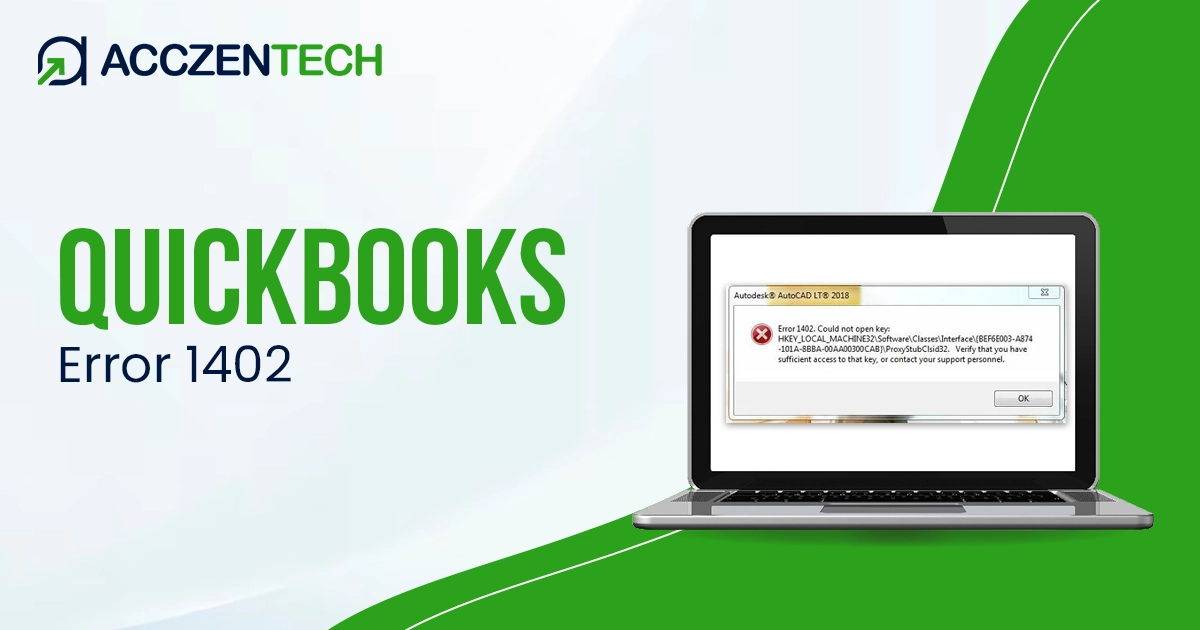
Many users face QuickBooks Error 1402 while installing or updating QuickBooks Desktop on Windows systems. This installation error usually appears when QuickBooks fails to access important system components or registry settings. You may also face this error due to damaged Windows files, permission issues, or incomplete Microsoft components. If it’s not fixed quickly, it can stop the installation completely and prevent users from accessing QuickBooks.
This guide explains the common causes, symptoms, and effective solutions to fix QuickBooks Desktop Error 1402 smoothly.
Quick Overview of QuickBooks Error 1402
|
Parameter |
Details |
|
Error Name |
QuickBooks Desktop Error 1402 |
|
Error Code |
1402 |
|
Error Message |
“Error 1402: Could not open key.” |
|
Description |
Occurs while installing or updating QuickBooks Desktop |
|
Category |
Installation / Windows Error |
|
Common Causes |
Damaged registry keys, permission issues, and corrupted Windows components |
|
Affected Versions |
All QuickBooks Desktop versions |
|
Quick Fix |
Run the QuickBooks installer as Administrator and repair Windows components |
What are the Common Symptoms of QuickBooks Desktop Error 1402?
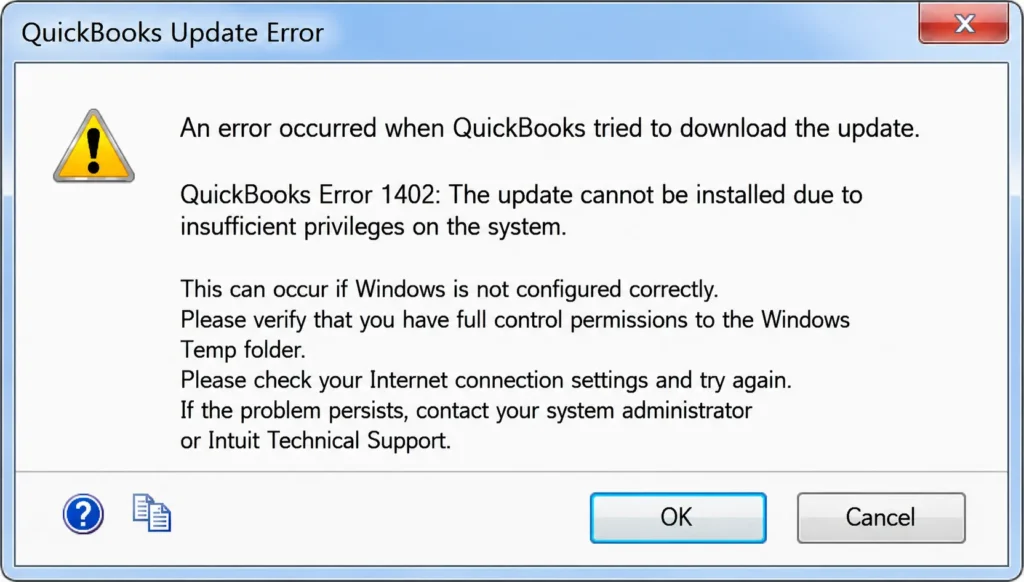
When Error 1402 appears, users may experience several installation-related issues that can interrupt the setup process. Below are some common symptoms associated with this error:
- QuickBooks installation stops unexpectedly before completion.
- Users may see messages like, “QuickBooks Error 1402: Could not open key.”
- QuickBooks setup freezes or crashes during installation.
- The system may become slow while installing QuickBooks Desktop.
- Users may be unable to update or reinstall QuickBooks successfully.
Read Also: Fix QuickBooks Error 1601 During Installation or Update
What Triggers Error Code 1402 in QuickBooks Desktop?
Many factors can cause error 1402 when you try to install QuickBooks updates. Let’s have a look at all of the possible causes:
- QuickBooks Installation on your computer is corrupted.
- Maybe the CD used for installation was damaged.
- When the software is incorrectly installed.
- Microsoft Windows is not updated.
- The application running in the background is hindering the installation process.
Effective Methods to Fix QuickBooks Error 1402
QuickBooks Error 1402 is related to installation failures and Windows permission issues. Following the solutions below can help you fix the issue effectively.
Method 1. Use QuickBooks Diagnostic Tool
QuickBooks tool hub is created for resolving the potential errors of the software. Here’s how to run:
- Download and install the latest version of the QuickBooks Tool Hub on your computer.
- Once the installation process is completed, click on it to open the tool hub.
- Select the installation Issues Tab.
- Choose the QuickBooks Install Diagnostic Tool; it can take a few minutes to complete the process.
- When it’s done, restart your system and try to update the software that is facing issues.
Method 2. Update your Windows
As mentioned, outdated Windows also causes this fatal error code. You can fix this issue by updating your Windows system. Here are the steps you need to follow:
- Click on the Windows Start Menu.
- Navigate to Settings and select Update & Security.
- Click on Windows Update to check for any updates available.
- If there is any update available, click Download, then install.
- Once completed, restart your system to check the latest update of Windows.
- If you are able to open QuickBooks before you see the error, run your QuickBooks Desktop and then open your company file.
- If you were unable to install QuickBooks earlier, try following the same process after the update.
Read More : QuickBooks Error 6175: Causes and Solutions
Method 3. Reinstall Your QuickBooks Desktop
An incomplete or damaged installation process can trigger QuickBooks error 1402. To fix the issue, uninstall the file and then reinstall it. Follow the steps given below:
- Click on the Windows Start menu.
- Type Control Panel in the search bar and open it.
- Select Programs and Features or Uninstall a Program option.
- From the list of programs, select the version of QuickBooks that is facing issues.
- Click on Uninstall/Change and follow onscreen instructions to complete the process.
- Next, visit the official Intuit website to download and install the fresh version of QuickBooks Desktop.
- Install QuickBooks through the latest file. Once done, check if the error is resolved.
Method 4. Manually Fix Windows Components
If your Microsoft .NET framework, C++, and MSMXL files are damaged, you may face a QuickBooks install error 1402. Follow these steps:
-
Windows .NET Framework and C++
Microsoft has built a Microsoft .NET Framework repair tool in order to fix the issue with its setup or its updates. Click on the Microsoft Framework heading to install it or find all the required details.
-
Microsoft MSXML
You need to register the MSXML DLL files on your system. The registration process is completely different for the 64-bit and 32-bit operating systems. Then you need to download the MSXML .msi installation files and install them.
Once the repair process is completed, try reinstalling your QuickBooks desktop.
Method 5. Use Selective Startup to install QuickBooks Desktop
By using the selective startup for installing the QuickBooks Desktop, you can fix the installation related issues. Here’s how:
- Press Windows+R to open the Run command.
- Enter msconfig, then select OK.
- Select the Selective startup and Load system services from the general tab.
- Navigate to the Services tab, and choose Hide all Microsoft Services.
- Select Disable all and uncheck Hide all Microsoft services.
- From the list of services, Select Windows Installer.
- Select OK.
- On the System Configuration window, select Restart.
- You need to switch to Normal Startup mode once the installation process is over.
- Once done, reinstall the QuickBooks Desktop.
- Again, press Windows+R to open the Run command.
- Type msconfig, then select OK.
- In the General tab, select Normal startup.
- Select OK.
- On the System Configuration window, select Restart.
Prevention Tips for Preventing QuickBooks Error 1402
By implementing the above-mentioned simple and effective methods, you can resolve the Error 1402 when installing QuickBooks Desktop. Follow the tips given below to avoid this issue in the future:
- Regularly update your Windows and QuickBooks Desktop.
- Always run the QuickBooks installer with administrator rights.
- Avoid interrupting the installation process.
- Keep Microsoft .NET Framework and Windows components updated.
- Add QuickBooks to antivirus and firewall exceptions.
- Download the QuickBooks setup files only from the official website.
Related Topic: How to Resolve QuickBooks Error Code 6000 77?
The Bottom Line
QuickBooks Error 1402 commonly occurs due to damaged Windows components, registry permission issues, or corrupted installation files. This error can interrupt the QuickBooks installation process and prevent users from accessing the software properly. However, by following the troubleshooting solutions above, such as repairing Microsoft components, updating Windows, and using QuickBooks Tool Hub, you can resolve the issue successfully.
With proper maintenance and regular system updates, you can also prevent QuickBooks installation errors and ensure smooth software performance.
Frequently Asked Questions
-
What does QuickBooks Error 1402 mean?
QuickBooks Error 1402 usually appears when QuickBooks Desktop fails to access certain Windows registry keys during installation or update. It often indicates permission issues or damaged Windows components. This error can stop the installation process completely.
-
Why does Error 1402 occur while installing QuickBooks Desktop?
This error mainly occurs due to corrupted QuickBooks installation files, damaged Microsoft .NET Framework, or outdated Windows updates. Incorrect system permissions and antivirus interference can also trigger the issue. Running background applications may sometimes block the installation.
-
How can I fix QuickBooks Error 1402 quickly?
You can fix the error by running the QuickBooks Install Diagnostic Tool from QuickBooks Tool Hub. Updating Windows, repairing Microsoft components, and reinstalling QuickBooks Desktop also help resolve the issue. Always restart your system after applying the fixes.
-
Can outdated Windows cause QuickBooks Error 1402?
Yes, outdated Windows versions can trigger QuickBooks installation errors, including Error 1402. Missing system updates may prevent QuickBooks from accessing required Windows components. Installing the latest Windows updates often helps fix the problem.
-
How can I prevent QuickBooks Desktop Error 1402 in the future?
Keep your Windows operating system and QuickBooks Desktop updated regularly. Always install QuickBooks with administrator rights and avoid interrupting the installation process. Also, maintain updated Microsoft components and antivirus exceptions for QuickBooks.
About The Author

Elora Havencrest
Elora Havencrest is an accomplished Accounting Writer with over 12 years of experience crafting clear, engaging, and informative financial content. She specializes in bookkeeping, tax planning, and financial analysis, making complex accounting concepts easy to understand for business owners and finance professionals.
Elora's dedication to accuracy and clarity ensures her writing not only educates but also empowers readers to make confident and informed financial decisions.
Recent Posts
-

How to Fix QuickBooks Error 6177, 0 (Easy Step-by-Step Guide)
-
QuickBooks Error 1402: Causes, Symptoms & Easy Fixes
-
How To Fix QuickBooks Compile Error in Hidden Module? (Outdated Version Issue)
-
How to Fix QuickBooks Error 6150 (Quick Troubleshooting Guide)
-
Why QuickBooks Error 6000 832 Occurs & How To Fix It?