How to Fix QuickBooks Online Error 101 When Bank Sync Fails
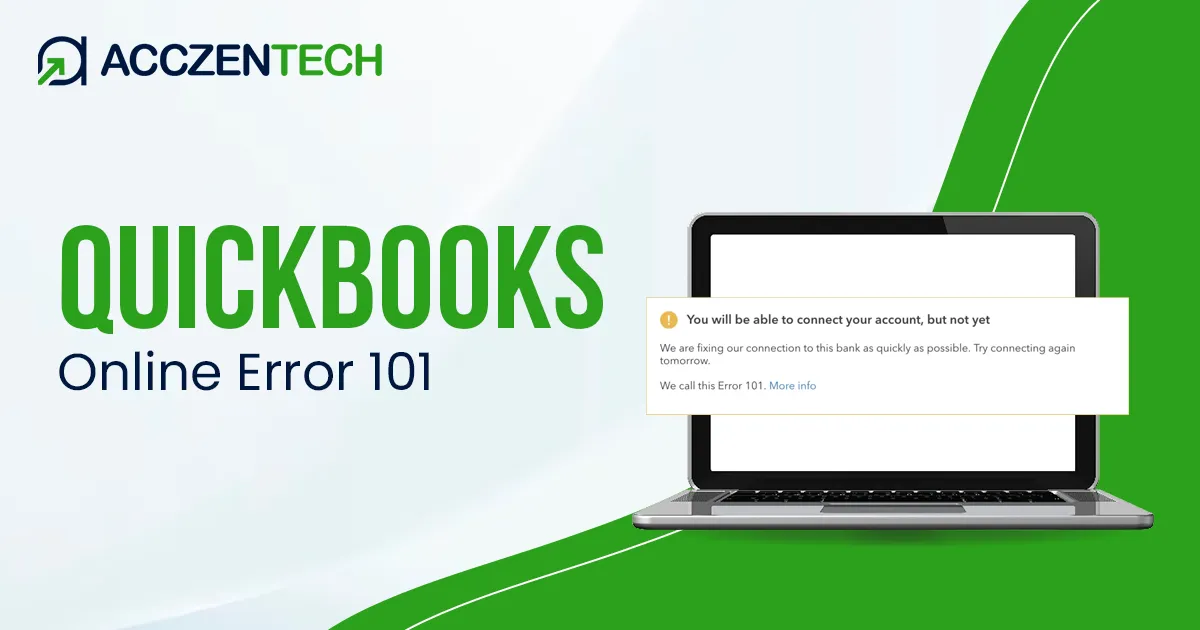
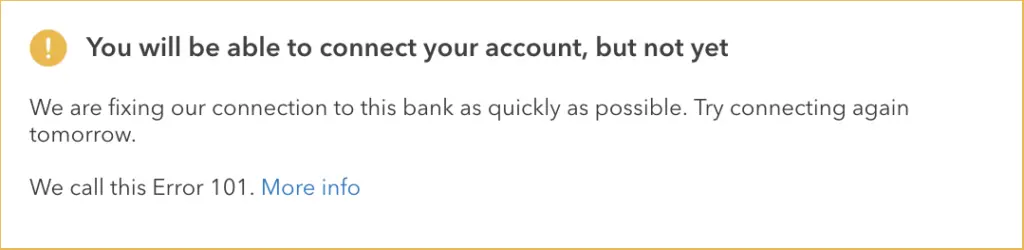
QuickBooks Online Error 101 is a banking connection error that occurs when QuickBooks fails to communicate with your financial institution. This issue may prevent users from updating bank feeds, downloading transactions, or syncing online banking data in QuickBooks Online. When this error occurs, it throws the following error message stating “Error 101: It’s been a while since you last interacted with your bank.” This error indicates that your bank account has been inactive for an extended period, usually 12 months. An account is considered inactive if it has a zero balance and no transactions have occurred within the past year.
So, if you are also confronting this error, resolve it quickly to restore bank feed updates and download the latest transactions. In this write-up, we have explained the root causes and easy troubleshooting tips to fix QuickBooks bank feed error 101.
A Quick Overview of QuickBooks Online Error 101
|
Parameter |
Details |
|
Error Name |
QuickBooks Online Error 101 |
|
Error Code |
Error 101 |
|
Error Message |
“Banking Error 101: Unable to connect to your bank account.” |
|
Description |
QuickBooks Online Error 101 occurs when QuickBooks is unable to establish a secure connection with the user’s bank website during online banking updates or transactions. |
|
Category |
Banking/ Connectivity Error |
|
Common Causes |
Incorrect bank login credentials, temporary bank server outage, outdated banking information, browser cache issues, or multi-factor authentication problems. |
|
Affected Versions |
All supported versions of QuickBooks Online. |
|
Quick Fix |
Verify bank login credentials, update bank account information in QuickBooks, clear browser cache, reconnect the bank account, and try updating the connection after some time. |
What Causes QuickBooks Bank Feed Error 101?
QuickBooks Bank Feed Error 101 mainly occurs when QuickBooks fails to establish a secure connection with your financial institution. This may happen due to various reasons, including;
- Your bank account is inactive for an extended period.
- Experiencing server downtime issues.
- When your bank requires you to accept certain terms and conditions.
- Incorrect bank login credentials.
- Cache, cookies, or browsing history is interrupting the bank login process.
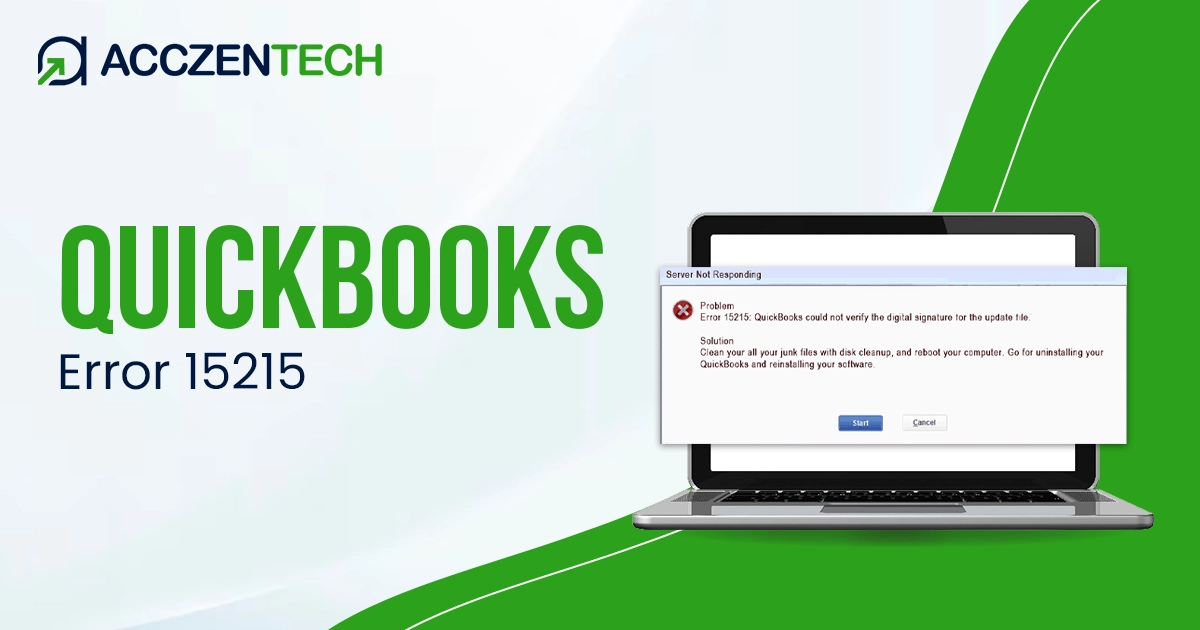
Read More:A Guide to Troubleshoot QuickBooks Error 15215 Easily
What Will Happen When Bank Error 101 in QuickBooks Online Occurs?
You may notice the following symptoms;
- Experience issues while connecting with your bank account.
- You may face login authentication errors.
- Missing or delayed bank feed entries.
- Banking updates fail repeatedly.
- Face issues while refreshing bank transactions.
- An error message appears during account synchronization.
How to Resolve Error 101 in QuickBooks Online Quickly?
After understanding the causes, let’s study the troubleshooting methods to fix Error 101 in QuickBooks Online.
If there’s an issue with your bank account
If you experience issues connecting to your bank account, then use the following steps.
First Step: Login to your Bank’s website
Launch a new tab or use a different web browser to sign in to your bank’s website. Then, check whether you can log in without any errors.
Second Step: Check if your Account is Active
If you have any existing balance or you have made any transactions in the past 12 months, your account will be considered active. However, if you have an active account but still fail to log in, it’s best to connect with your bank directly.
Third Step: Look for missed prompts
Return to your bank website and look for the messages that want your confirmation. Complete the prompt, and refresh the account in QuickBooks Online.
Method 1: Add Intuit as a Trusted Site
- Open Internet Explorer, and click the Gear icon.
- Move to Internet Options and select the Security tab.
- Browse to the Trusted Sites and choose Sites. Then, add the following URL “https://*.intuit.com.”
- Tap on the Add option and then include another URL “https://*.QuickBooks.com.”
- Once done, tap on Close.
- Proceed further and hit Custom Level and search for Miscellaneous.
- Head to the Allow Cross-Domain Requests and then click OK.
- At last, select Apply and then hit the OK tab.
Method 2: Reset the Pop-Up Settings
- Move to the Privacy tab and click the Advanced tab.
- Choose the Override Automatic Cookie Handling.
- You must verify that First Party and Third Party Cookies are allowed in the settings.
- Enable Always Allow Session Cookies and click on Ok to save the changes.
Learn More:How to Fix QuickBooks Error 1612 Update Installer Unavailable?
Method 3: Turn on ActiveX Controls
- Open your Internet Explorer and hit the Security tab.
- Go to the Internet Options and click Custom Level.
- Switch to the Internet Zone window, followed by going to the ActiveX Controls and Plugins.
- Herein, turn on the following options:
- Download Signed ActiveX controls,
- Binary and Script Behaviours,
- Script ActiveX Controls Marked Safe for Scripting, and Run ActiveX Controls and Plugins options.
- Once done, hit the OK tab.
Method 4: Check your Bank or Credit Card Website
Before moving further, review the URL for QuickBooks access to connect with your bank account.
- Go to All Apps, select Accounting and then the Bank Transactions option.
- Browse to the Link Account option.
- Note: You don’t have to add an account; you only require the listed URL.
- Begin searching for your bank account and then choose it.
- Next, you must copy the URL listed for your bank.
- Lastly, log in to your bank or credit card website with the help of the copied URL.
If you are able to log in, it indicates that there isn’t a major issue.
- Begin searching for your account for messages, notifications, or alerts.
- Now, look for any display issues as you navigate the website. These may block QuickBooks from downloading the latest transactions.
- Once again, visit your bank website to check for any latest announcements regarding the new security improvements.
Method 5: Update your Bank Info in QuickBooks
Sometimes, users may experience QuickBooks Error Code 101 when they have updated some bank details but haven’t updated them in QuickBooks. Therefore, to update the bank details in QuickBooks, perform these steps.
- First, head to All Apps, click Accounting and then the Bank Transaction option.
- Select the tile for the bank account and hit the Edit icon.
- Browse to the Edit Sign-in info tab.
- Lastly, begin updating your bank details in QuickBooks as required.
Preventive Measures to Avoid Bank Error 101 in QuickBooks Online
You can prevent Bank Error 101 in QuickBooks Online by following these healthy practices.
- Bank login credentials must be updated regularly.
- Use the supported web browser to use online banking in QuickBooks.
- Internet connection must be stable.
- Keep proper checks on the maintenance of the bank schedules.
- Check your bank notifications regularly.
Read More: QuickBooks Error 15271 – Multi-User Mode Not Working Fix Guide
Final Thoughts
QuickBooks Online Error 101 can prevent you from connecting with your bank account and from downloading the latest bank transactions. Fortunately, this issue can be fixed easily by following the above troubleshooting methods.
If the above solutions don’t work out, it’s best to contact your financial institution or QuickBooks support for advanced troubleshooting. To avoid this error in future, update your bank login credentials regularly and check the bank notifications that require immediate action.
Frequently Asked Questions (FAQ’s)
-
What happens if I get QuickBooks Online error code 101?
QuickBooks Online error code 101 mainly occurs when there is a problem linking with your bank account, often due to banking authentication or browser-related issues.
-
What causes QuickBooks Bank feed error 101?
The QuickBooks Bank feed error 101 can appear due to outdated Windows components Microsoft .NET Framework, and ActiveX, or issues connecting with the internet.
-
What is Error Code 101 in QuickBooks?
You may encounter Error Code 101 in QuickBooks while trying to add an inactive account, which means the account has no transactions from the last 12 months.
-
Can I still use QuickBooks while Error 101 appears?
Yes, you can still use the banking features when Error 101 QuickBooks occurs, but bank feeds won’t update.
-
Is QuickBooks Error 101 related to bank feeds?
Yes, the QuickBooks Error 101 is linked with bank feed synchronization and online banking connection failures. write html code.
About The Author

Elora Havencrest
Elora Havencrest is an accomplished Accounting Writer with over 12 years of experience crafting clear, engaging, and informative financial content. She specializes in bookkeeping, tax planning, and financial analysis, making complex accounting concepts easy to understand for business owners and finance professionals.
Elora's dedication to accuracy and clarity ensures her writing not only educates but also empowers readers to make confident and informed financial decisions.