How to Fix Common QuickBooks Web Connector Error QBWC1085?
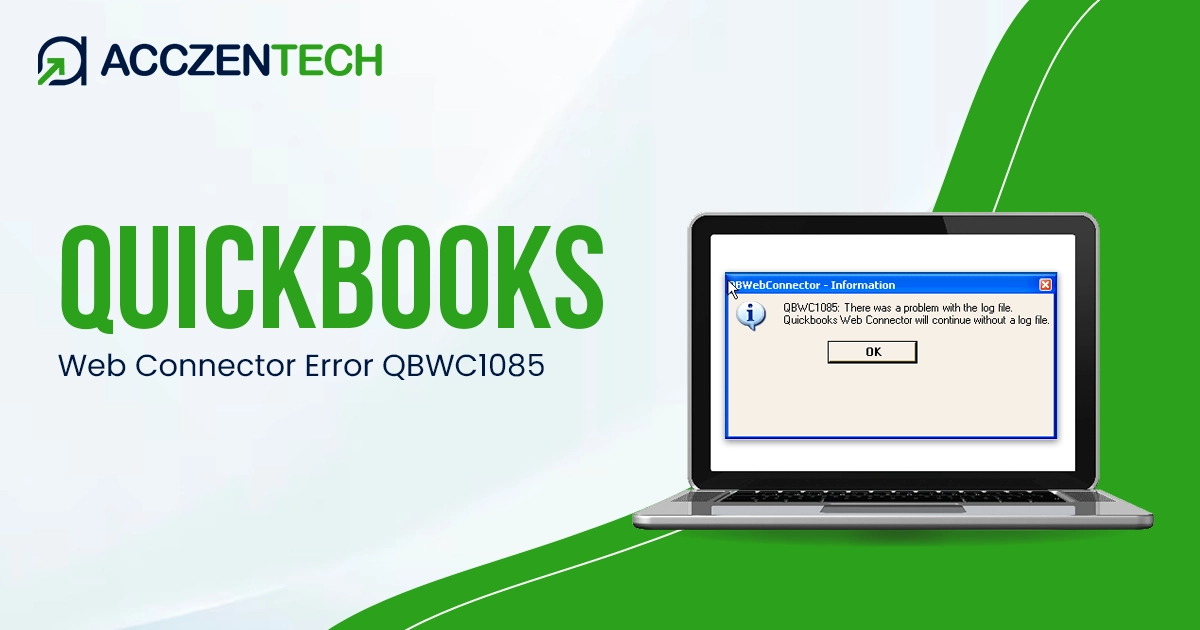
Many users face QuickBooks Web Connector Error QBWC1085 when trying to sync QuickBooks Desktop with third-party applications. This error usually appears when the Web Connector fails to write or access the required log file, which stops the syncing process completely. As a result, users experience data transfer failure, disrupted workflows, and connection issues with integrated apps.
This guide explains the causes, symptoms, and step-by-step solutions to resolve the issue quickly.
Quick Overview of QuickBooks Web Connector Error QBWC1085
|
Parameter |
Details |
|
Error Name |
QuickBooks Web Connector Error QBWC1085 |
|
Error Code |
QBWC1085 |
|
Error Message |
“QB Web Connector could not write to log file” |
|
Description |
Occurs when Web Connector fails to access or write log files |
|
Category |
Sync / Connectivity Error |
|
Common Causes |
Permission issues, damaged QWC file, or Web Connector malfunction |
|
Affected Versions |
QuickBooks Desktop (all versions) |
|
Quick Fix |
Restart Web Connector and check file permissions |
What are the Common Symptoms of QBWC1085 Error?
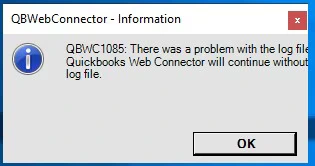
When QBWC1085 error QuickBooks Desktop appears, users may notice several syncing and connectivity issues, such as:
- QuickBooks Web Connector fails to open or crashes unexpectedly.
- An error message appears during the data sync process.
- Applications connected to QuickBooks stop updating data.
- Web Connector freezes while running scheduled sync.
- QuickBooks Desktop does not receive updated information from third-party apps.
Related Resource: QuickBooks Error PS033: Complete Troubleshooting Guide
What Triggers QuickBooks Web Connector Error QBWC1085?
There are multiple reasons behind QuickBooks Web Connector not working properly. The most common causes include:
- Damaged or missing Web Connector configuration files.
- Incorrect file permissions for QBWebConnector.log.
- Outdated QuickBooks Desktop or Web Connector version.
- Antivirus or firewall is blocking Web Connector access.
- Corrupted QWC file from third-party applications.
- Improper shutdown of QuickBooks or Web Connector.
Effective Methods to Fix QuickBooks Web Connector Error QBWC1085
QuickBooks Web Connector Error QBWC1085 can be fixed with a few troubleshooting steps. Below are some proven methods that can help restore smooth syncing between QuickBooks Desktop and third-party applications.
Method 1. Repair QuickBooks Desktop
Repairing QuickBooks Desktop can fix damaged program files that may be causing the QBWC1085 error.
- First, restart your computer.
- Go to the Start menu and open Control Panel.
- Click on Programs and Features.
- Select Uninstall a Program.
- Locate QuickBooks from the list.
- Click Uninstall/Change and choose Continue.
- Select the Repair option.
- Click Next and allow the repair process to complete.
- Once done, click Finish and restart your system.
Method 2. Remove QuickBooks Web Connector from Startup
If you are not using any third-party applications, disabling Web Connector from startup can help fix the issue.
Steps:
- Run Windows as Administrator.
- Go to: C:ProgramDataMicrosoftWindowsStart MenuProgramsStartup.
- Delete the QuickBooks Web Connector shortcut.
- Restart your system and open QuickBooks.
Alternative method using MSConfig:
- Press Windows + R, type msconfig in the command prompt, and press Enter.
- Go to the Startup tab.
- Find QuickBooks Web Connector.
- Uncheck it.
- Click Apply, select Ok and restart your system.
Keep Reading: Troubleshooting QuickBooks Update Error 1603 – A Complete Guide
Method 3. Rename the QBWCLOG.TXT File
If the log file is damaged, renaming it can force QuickBooks to create a new one.
- First, shut down QuickBooks and the web connector.
- Go to: C:ProgramDataIntuitQBWebConnectorlog
- Find QBWCLOG.TXT.
- Rename it to QBWCLOGOLD.TXT.
- Restart Web Connector and then open QuickBooks.
Method 4. Add Web Connector to Startup Menu
If Web Connector is missing from startup, QuickBooks may trigger QBWC1085 error.
- Press Windows + R on the keyboard, type msconfig, and press Enter.
- Open the Startup tab.
- Check the QuickBooks Web Connector program in the list.
- To save the changes, click on Ok button.
- Restart your system to check if the issue is fixed.
Method 5. Install QuickBooks Desktop Updates
Using the outdated QuickBooks versions can also lead to syncing issues. But updating the software to the latest version can help you fix the QBWC1085 error.
- Open QuickBooks Desktop, click on the Help tab from the toolbar at the top.
- Go to the Help menu to check the update availability.
- Click on the Update QuickBooks Desktop.
- Select Get Updates and then click on the Update Now button.
- Once done, restart your QuickBooks after the Update completes.
Method 6. Run Quick Fix My Program Tool
This tool helps fix internal program issues automatically.
- Download and install QuickBooks Tool Hub from the Intuit official website.
- Save the file, and double-click on the downloaded file to open it.
- Follow the on-screen instructions to install the file in the system.
- Open the QuickBooks Tool Hub to start the process.
- Go to the Program Problems tab.
- Click the Quick Fix My Program option.
- Let the tool scan and fix issues automatically.
Follow These Tips to Prevent QB Web Connector Issues
You can avoid most QuickBooks Web Connector Error QBWC1085 problems by following a few simple but important preventive steps.
These practices help keep your QuickBooks syncing smoothly and reduce the chances of interruptions.
- Keep QuickBooks and Web Connector Updated: Always use the latest versions of the QBDT and web connector to avoid bugs and compatibility issues.
- Maintain a Stable Internet Connection: A strong and consistent connection helps prevent sync failures and timeouts.
- Check Firewall and Antivirus Settings: Make sure QuickBooks and Web Connector are allowed through security software so they are not blocked.
- Avoid Running Multiple Sessions: Use only one instance of Web Connector at a time to prevent conflicts and errors.
- Regularly Check Your Company File: Run QuickBooks file verification and rebuild tools to prevent data corruption issues.
- Repair System Files When Needed: Use built-in Windows tools like System File Checker (SFC) to fix damaged system files that may affect performance.
Read More: 5 Easy Ways to Fix QuickBooks Error 1406 During Installation
Conclusion
QuickBooks Web Connector Error QBWC1085 can disrupt data syncing between QuickBooks Desktop and third-party applications. But it can be resolved easily by applying the right troubleshooting steps. Whether you are repairing files, updating software, or checking permissions, by doing so, users can restore smooth connectivity. Regular maintenance and updates help prevent the QBWC1085 error in QuickBooks Desktop from recurring.
If QuickBooks Web Connector is not working properly, following these solutions ensures stable performance and uninterrupted workflow for your business operations.
Frequently Asked Questions
Q1. What is QuickBooks Web Connector Error QBWC1085?
It is an error that occurs when Web Connector fails to access or write its log file. This leads to syncing issues with third-party applications. It mainly affects data transfer in QuickBooks Desktop.
Q2. Why does QBWC1085 error occur in QuickBooks Desktop?
It happens due to damaged log files, permission issues, or outdated software. Sometimes an antivirus or firewall also blocks Web Connectors. Improper shutdown can also trigger this error.
Q3. How can I fix the QuickBooks Web Connector Error QBWC1085 quickly?
Restart Web Connector and repair QuickBooks Desktop first. You can also rename the QBWCLOG.TXT file to fix it. Updating QuickBooks often resolves the issue instantly.
Q4. Can an antivirus cause the QuickBooks Web Connector not working issue?
Yes, an antivirus or firewall can block Web Connector access. This prevents syncing with third-party applications. Adding QuickBooks to exceptions usually fixes the issue.
Q5. How can I prevent QBWC1085 error in the future?
Keep QuickBooks and Web Connector updated regularly. Maintain proper system permissions and a stable internet connection. Avoid interrupting sync processes or forcing shutdowns.
About The Author

Elora Havencrest
Elora Havencrest is an accomplished Accounting Writer with over 12 years of experience crafting clear, engaging, and informative financial content. She specializes in bookkeeping, tax planning, and financial analysis, making complex accounting concepts easy to understand for business owners and finance professionals.
Elora's dedication to accuracy and clarity ensures her writing not only educates but also empowers readers to make confident and informed financial decisions.