A Guide to Troubleshoot QuickBooks Error 15215 Easily
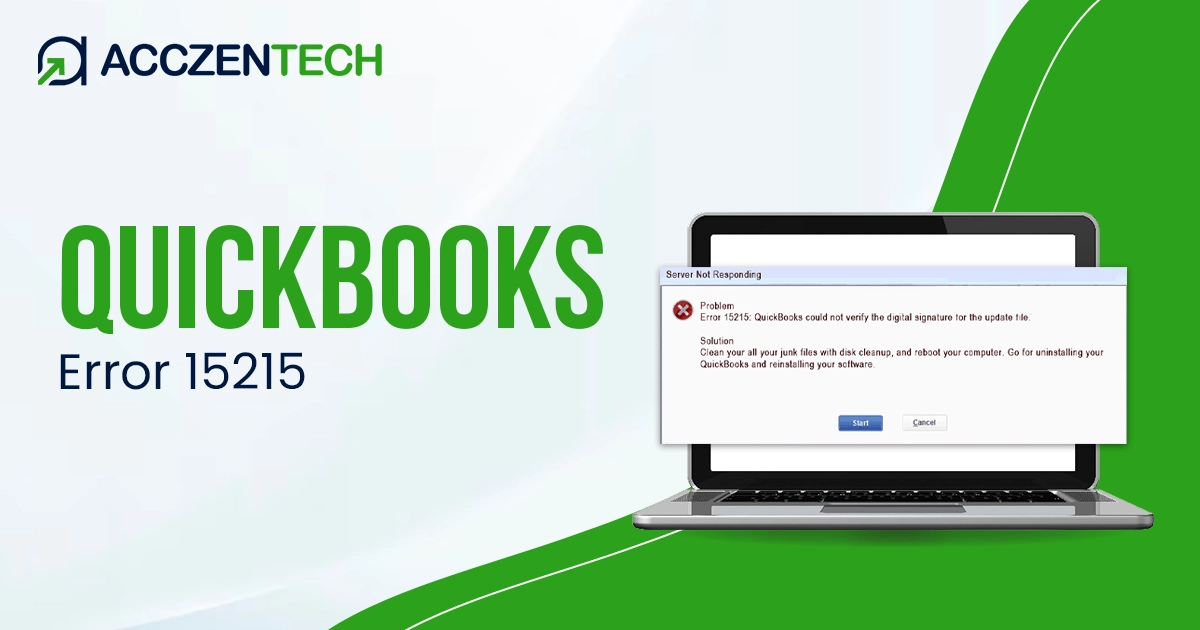
Failure to download QuickBooks or payroll updates can disrupt direct deposit, payroll processing, and other essential accounting operations. If you’re encountering QuickBooks Error 15215 with the warning message, “Unable to verify digital signature,” it means the update process has been interrupted due to verification or system-level issues.
We understand how frustrating this can be when your business operations are affected, but there’s no need to worry. In this guide, we’ll walk you through a clear overview of the error, its common causes, and step-by-step solutions to help you fix it quickly and get your QuickBooks updates back on track.
Quick Snapshot of QuickBooks Error 15215
| Aspect | Details |
| Error Name | QuickBooks Error 15215 |
| Common Cause | Payroll update interruption or digital signature verification failure |
| Error Message | “Unable to verify digital signature” or update failure message |
| Possible Reasons | Damaged system files, antivirus interference, disabled FCS service, outdated certificates |
| Solutions | Run QuickBooks as admin, repair QuickBooks, enable FCS, install certificate, run SFC scan, reinstall QuickBooks |
Reasons That Cause Update Error 15215 in QuickBooks
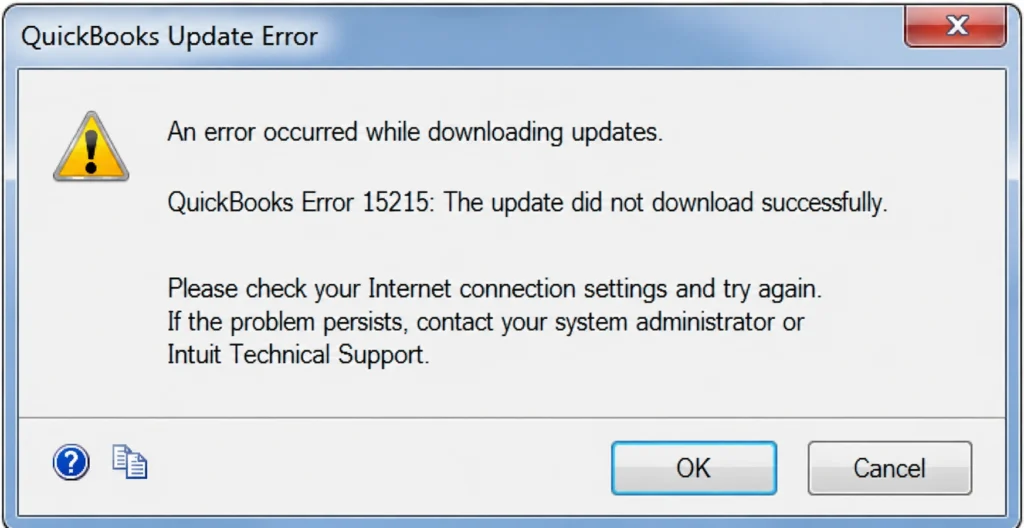
Let’s get familiar with the possible reasons that trigger QuickBooks error 15215 and hamper your QuickBooks or payroll update:
- Not having the required admin permissions
- The incomplete installation or damaged program files
- The QuickBooks File Copy Services might be disabled on your computer
- Windows files or folders might be damaged or corrupted
- Failure of QuickBooks to verify the digital signature certificate
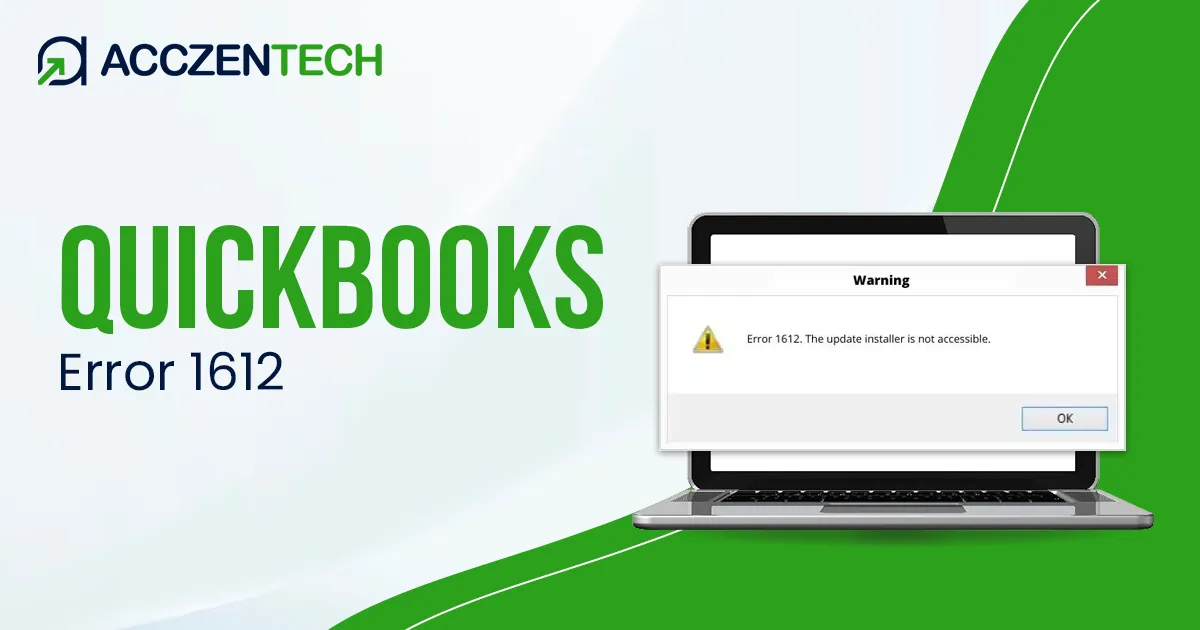
Learn More: How to Fix QuickBooks Error 1612 Update Installer Unavailable?
6 Best Solutions to Resolve QuickBooks Error 15215 When Updating
Below, we have mentioned step-by-step methods that will help you resolve the common issues that interrupt the software or payroll updates and cause QuickBooks error 15215.
1. Download the updates as an administrator
Try downloading the QuickBooks updates while logged in as an administrator to ensure the program has the necessary permissions to install updates successfully.
- Exit the company file and QB application.
- Right-click on the QuickBooks Desktop icon.
- Then, choose Run as Administrator.
- When you see a UAC prompt saying, “Do you want to allow this program to make changes to your computer?” click Yes.
- When done, try to download QuickBooks Desktop updates and payroll in the latest release.
2. Repair QuickBooks Desktop
Repairing the QuickBooks Desktop installation can help fix damaged or missing program files that may be causing the error
a. Download and install QuickBooks Tool Hub
The QuickBooks Tool Hub lets you resolve the common errors and issues in QuickBooks Desktop. To get started, you must download and install the latest version on your computer:
- Exit QB Desktop.
- Download QuickBooks Tool Hub (1.6.0.8) in the most recent version. Once the file is downloaded, save it to a location where you can easily find it, such as the Windows desktop or any folder.
Note: If you already have QuickBooks Tool Hub, check which version you use. Go to the Home tab and check the version at the bottom.
- Locate the downloaded file and double-click on it.
- Follow the steps on your screen and agree to the terms and conditions.
- When done, double-click on the Windows desktop to open the tool hub.
Note: If you can’t see the icon, manually search for the Tool Hub on the Windows desktop.
b. Run Quick Fix my Program
The Quick Fix my Program will shut down the background processes lingering in QB and cause issues when installing updates. Learn how to run a quick repair:
- Launch the QuickBooks Tool Hub.
- Click on Installation Issues in the left pane.
- Hit on Quick Fix my Program.
- When done, open QuickBooks and then your company file again.
- Now, try to download QuickBooks Desktop and the payroll services again.
3. Enable the QuickBooks File Copy services
To resolve QuickBooks Error 15270, make sure the QuickBooks File Copy Service (FCS) is turned on by following these instructions:
- Press Windows + R to launch the Run window.
- Enter COMPMGMT.MSC and click OK.
- In the Computer Management panel, open Services and Applications.
- Select Services from the list.
- Locate Intuit QuickBooks FCS and double-click it.
- Under Startup type, select Manual from the dropdown menu.
- Click Apply, then press OK to confirm the changes.
Once the service is enabled, refresh the payroll connection by validating the payroll service key again:
- Open QuickBooks and navigate to the top menu.
- Click Employees.
- Select My Payroll Service and then choose Activate Service Key.
- In the Service Keys window, select the active payroll subscription and click Edit.
- Continue clicking Next until the Finish option appears.
- Click Finish to complete the revalidation process.
Discover More Topics: Fix QuickBooks Error 1601 During Installation or Update
4. Install a digital signature certificate
Follow these steps to verify the digital signature for QuickBooks and reinstall the certificate:
- Navigate to C:Program FilesIntuitQuickBooks on your computer.
- Find the QBW32.exe file, right-click it, and choose Properties.
- Open the Digital Signatures tab and confirm that Intuit appears in the signature list.
- Click Details.
- In the Digital Signature Details window, select View Certificate.
- When the Certificate window opens, click Install Certificate.
- Keep selecting Next until the Finish button becomes available, then click Finish.
- Restart your computer to apply the changes.
- Launch QuickBooks again and download the latest update.
5. Run the SFC scan
Use the System File Checker (SFC) tool to scan and repair damaged Windows system files by following these steps:
- Press Windows + X on your keyboard from the desktop screen.
- From the menu, choose Command Prompt (Admin).
- You can also use Windows PowerShell (Admin) to run the command.
- If the User Account Control (UAC) prompt appears, click Yes to continue.
- In the command window, type SFC /scannow and press Enter.
- The System File Checker utility will begin scanning Windows system files and automatically repair any corrupted files it detects.
- Once the scan is finished, restart your computer to apply the repairs.
6. Re-install your QuickBooks Desktop
If you run into issues when uninstalling QuickBooks, there may be a problem with your Windows installation, permissions, or system configuration. In that case, it’s a good idea to contact your IT professional or Microsoft Support for additional help.
a. Remove QuickBooks
- Launch the Windows Start menu.
- In Windows search, type Control Panel, then right-click it in the search results.
- Now, click on Programs and Features or Uninstall a Program.
- Choose the QuickBooks Desktop version from the list of programs you wish to remove.
- Finally, click Uninstall/Change > Remove > Next.
b. Install QuickBooks Desktop again
If you need to install or transfer QuickBooks Desktop to a different computer, you can use the Migrator Tool to make the process easier.
- Make sure your internet connection is active.
- Launch the `QuickBooks.exe` file.
- Choose Express Install.
- Click Next.
- Select Install to begin the setup.
- Once the installation is complete, click Open QuickBooks.
Expert Guide: QuickBooks Error 1328: Causes, Symptoms & Complete Fix Guide
Final Words
So, we are at the end of this blog covering everything you should know to troubleshoot QuickBooks error 15215 and ensure the seamless payroll and QuickBooks Desktop updates. You will learn the possible causes and suitable methods to resolve them promptly and ensure the most recent updates.
Frequently Asked Questions
-
What causes update error 15215 in QuickBooks?
QuickBooks Error 15215 usually occurs when QuickBooks cannot verify a digital signature file or when another application interferes with the payroll or update process. It may also happen due to incorrect Windows settings, damaged system files, or disabled QuickBooks services.
-
How can I fix error code 15215 quickly?
You can start by running QuickBooks as an administrator and downloading updates again. If the issue persists, use the QuickBooks Tool Hub to repair the program, enable the QuickBooks File Copy Service (FCS), or install the digital signature certificate.
-
Can antivirus or firewall settings trigger error 15215?
Yes, antivirus programs and firewall settings can block QuickBooks update processes, leading to error 15215. Temporarily disabling security software or adding QuickBooks as an exception may help resolve the issue.
-
Do I need to reinstall QuickBooks Desktop to fix error 15215?
Not always. Most users can resolve the error by repairing QuickBooks, running the SFC scan, or updating services. Reinstalling QuickBooks Desktop should only be considered if other solutions fail.
About The Author

Elora Havencrest
Elora Havencrest is an accomplished Accounting Writer with over 12 years of experience crafting clear, engaging, and informative financial content. She specializes in bookkeeping, tax planning, and financial analysis, making complex accounting concepts easy to understand for business owners and finance professionals.
Elora's dedication to accuracy and clarity ensures her writing not only educates but also empowers readers to make confident and informed financial decisions.