How to Fix QuickBooks Error 1612 Update Installer Unavailable?
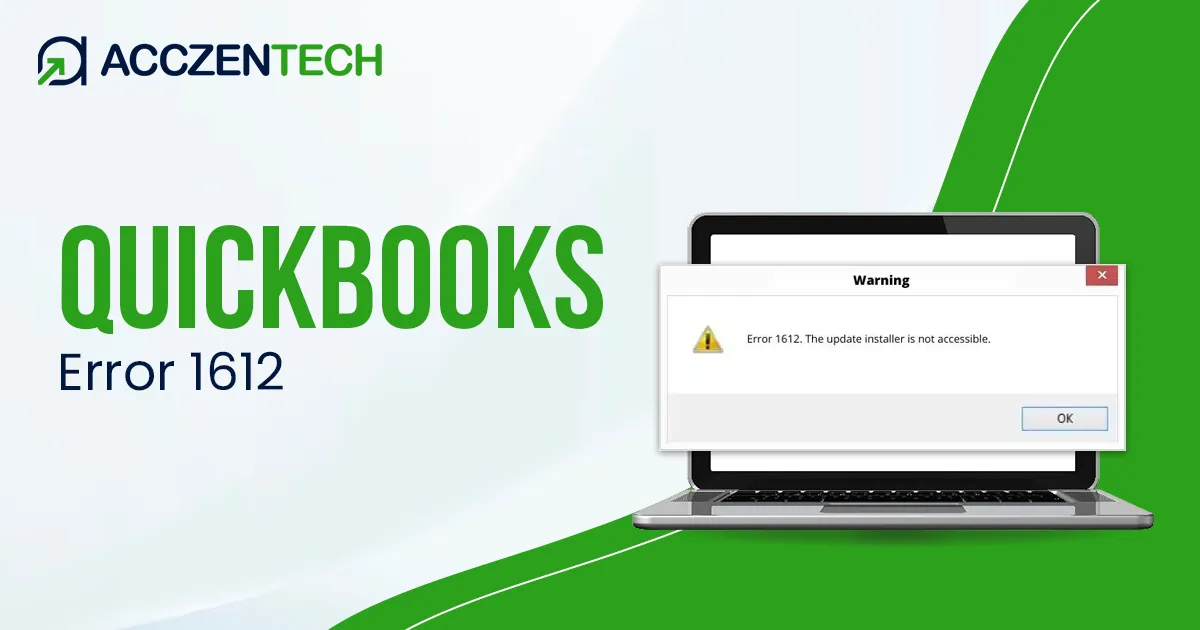
Regularly, Intuit releases the latest QuickBooks updates and security patches. When installing these updates, users often notice the QuickBooks error 1612 message, stating “Error 1612: The update installer is not accessible.” This typically indicates that the required component is missing.
If you’re also one of those users who is failing to install the updates, we’re here to help you. This quick troubleshooting guide covers the major reasons for this problem and provides solutions to prevent the error from recurring.
Quick Overview of QuickBooks Error Code 1612
|
Parameter |
Details |
|
Error Name |
QuickBooks Error 1612 |
|
Error Code |
1612 |
|
Error Message |
Error 1612: The update installer is not accessible |
|
Description |
Occurs when a user tries to install the latest updates & security patches. |
|
Category |
QuickBooks update error/ installation error |
|
Common Causes |
Corrupted QuickBooks installation, damaged Windows registry, malware, or Antivirus |
|
Quick Fix |
Manual repair of QuickBooks installation |
Signs Indicating QuickBooks Installation Error 1612
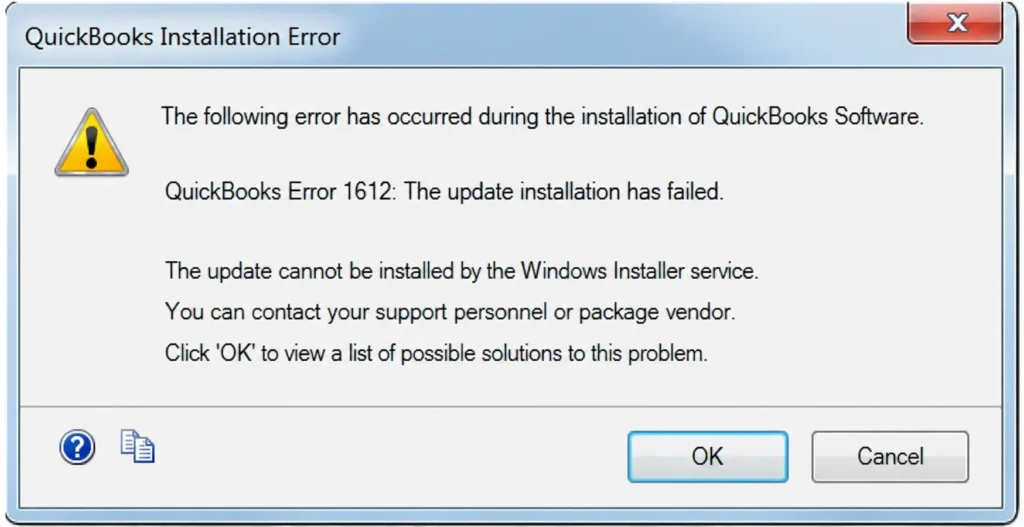
The QuickBooks installation error 1612 occurs when the Windows Installer fails to locate the required component to update or install the software updates. Along with this issue, users also notice the following signs. Keep your eyes on the following indicators:
- Distinct Error Prompts: The error message, stating “Error 1612: The update installer is inaccessible” or “Installation source is not available” on your screen during a payroll update or software patch is itself a major sign.
- QuickBooks Update Failures: Payroll tax table updates or new QuickBooks features fail repeatedly. Along with this, the update progress bar freezes mid-installation.
- Application Freezes and Crashes: QuickBooks unexpectedly freezes, hangs, or shuts down completely when trying to open a company file. Users also notice that the application stops responding to keyboard and mouse commands.
- General Windows Problems: Slow system performance and freezing of the Windows operating system during installation/updating QuickBooks. Users entirely unable to uninstall or repair their current QuickBooks Desktop version.
Keep Reading Further: Top 7 Solutions to Resolve QuickBooks Error 12031
Main Reasons for Facing QuickBooks Error 1612 Windows 11
It’s better to first understand what causes the QuickBooks error 1612 Windows 11. Below we have listed the major reasons for facing this issue:
- A damaged or corrupted QuickBooks Desktop installation.
- Mistakenly deletion of the QuickBooks program files.
- If you have an antivirus program, it can prevent QuickBooks from installing updates/ security patches.
- QuickBooks installation error 1612 also occurs if the installation CD used to install QuickBooks and its updates is defective.
- Windows registry corruption is another major cause of the error 1612 in QuickBooks.
- Incorrect setup of Windows Firewall can also bring the QuickBooks error message 1612.
Troubleshooting Techniques for QuickBooks Desktop Error 1612
Once you got to know about the factors that can give rise to QuickBooks Desktop error 1612, now quickly perform the troubleshooting methods given below to fix this issue:
Troubleshooting Method 1 – Manually Repair QuickBooks Desktop Installation
As discussed earlier, a corrupt/damaged/incomplete QuickBooks Desktop installation can cause issues, such as error 1612 when updating. Here’s how you can repair QuickBooks:
- First of all, go to the Windows Search bar and type Control Panel.
- Within the Control Panel, select Add/Remove Programs.
- Now, choose QuickBooks from the list and click the Uninstall/Change option.
- Click Repair in the QuickBooks Installation window.
- To repair, you need to perform the on-screen instructions.
- Once you finish the steps, restart your computer.
- Retry updating your QuickBooks software. Unfortunately, if you still get the same QuickBooks error message 1612, perform the next method.
Troubleshooting Method 2 – Run System File Checker to Scan QuickBooks
If there’s any missing or damaged .msi file, it can bring the QuickBooks error 1612. You must run System File Checker for a quick scan:
- Open the Run dialogue box (press Windows + R) keys.
- Enter cmd in the search bar and open the Command Prompt.
- Within the command prompt, enter SFC/scannow, and press the Enter key.
- Now, wait till the scan gets completed. Do not turn off the computer in between.
- Once the scan finishes, restart your computer. Update QuickBooks and check if the QuickBooks error 1612 Windows 11 is resolved or not. If not, perform the next method.
Troubleshooting Method 3 – Reinstallation of Windows Installer
One of the major reasons for facing the error code 1612 in Windows is the corrupt or damaged Windows Installer. Let’s try removing and reinstalling the installer. Follow the steps below:
- Press Windows Key + R to open the Run dialog box.
- Type cmd and press Ctrl + Shift + Enter to open the Command Prompt as an Administrator.
- Type the following command and press Enter:
- DOS
- msiexec /unregister
- Next, type this command and press Enter:
- DOS
- msiexec /regserver
- Now, restart your computer to complete the reset.
If this doesn’t work, restart the Installer Service by performing the steps below:
- Press Windows Key + R, type services.msc, and press Enter.
- Scroll down and find Windows Installer.
- Right-click on it:
- If it is running, click Restart.
- If it is stopped, click Start.
- Double-click it, ensure the Startup type is set to Manual, and click OK.
Discover More Topic: QuickBooks Error 6189, 816: Complete Guide to Fix Company File Issues
Troubleshooting Method 4 – Check Antivirus/Firewall Settings
Windows Firewall or Antivirus can block QuickBooks and related services. That’s also the reason why users encounter QuickBooks error code 1612. Configure these settings with the steps given below:
- First of all, you need to ensure that your Windows Firewall settings are not blocking QuickBooks and its services.
- If it’s blocking, open your Antivirus program.
- Here, look for what applications are blocked by Antivirus.
- If QuickBooks is listed in the block list, remove it.
- However, if you’re still failing to download the QuickBooks updates, uninstall the Antivirus program.
- Open the Control Panel and choose Programs and Features.
- Here, select your Antivirus Program, and then choose the Uninstall option.
- Once confirmed, restart your computer.
Troubleshooting Method 5 – Reset Patch
If the QuickBooks Desktop error code 1612 still remains on your screen when updating QuickBooks, try resetting the patch. It’s another basic troubleshooting that can help you:
- You need to re-download the patch if it fails.
- For this, visit the Share Download Folder.
- Here, turn it ON and OFF.
- Turn OFF, then choose the Save option, and turn ON.
- Finally, click Save. Check if the issue is resolved or not.
Tips to Prevent QuickBooks Desktop Error Code 1612 from Recurring
The above methods are effective in addressing QuickBooks Desktop error code 1612. Now, take note of the following preventive tips to avoid this error from happening again:
- The Windows Installer cache can occasionally corrupt or lose files. So, regularly update the Installer.
- Regularly clear out temporary installation files and run disk cleanups.
- Do not manually shut down or restart your computer while QuickBooks or Windows is installing patches, as this frequently creates the missing source file (.msi) issue.
- Ensure the latest QuickBooks Install Diagnostic Tool download and run it. This automated tool checks for and repairs damaged Microsoft components like MSXML and the .NET Framework.
- Outdated software versions can conflict with newer system settings. Always download updates from verified installation sources.
Read More: QuickBooks Error 15271 – Multi-User Mode Not Working Fix Guide
In a Nutshell!
Hopefully, the above troubleshooting methods have helped you fix QuickBooks error 1612. It’s suggested to all users like you to regularly update the Windows Installer, ensure Antivirus is not blocking QuickBooks, run System File Checker, and manually repair QuickBooks Desktop software. For any queries or quick professional help, feel free to speak to the live QuickBooks experts.
Frequently Answered Questions (FAQs)
-
What causes QuickBooks error 1612?
This error occurs when the QuickBooks installation files or its update installer become corrupted. It usually prevents the software from accessing the necessary .msi file required to complete an update or installation.
-
How can I quickly troubleshoot QuickBooks error 1612?
The fastest solution is to download and run the QuickBooks Install Diagnostic Tool from the QuickBooks Tool Hub. Also, repairing your QuickBooks installation through the Control Panel can fix underlying file corruption.
-
Will QuickBooks error 1612 Windows 11 lose my company data files?
No, this error only affects the program’s installation and update files, not your financial data. Your company files (.qbw) remain safe, though it is always smart practice to keep a recent backup.
-
Can a damaged Windows Registry cause QuickBooks installation error 1612?
Yes, broken Windows registry paths or incorrect permissions can cause this issue. You must run a system file check or perform QuickBooks repair.
-
Why do I see error 1612 when trying to uninstall QuickBooks?
Uninstalling requires the original installation path to be intact, and Error 1612 indicates that those source files are missing. You can bypass this by using the Windows Program Install and Uninstall troubleshooter to force the removal.
About The Author

Elora Havencrest
Elora Havencrest is an accomplished Accounting Writer with over 12 years of experience crafting clear, engaging, and informative financial content. She specializes in bookkeeping, tax planning, and financial analysis, making complex accounting concepts easy to understand for business owners and finance professionals.
Elora's dedication to accuracy and clarity ensures her writing not only educates but also empowers readers to make confident and informed financial decisions.