Pro Guide to Troubleshoot Installation QuickBooks Error 1904
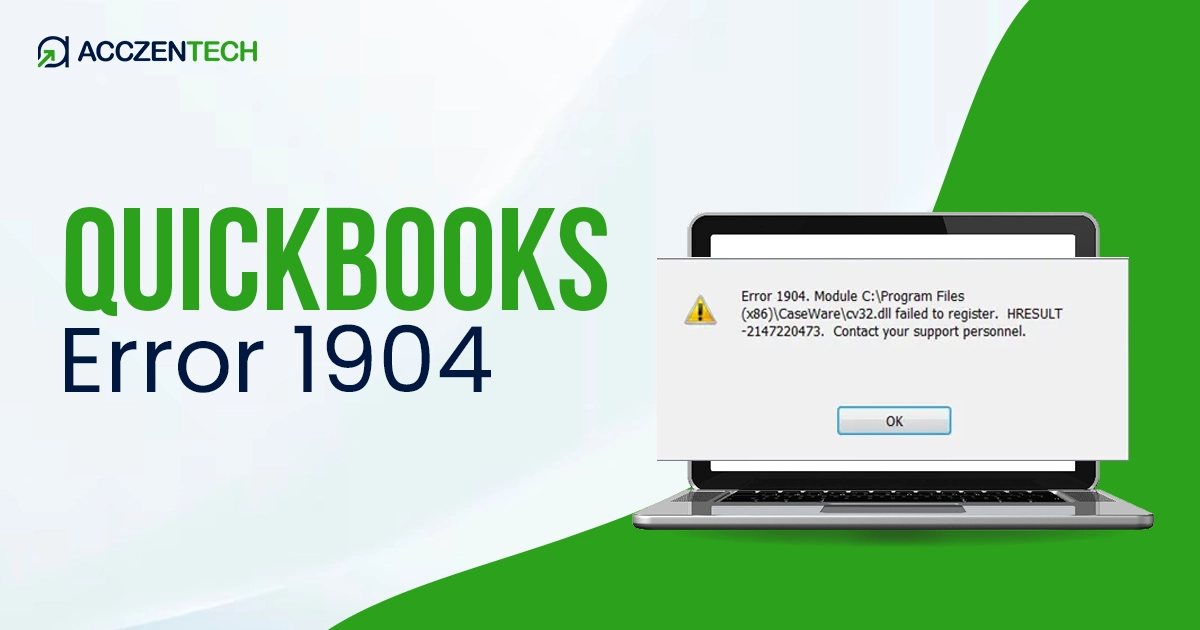
QuickBooks Error 1904 is a common installation issue that prevents users from completing the setup process. One of the primary reasons for this problem is that certain system files fail to register correctly in Windows. Typically, users face error 1904 when installing or updating their QuickBooks Desktop software. If you’re also one of such users, this quick troubleshooting guide will help you fix this installation error. Here, we will discuss its major causes, how to diagnose it, and ways to fix it.
Quick Overview of QuickBooks Error Code 1904
| Parameter | Details |
| Error Name | QuickBooks Error 1904 |
| Error Code | 1904 |
| Error Message | “Error 1904: Module failed to register.” |
| Description | Occurs when a module or file fails to register during QuickBooks installation |
| Category | Installation / System File Error |
| Common Causes | Missing Microsoft components, permission issues, and antivirus interference |
| Affected Versions | All versions of QuickBooks Desktop |
| Quick Fix | Use QuickBooks Install Diagnostic Tool |
Warning Signs of Error 1904 in QuickBooks
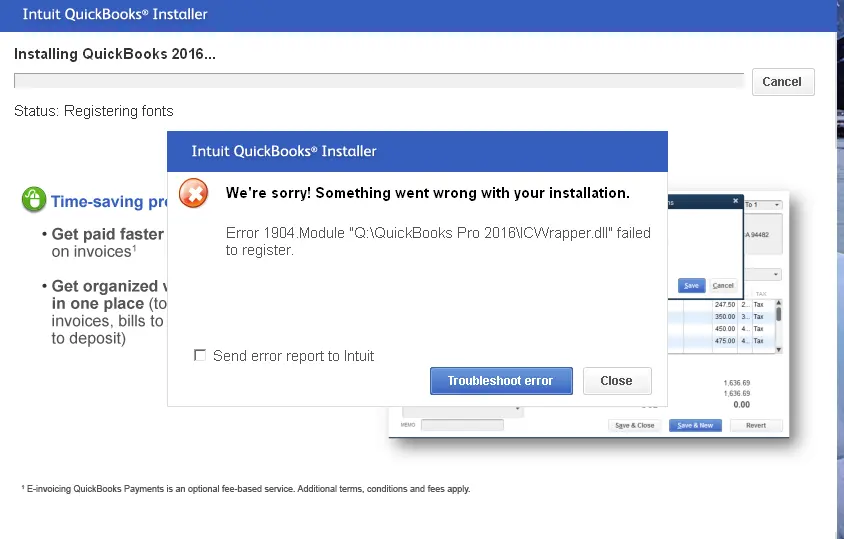
- Error message: “Error 1904: Module failed to register.”
- Installation stops abruptly or freezes during setup
- Certain QuickBooks components fail to install completely
- Missing or unregistered files like DLL or MSXML
- The system becomes slow or unresponsive during installation
Related Post: How to Fix QuickBooks Error 324: Account Not Found
Major Reasons For Facing QuickBooks Error Code 1904
The QuickBooks Error code 1904 mainly occurs due to system conflicts or missing files required for installation. Have a look at the root causes given below, which will help you troubleshoot the error correctly.
- Damaged Microsoft Components: Essential Microsoft components, such as .NET Framework, MSXML, and Visual C++ Redistributable,s may be corrupted or outdated, preventing file registration.
- Insufficient User Permissions: If you are not logged in as an administrator, Windows may block QuickBooks from registering important installation files.
- Antivirus or Firewall Interference: Windows security software can detect QuickBooks program files as threats, blocking them when a user tries to install or update QuickBooks software.
- Corrupted Installation Files: Also, a damaged or incomplete QuickBooks setup file can cause this error during installation.
- Outdated Windows System: Missing updates or incompatible Windows versions may prevent the installation or update of QuickBooks components.
Quick Methods to Fix QuickBooks Installation Error 1904
Error 1904 linked to permission conflicts or damaged system files, but it can be resolved with a few quick and effective methods.
1. Fix Microsoft Components Issues
For proper installation of Windows programs, such as QuickBooks, it needs several Microsoft components. If these components are damaged, the installation won’t be successful. Here’s how to repair Microsoft components:
- Open Run window (Press Windows + R). Here, type appwiz.cpl to open Programs and Features tab.
- Locate Microsoft .NET Framework and click Uninstall/Change
- Select the Repair option and follow on-screen instructions
- Repeat the same process for all Microsoft Visual C++ Redistributables
- If repair fails, uninstall and reinstall the latest versions from Microsoft’s official site
- Restart your computer after completing the process
Repairing these components ensures all required files are correctly registered and accessible.
2. Run QuickBooks Install Diagnostic Tool
The Install Diagnostic Tool is effective in fixing installation-related errors. For this, firstly download the QuickBooks Tool Hub from the official Intuit website, and then perform the steps below:
- Install and launch the Tool Hub program.
- Go to the Installation Issues tab.
- Click QuickBooks Install Diagnostic Tool, and wait for the tool to scan and fix errors (may take up to 20 minutes)
- Restart your system after completion
Note: This tool is highly effective because it targets .NET Framework, MSXML, and C++ issues simultaneously.”
Recommended Article: How to Fix QuickBooks Error 1327 | Invalid Drive Error
3. Install QuickBooks in Selective Startup Mode
Ensure that no third-party programs or background services are interfering with QuickBooks installation. We suggest you to run QuickBooks installation using a selective startup and avoid problems, such as QuickBooks error message 1904. For this:
- Open Run window by pressing Windows + R. Here, type msconfig, and press Enter.
- Under the General tab, select Selective Startup, and uncheck Load startup items.
- Now, move to the Services tab and select the Hide all Microsoft services box.
- Choose the Disable all option to stop non-Microsoft services.
- Now, ensure applying the above changes. Once done, restart your computer.
- Try to install QuickBooks software again in this clean environment.
- Once the installation is over, get back to Normal Startup.
This method will help you eliminate interference from unnecessary background applications.”
4. Temporarily Disable Antivirus Software
Security programs often block installation files, especially if they misinterpret them as threats. You must disable the antivirus services by carrying out the below steps:
- Open your antivirus or firewall settings, and look for the option to disable protection temporarily.
- Choose a short duration (15–30 minutes)
- Run the QuickBooks installer again
- Once installation completes, turn the antivirus back on
For long-term use, we suggest you add QuickBooks as a trusted program to avoid future issues.
5. Run Installation as Administrator
Running the installer without proper permissions can prevent system files from registering.
- Access the QuickBooks setup file (Setup.exe), and right-click the file to select Run as Administrator.
- Here, enter admin credentials if prompted.
- Now, follow the installation wizard to complete setup.
Running installation as Administrator allows full access to the system for proper installation and update.
Recommended Article: How to Fix QuickBooks Error 1327 | Invalid Drive Error
6. Manually Register the File
If the QuickBooks error message 1904 highlights a specific file (usually DLL), manual registration may resolve the issue. Here’s how to do so:
- Note the file name mentioned in the error message
- Press Windows + R to open the Run window. Here, type cmd, and press Enter.
- In Command Prompt, type: regsvr32 filename.dll.
- Press Enter and wait for confirmation.
- Once done, retry the QuickBooks installation.
Best Practices to Avoid QuickBooks Installation Error 1904
Preventing QuickBooks Error 1904 is easier than fixing it if you follow best practices:
- Always keep your Windows operating system updated.
- Install QuickBooks using administrator privileges.
- Make sure no background application is interrupting the installation process midway.
- Use reliable antivirus software and configure exclusions for QuickBooks.
- Regularly update Microsoft components like .NET Framework and Visual C++.
- Download installation files only from official or trusted sources.
Read More: Fix QuickBooks Error 6123 When Opening a Company File
The Last Outcome
Here we end this blog. QuickBooks Error 1904 can interrupt your installation and setup process. We recommend you to repair Microsoft components, use diagnostic tools, and ensure proper system permissions. Follow the above blog post for a seamless QuickBooks installation or update. You can anytime connect with experts when facing any confusion or problem.
FAQs
What does QuickBooks Error 1904 mean?
QuickBooks Error code 1904 is an installation error that occurs when a required file fails to register. One of the primary reasons for facing this error is a lack of system permissions or missing Microsoft components. Users can resolve it by fixing system settings or file registration.
Can I fix Error 1904 without QuickBooks reinstallation?
Yes, by running the Install Diagnostic Tool or fixing Microsoft components, you can easily fix Error 1904 without QuickBooks reinstallation.
Does antivirus software cause QuickBooks Error 1904?
Yes, Windows security services or antivirus software can block QuickBooks program files, considering them as a threat, and resulting in installation error code 1904 in QuickBooks. Users can avoid this problem by temporarily disabling antivirus.
Is QuickBooks error 1904 related with Windows updates?
Yes. An outdated Windows computer can lead to QuickBooks error 1904. This can be because of compatibility issues. Also, missing Windows updates may prevent Microsoft components from functioning correctly. So, you must regularly update your system for smoother QuickBooks installations.
What tools can fix QuickBooks installation errors?
The QuickBooks Install Diagnostic tool is effective for fixing installation errors, such as QuickBooks error code 1904. This tool automatically detects the problem and repairs the same.
About The Author

Elora Havencrest
Elora Havencrest is an accomplished Accounting Writer with over 12 years of experience crafting clear, engaging, and informative financial content. She specializes in bookkeeping, tax planning, and financial analysis, making complex accounting concepts easy to understand for business owners and finance professionals.
Elora's dedication to accuracy and clarity ensures her writing not only educates but also empowers readers to make confident and informed financial decisions.