QuickBooks Error 6176 Can’t Open Company File – Causes & Solutions
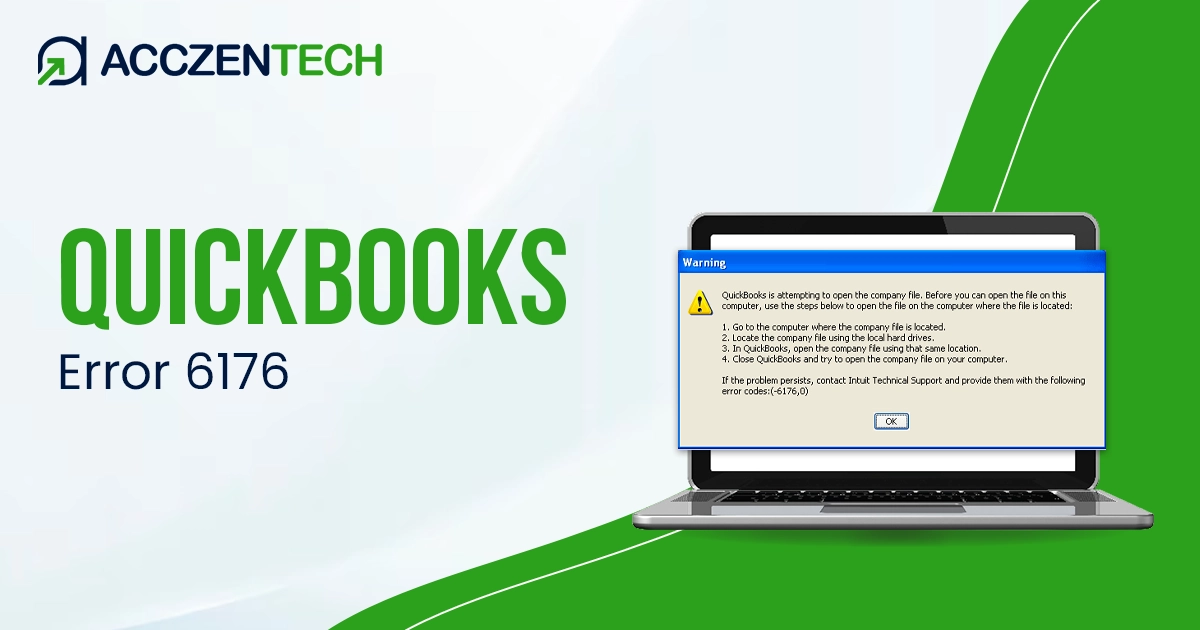
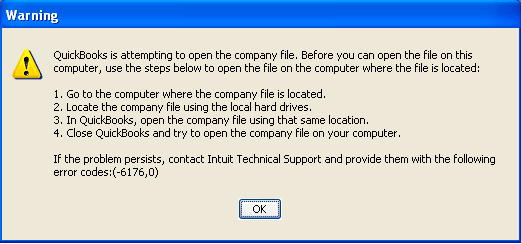
QuickBooks error 6176 is a network issue that most users face when switching to multi-user mode. Each time a user encounters this issue, the Windows operating system starts performing slowly or may crash. One of the main reasons for this company file issue is incorrect server hosting settings. This problem occurs along with an error message stating, “QuickBooks is attempting to open the company file. Before you can open the file on this system, use the steps to open the file on the computer where the file is located. Error codes: (-6176, 0).”
In this quick blog post, we will learn more about this error, why it occurs, and how to fix it permanently. Let’s begin!
Quick Overview of QuickBooks Error Code 6176
|
Parameter |
Details |
|
Error Name |
QuickBooks Error 6176 |
|
Error Code |
6176 |
|
Error Message |
QuickBooks is attempting to open the company file. Before you can open the file on this system, use the steps to open the file on the computer where the file is located. Error codes: (-6176, 0) |
|
Description |
Occurs when a user tries to access company file in QuickBooks multi-user mode. |
|
Category |
Company file/multi-user error |
|
Common Causes |
Inaccurate hosting settings, damaged company data, improper QuickBooks installation, and firewall interruptions |
|
Quick Fix |
Checking hosting settings on all the workstations |
Common Symptoms of QuickBooks Error Code 6176
Users may also encounter the following issues when QuickBooks error code 6176 occurs. These signs can help you learn about the error earlier and take the necessary steps. Have a look:
- The QuickBooks error message 6176 is itself an indication.
- QuickBooks software unexpectedly crashes.
- The Windows system starts performing slowly.
- Periodically, your system freezes.
- No response from keyboard tabs or mouse clicks.
Read More: How to Fix QuickBooks Error 557 in Minutes
What Causes QuickBooks Company File Error 6176?
Before we begin troubleshooting the QuickBooks company file error 6176, let’s take a quick look at the major factors that cause this company file issue in QuickBooks multi-user.
Incomplete Installation of QuickBooks
An improper or incomplete installation of the QuickBooks software is one of the major reasons for facing the error code 6176. These installation files can disrupt the server connection when a user tries to access the company file.
Damaged Company Data
Another reason for encountering QuickBooks error code 6176, 0 is the damaged or corrupt company data on the hosting computer (server).
Wrong Hosting Settings
If the hosting settings on the server and workstations are incorrect, it can block or prevent the connection to the company file when using QuickBooks multi-user mode.
Outdated QuickBooks Software
One of the main reasons for error 6176 is outdated QuickBooks software on the server or workstations on the network.
Windows Compatibility Issues
If you’re running QuickBooks on an outdated Windows system, it can trigger compatibility issues. As a result, when a user tries to open a company file in QuickBooks multi-user mode, it can display the QuickBooks error message 6176.
Proven Solutions to Troubleshoot QuickBooks Error Code 6176, 0
Now, as you are aware of the prominent causes of QuickBooks error code 6176, 0, let’s learn how to fix it permanently. Below, we have mentioned the expert-proven techniques to get rid of this company file issue. Carefully perform each method:
Troubleshooting Method 1 – Verify Correct Hosting Settings
You need to verify that the multi-user hosting settings are enabled only on the server or host computer. No other workstation should be activated with QuickBooks multi-user hosting settings. Let’s learn how to check this:
On Your Workstations:
- First of all, open QuickBooks on all the workstations.
- Now, move to the File tab, click it, and then choose Utilities from the drop-down menu.
- Here, if you see Stop Hosting Multi-User Access, click this option.
On Server or Host Computer:
- Open the QuickBooks software and choose the File menu.
- Here, tick-mark the Host Multi-user access box given under the Utilities tab.
- By this, the server computer will host the company files on your network.
- Now, retry accessing the company file on the server from your network workstations. If you still get the QuickBooks error message 6176, move to the next method.
Troubleshooting Method 2 – Take Help from QuickBooks Tool Hub
The built-in QuickBooks Tool Hub utility is effective in resolving generic QuickBooks errors. To fix QuickBooks error code 6176, you must run the QuickBooks File Doctor Tool, as it can help you fix company file and network-related problems. Follow the steps below to run this tool:
- First of all, ensure no background application is running, including QuickBooks.
- Once you close all the tabs and windows, perform a QuickBooks Tool Hub download and installation.
- After installing the Tool Hub, choose the Company File Issues tab.
- Within this tab, select the QuickBooks File Doctor tool. Double-click the tool to run.
- Here, you will be asked to upload the company file on which you are facing the QuickBooks error code 6176, 0.
- Upload the file, and let the File Doctor Tool finish fixing the company file issues.
- Once it’s done, choose the Finish button. If the error still remains the same, it means the problem is something else. Perform the next method.
Related Topics: QuickBooks Error 1311 Installation Problem: A Complete Repair Guide
Troubleshooting Method 3 – Update your QuickBooks Software
As mentioned above, an outdated QuickBooks software can be the primary reason for facing the QuickBooks error message 6176. Here’s how you can fix it:
- First of all, you need to close all the running applications on your system.
- Next, move to the Help tab, and then choose the Update QuickBooks Desktop option.
- Now, from the drop-down menu, click the Update Now option.
- After this, choose the Reset Update option, and then click Get Updates option.
- Finally, once the update process is complete, close your QuickBooks Desktop.
- Try to open your company file. If you again meet the QuickBooks error message 6176, move to the next method.
Method 4 – Ensure Correct Windows Permissions for QuickBooks
Incorrect Windows permissions are one of the primary reasons for facing an error code 6176 in QuickBooks. To fix it, verify the correct Windows permissions for QuickBooks to function properly.
- Make sure your system has no running applications, including QuickBooks Desktop.
- Now, move to C:Program Files through Windows Explorer, and right-click the Intuit folder.
- Here, choose Properties, and then move to the Security tab, and select the Advanced button.
- Next, move to the Owner field, and ensure the Users group is selected. Take Ownership if you do not see USERS as the owner. For this:
- Go to Advanced Security Settings, and look for Intuit permissions window.
- Here, choose Change for the owner field, and type USERS and press Enter.
- After this, select the Replace owner on sub-containers and objects box.
- Now, choose Users (YOUR COMPUTER NAMEUsers) Full Control.
- Click Ok
- Once you perform the above steps, now move to Intuit folder properties window. On the security tab, click the Edit button.
- Continue choosing Users (YOUR COMPUTER NAMEUsers) and give Full Control.
- Done? Now, click OK, and exit the Intuit folder properties window.
Preventive Tips – Never Face QuickBooks Error 6176 Again!
QuickBooks error 6176 usually occurs when the software fails to fetch the server’s system address or when Firewall blocks the connection. To never face this company file error again, consider the tips below:
- Ensure your QuickBooks Desktop and Windows operating system are updated.
- Only the Server/Host computer needs to enable the Host Multi-User Access.
- The folder containing .qbw files has full control permissions.
- Make sure the specific ports of your QuickBooks version are open for both inbound and outbound traffic.
- The Windows User Account Control settings must be disabled.
The Bottom Line!
Hopefully, the above information has helped you fix the QuickBooks error 6176. We suggest that you keep your QuickBooks software updated, check the hosting settings on the server and all the workstations, turn off the firewall, and keep the User Account Control Settings off. For any further queries or help, feel free to ask your queries to QuickBooks live experts.
Related Topic: How to Resolve QuickBooks Error PS032 Payroll Update Issue
FAQs
Question 1 – What exactly causes QuickBooks error code 6176?
The error 6176, 0 in QuickBooks usually occurs when the software cannot access the system address of the server. This is typically caused by restrictive firewall settings, incorrect hosting configurations on workstations, or a damaged Windows registry.
Question 2 – Does this error indicate that my company file is corrupted?
Not necessarily. File corruption may be one of the reasons for facing error 6176. But, it is more often a communication issue, and usually indicates that the software is not able to reach the file, rather than the data inside being broken.
Question 3 – How can I ensure my hosting settings are correct?
To verify the correct hosting settings on your computer, move to File > Utilities on your workstations. If you see Stop Hosting Multi-User Access, select it to disable hosting. Your the Server or host computer should show Host Multi-User Access as an available option.
Question 4 – Can Firewall or antivirus update cause this QuickBooks company file error 6176?
Yes. Security software updates can sometimes change your firewall rules, causing the antivirus or Firewall to block QuickBooks processes. If the error appears suddenly after an update, try to temporarily turn-off your antivirus and check if the connection restores.
Question 5 – How can QuickBooks File Doctor tool help me fix error 6176?
The QuickBooks Tool Hub is the best resource. Specifically, running the Quick Fix my Program (under Program Problems) or the QuickBooks File Doctor (under Company File Issues) will resolve the majority of 6176 triggers automatically.
About The Author

Elora Havencrest
Elora Havencrest is an accomplished Accounting Writer with over 12 years of experience crafting clear, engaging, and informative financial content. She specializes in bookkeeping, tax planning, and financial analysis, making complex accounting concepts easy to understand for business owners and finance professionals.
Elora's dedication to accuracy and clarity ensures her writing not only educates but also empowers readers to make confident and informed financial decisions.