Fix QuickBooks Error 1334: Can’t Install, Update, or Repair
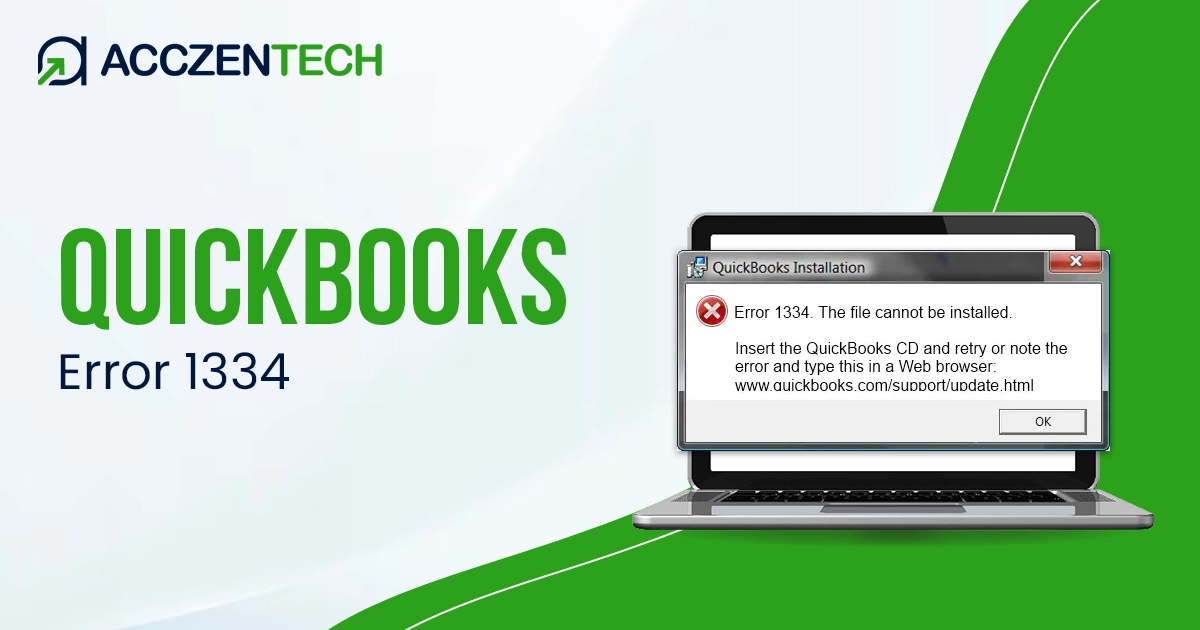
QuickBooks Error 1334 can show up on your screen when you try to install, update, or repair the desktop application. This is what the error message can look like:
“Error 1334: The file [filename] cannot be installed because it cannot be found…“.
Often, the underlying reason is either a missing or damaged component or installation files. However, there is more to the story.
In this article, we will go into depth and explore all the reasons that can lead to the error code 1334 in QuickBooks and walk you through the troubleshooting methods for the same.
An Overview of QuickBooks Error 1334
The table below gives a quick view of error code 1334 in QuickBooks Desktop.
|
Error Code |
1334 |
|
Description |
Users run into an error when installing, updating, or repairing the QBDT application |
|
Potential Causes |
Corrupt Windows registry keys or components, incomplete installation, or missing .NET Framework |
|
Solutions |
Repair the .NET Framework, manually reinstall QuickBooks, and rename the installation folder |
|
Tools Involved |
QuickBooks Tool Hub, QuickBooks Install Diagnostic Tool |
What Users Experience When Facing Error Code 1334 on Their Computer
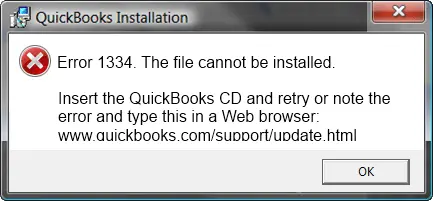
When dealing with QuickBooks error 1334, you can expect to face problems installing the desktop application or updating it.
- You might see an error message with a specific code on your screen
- The error might also appear when you try to repair the desktop application
- There is an abrupt termination of the installation or update process
- The system freezes, crashes, or becomes laggy or unresponsive
Moreover, you might find yourself unable to update the payroll tax table and thus cannot send paychecks to your employees on time.
Possible Factors that Lead to Error Code 1334 in QuickBooks Desktop
Here are all the possible reasons why you encounter QuickBooks error code 1334:
- There is an incomplete or improper installation of QuickBooks Desktop
- Windows components, such as .NET Framework, might be damaged or not enabled
- The company file extension is not correct
- Windows registry files or QuickBooks installation files have been modified, corrupt, or gone missing.
- There has been a virus or malware infection in system files affecting QB files and functionalities as well.
- A third-party program has modified the necessary files required to run QuickBooks programs.
- The downloaded setup file for QuickBooks Desktop is corrupt.
These are the common reasons you see installation errors on your screen.
Read More Topics: QuickBooks Error 6189, 816: Complete Guide to Fix Company File Issues
How Can You Troubleshoot QuickBooks Error 1334 During the Installation or Update
The following step will help you fix QuickBooks error 1334. Go through the instructions and carry them out depending on whether you run into the error when installing QB Desktop or while repairing it.
1. Manually Repair Windows .NET Framework
QBDT requires that you have the .NET Framework installed on your computer for it to be able to run web-based apps. Here is how you can run a manual repair on the component if you run into an error when installing QuickBooks Desktop:
- Close all the programs if open
- In the Search bar beside the Start menu, enter Control Panel
- Open Control Panel, and navigate to Programs and Features
- Tap on Uninstall a Program, followed by Turn Windows features on or off
- Look for .NET Framework
You need to verify the settings for .NET Framework 4.5 (or later) as well as .NET Framework 3.5 SP1. Remember that .NET. Framework 4.5, 4.6, 4.7, and 4.8 required the same troubleshooting steps.
a. NET Framework 4.5 (or later)
Follow these steps in case you find that the box for .NET Framework 4.5 (or later) isn’t already selected.
- Mark the checkbox for .NET Framework 4.5 (or later)
- Choose OK
This will save the changes. Now, restart the computer.
However, these are the steps you need to follow if the checkbox for .NET Framework 4.5 (or later) wasn’t already enabled:
- Unmark the checkbox so that .NET Framework 4.5 (or later) is not disabled
- Choose OK
Restart your computer and now follow the previous steps to turn it back on. Once again, you will need to restart your computer.
b. NET Framework 3.5 SP1
Follow these steps if the checkbox for NET Framework 3.5 SP1 isn’t already marked:
- Mark the checkbox for NET Framework 3.5 SP1
- Choose OK
Now restart the computer.
Follow these steps if the checkbox for NET Framework 3.5 SP1 was marked:
- Unmark the checkbox for NET Framework 3.5 SP1, turning it off
- Choose OK
Restart the computer. Now follow the previous steps to enable NET Framework 3.5 SP1.
Finally, you will need to restart the computer once again.
2. Uninstall QuickBooks Manually, Renaming Certain Folders
If you run into QuickBooks error 1334 when repairing the desktop application, you will need to manually reinstall it.
However, this will be different from traditional reinstallation in a way.
- Close all QuickBooks windows and other programs running on your computer
- Follow the general procedure of uninstalling a program to uninstall QuickBooks
- In the Search box beside the Start menu, type File Explorer and open it.
- Navigate to the folder that usually keeps QB files. It is usually in one of the following locations
C:\Users\(current user)\AppData\Local\Intuit\QuickBooks (year)
C:\Program Files\Intuit\QuickBooks (year)
C:\ProgramData\Intuit\QuickBooks (year)
64-bit version C:\Program Files (x86)\Intuit\QuickBooks (year)
- Now, right-tap on the folder and choose to Rename.
- At the end of the folder name, even after the extension, type .old.
This will change the extension of the file and make it impossible for QuickBooks to open it after you reinstall the application.
Related Topic: QuickBooks Error 6175: Causes and Complete Troubleshooting Guide
Final Words
Installation or update errors like QuickBooks error 1334 can often interrupt your workflow. Proactive measures can not guarantee or eliminate errors altogether. However, keeping your system free of threats and running periodic updates for both the OS and applications does prove helpful. You can adopt these healthy practices to have a smoother QuickBooks experience.
Frequently Asked Questions
How do I fix QuickBooks error 1334?
To resolve QuickBooks error 1334, you can run the QuickBooks Install Diagnostic Tool from the Installation Issues section in QuickBooks Tool Hub. For that, you will need to have the latest version of QuickBooks Tool Hub installed on your computer.
What is error code 1334?
Error code 1334 in QuickBooks is a common installation, update, or repair problem. It happens when the software finds itself unable to install necessary files owing to corruption or interference from a third party or security program.
Why do I see error code 1334 when installing QuickBooks Desktop?
QuickBooks error code 1334 when installing the application or its update can be a result of damaged .NET Framework or Windows registry keys. It can also stem from a corrupt installation package or an incomplete or improper installation of QuickBooks.
I am trying to repair QuickBooks, but I run into an error. What should I do?
If you run into an error when repairing QuickBooks Desktop, your only bet is to reinstall it. However, a traditional reinstallation might not work. What you can do is uninstall QuickBooks Desktop, rename the installation folder by adding .old at the end of the name, and then install QB again.
About The Author

Elora Havencrest
Elora Havencrest is an accomplished Accounting Writer with over 12 years of experience crafting clear, engaging, and informative financial content. She specializes in bookkeeping, tax planning, and financial analysis, making complex accounting concepts easy to understand for business owners and finance professionals.
Elora's dedication to accuracy and clarity ensures her writing not only educates but also empowers readers to make confident and informed financial decisions.