How to Fix QuickBooks Error 1327 | Invalid Drive Error
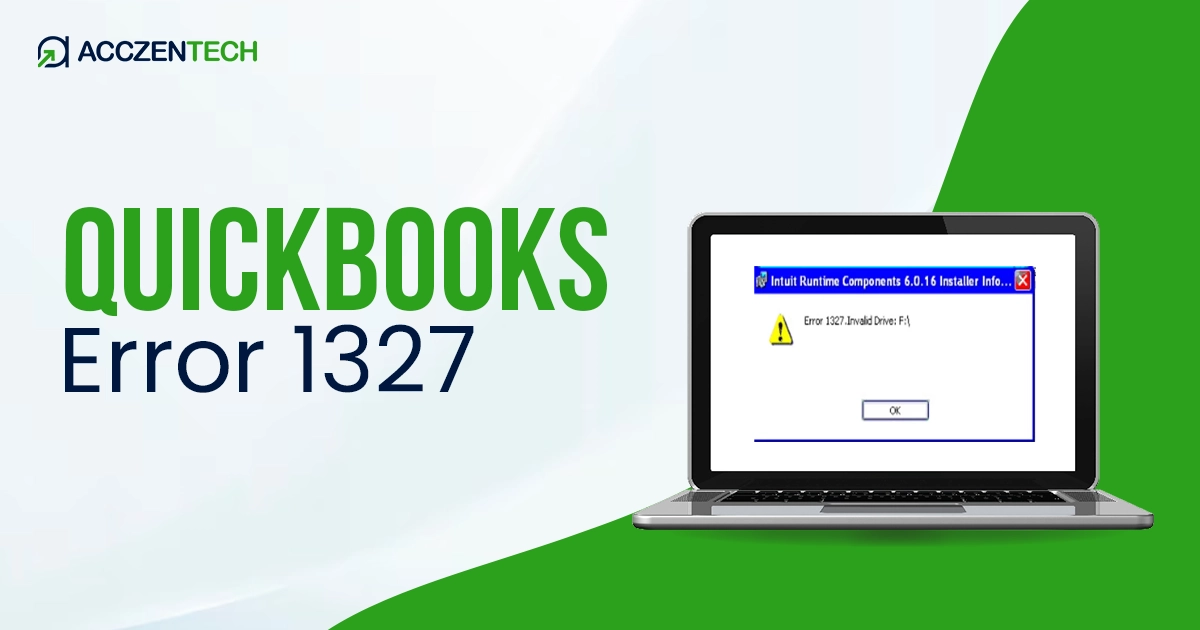
QuickBooks error 1327 is one of the common installation errors that occurs when your system fails to access a valid drive during setup or an update. The error code also displays an “Invalid Drive” message and halts the fresh QuickBooks installation or update operations. This mainly happens due to incorrect system paths, unmapped drives, or common Windows registry issues. In this guide, we will walk you through possible causes and suitable solutions to resolve error code 1327 and ensure a seamless installation.
Quick Look at QuickBooks Error Code 1327
| Parameter | Details |
| Error Name | QuickBooks Error 1327 |
| Error Code | 1327 |
| Error Message | “Error 1327: Invalid Drive” or “The drive is not valid.” |
| Description | Occurs when QuickBooks installation is attempted using an invalid or inaccessible drive path |
| Category | Installation / System Path Error |
| Common Causes | Incorrect drive mapping, disconnected network drive, corrupted registry entries, or missing system permissions |
| Affected Versions | All versions of QuickBooks Desktop |
| Quick Fix | Reconnect the drive or correct the installation path and run installation again |
What a User Experiences When Getting QuickBooks Error 1327?
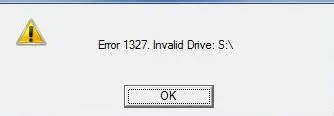 As mentioned earlier, error code 1327 usually appears when you’re installing or updating QuickBooks, and it’s often linked to invalid or incorrectly configured drive paths. Instead of the installation running smoothly, it tends to stop midway or throw repeated errors, making it difficult to finish the setup. Here’s what a user commonly experiences:
- The QuickBooks installation halted suddenly with the “Invalid Drive” message
- Failure to set up QuickBooks Desktop
- Common drive letter errors like C:, D:, or mapped drives
- Slow or unresponsive Windows OS during installation
- Repeated errors on the screen when attempting to reinstall QuickBooks
- Unable to access the intended installation directory or files
These experiences usually indicate a system issue in which the installer cannot locate a valid drive or path, often caused by disconnected external drives, incorrect registry entries, or misconfigured system settings.
Read More: Fix QuickBooks Error 6123 When Opening a Company File
What Causes QuickBooks Error 1327 When Installing?
Multiple factors can trigger QuickBooks error code 1327 on your screen. Let’s explore all the possible reasons one by one, as mentioned below: Some common reasons behind this error include:
- An invalid drive mapping, where a network or external drive isn’t available anymore
- Corrupted or outdated Windows registry entries pointing to the wrong drive
- A disconnected USB or external device that was previously used
- The system paths are directed to incorrect installation files to a removed or non-existent drive
- The Windows user profile might still be referencing the old drive locations
- The mapped drives might not be accessible
In simple terms, the error occurs when QuickBooks fails to locate or access the drive where the installation file is stored, preventing the software from installing.
Fix QuickBooks Error 1327 When Installing or Updating Promptly
In this section, we’ll go over troubleshooting techniques to help you fix the issues that cause QuickBooks error 1327 during installation. Perform the following methods one by one to resolve the error effectively:
1. Map the network drive
Reconnecting the network drive allows your computer to access the shared folder as expected. Once this is done, QuickBooks will find the location and continue without any wrong or missing path errors.
- Launch the Windows Start menu.
- In the Windows search field, type “This PC” and press Enter on your keyboard.
- Click on More (…), then choose Map network drive. If you don’t find the option, right-click on This PC and select Map network drive.
- Now, choose a drive letter in the Drive: dropdown menu.
- You can either:
- Type the complete path to the folder you want to map.
- Enter the path to the computer where the file is stored and click Browse to locate the folder.
- Check Reconnect at sign-in if you want the drive to stay mapped whenever you log in to your computer.
- Finally, click Finish.
2. Repair the Windows registry (Advanced Method)
To repair the Windows registry, you will need to run an SFC (System File Checker) scan to verify and resolve any corrupted or missing system files.
- On your keyboard, press Windows + X to open the Quick Link menu.
- From the menu, choose Command Prompt (Admin).
NOTE: You can also run System File Checker (SFC) from Windows PowerShell (Admin).
- When the User Account Control (UAC) prompt appears on your screen, click Yes.
- In the prompted window, type SFC /scannow and press Enter.
- The System File Checker (SFC) utility will automatically verify the Windows system files and perform a quick repair.
- When done, reboot your computer and then try installing QB again.
Related Articles: Troubleshooting QuickBooks Error H202: A Step-by-Step Guide
3. Temporarily disconnect network drives
Mapped drives can sometimes interfere with the installation process and lead to path-related errors. Follow these steps to avoid that:
- Press Windows + E on your keyboard.
- In the left menu bar, click on This PC to open it.
- Locate any mapped network drives listed under “Network locations.”
- Right-click on each mapped drive.
- Click Disconnect to remove it temporarily.
- Restart your computer to clear any active connections.
- After the system restarts, run the QuickBooks installation again.
By doing this, the installer uses only local drives, which helps prevent errors caused by invalid or unreachable network paths.
4. Create a temporary new Drive Path
If Solution 1 (mapping a network drive) does not resolve the issue or has already been applied, you can create a temporary drive path as an alternative. Note: Make sure to first follow the steps in Solution 1 (Map a Network Drive). This method is only used if you still face issues or need an additional temporary connection for QuickBooks to access the required files.
- Open the Windows Start menu.
- In the search field, type Command Prompt.
- Right-click on it from the search results and choose Run as administrator.
- Enter the command:
- net use Z: \ServerNameSharedFolder
- Press Enter to create the temporary drive.
- QuickBooks may use the new drive, such as Z:, which will show up under This PC.
5. Create a New Windows User Profile
In some cases, a corrupted user profile can cause QuickBooks installation issues. Creating a new profile helps provide a clean environment for installation.
- Open Settings on your computer.
- Go to Accounts → Family & other users.
- Click Add account under “Other users.”
- Click on I don’t have this person’s sign-in information.
- Hit on Add a user without a Microsoft account.
- Type a username and password, then create the account.
- Now log out of the existing account and use the login information to access the new user account.
- Try installing QuickBooks again.
Using a new profile helps avoid issues caused by corrupted settings or broken drive mappings, allowing the installation to complete in a clean environment.
Related Articles: Troubleshooting QuickBooks Error H202: A Step-by-Step Guide
Prevention Tips for Avoiding QuickBooks Error 1327
Use these recommended steps to lessen the likelihood of running into QuickBooks error 1327 in the future:
- QuickBooks should always be installed on a local drive, ideally C:.
- During installation, avoid using external storage devices or unconnected USB drives.
- Use reliable maintenance tools to keep the Windows registry tidy.
- Before beginning the installation, make sure all network drives are connected and mapped correctly.
- Regularly updating Windows also helps you avoid compatibility issues.
- Don’t make any changes to the drive letter unless absolutely required.
Following these recommendations helps to maintain a stable operating environment, which makes QuickBooks installation and updates easier.
Conclusion
So, we have reached the end of this blog on QuickBooks error 1327. This error is usually encountered while installing QuickBooks software or updates. Often, it can be fixed by reconnecting network drives, fixing registry entries, and deleting any wrong or unavailable paths. Follow the recommended solutions and preventive measures to install QuickBooks without interruptions in the future. If it happens again, you may need to reset the system or call in a professional.
Frequently Asked Questions
1. What is QuickBooks error 1327?
Error code 1327 in QuickBooks is an installation error that occurs when the system cannot find a valid drive path during the setup process. It normally says “Invalid Drive” and stops installation.
2. Why does QuickBooks error 1327 occur?
You may see QuickBooks error 1327 mainly due to missing drives, incorrect registry settings, disconnected external devices, or invalid network drive mappings that QuickBooks tries to access during installation.
3. Can registry fixes solve error 1327?
Yes, when you repair the Windows registry, correct the invalid paths and ensure QuickBooks can locate the required installation directories.
4. Is QuickBooks error 1327 dangerous?
No, QuickBooks error 1327 is typically not dangerous. It might, however, make it impossible to install or update QuickBooks.
5. How can I prevent this error in future installations?
Before installing QuickBooks, make sure registry paths are right, prevent disconnected network connections, and always utilize local disks.
About The Author

Elora Havencrest
Elora Havencrest is an accomplished Accounting Writer with over 12 years of experience crafting clear, engaging, and informative financial content. She specializes in bookkeeping, tax planning, and financial analysis, making complex accounting concepts easy to understand for business owners and finance professionals.
Elora's dedication to accuracy and clarity ensures her writing not only educates but also empowers readers to make confident and informed financial decisions.