Troubleshooting QuickBooks Error H202: A Step-by-Step Guide

The QuickBooks error code H202 is one of the most commonly occurring problems in QuickBooks multi-user mode. It happens when the user account fails to connect to the QuickBooks company file on another computer (server). The reason behind getting this error is either an improperly configured network or host server or firewalls that prevent any form of communication from happening. This prevents users from accessing their company files, which adversely affects their business processes.
Brief Overview of QuickBooks Error H202
| Parameter | Details |
| Error Name | QuickBooks Error H202 |
| Error Code | H202 |
| Error Message | “Error Code: H202 This company file is on another computer, and QuickBooks needs some help connecting” |
| Description | Occurs when QuickBooks cannot connect to the company file stored on another computer in multi-user mode |
| Category | Multi-user Mode / Network Connectivity Error |
| Common Causes | Incorrect hosting setup, firewall blocking access, damaged .ND file, disabled QuickBooks services, DNS/network issues |
| Affected Versions | All versions of QuickBooks Desktop (Pro, Premier, Enterprise) |
| Quick Fix | Configure hosting settings, run QuickBooks File Doctor, adjust firewall settings, restart QuickBooks services |
Common Symptoms of QuickBooks Error Code H202
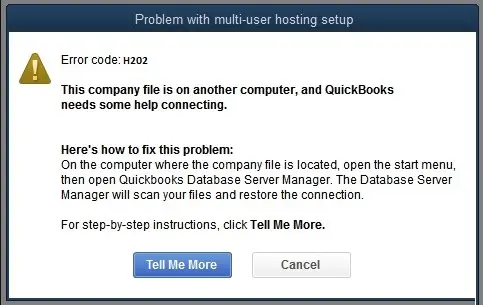
- Unable to switch from single-user to multi-user mode when accessing the company file.
- Error message H202 appears while opening or switching company files.
- The Company file located on the server cannot be accessed from workstations.
- Freezing, crashing, or extremely slow functioning QuickBooks.
- Workstations fail to communicate with the host computer over the network.
- Multi-user functionality becomes unavailable, preventing simultaneous access.
Related Articles: Pro Guide to Troubleshoot Installation QuickBooks Error 1904
Main Causes of QuickBooks Multi-User Error H202
- Hosting configuration is incorrect
When multi-user hosting is enabled on multiple systems instead of only the server, it creates conflicts and prevents proper communication.
- Firewall or security software is blocking access
Firewalls may block QuickBooks ports or services, stopping the workstation from connecting to the server.
- Damaged or missing .ND file
The Network Data file stores configuration details; if corrupted, QuickBooks cannot locate or access the company file.
- Wrong configuration of QuickBooks services
If QuickBooks services like QuickBooksDBXX or QBCFMonitorService are improperly configured, users may encounter error H202 QuickBooks.
- Network connectivity or DNS issues
Having wrong network settings or DNS problems can interrupt communication between systems, causing QuickBooks H202 error.
- Server configuration problem
Incorrect server setup or permissions can prevent QuickBooks from establishing a stable multi-user connection.
Solutions to Fix QuickBooks Error H202
Facing QuickBooks Error H202 can disrupt your workflow by blocking access to multi-user mode. Below are practical solutions to resolve the issue quickly and restore smooth connectivity.
1. Verify and Correct Hosting Configuration
One of the most common reasons behind error H202 in QuickBooks Desktop is incorrect hosting setup. When multiple systems are set to host the company file, it creates conflicts in multi-user mode. Only the server computer should have hosting enabled.
- Open QuickBooks Desktop on all workstations.
- Now, move to File, and select Utilities.
- If you see “Host Multi-User Access,” do NOT enable it on workstations.
- On the server, ensure hosting is enabled.
- Restart QuickBooks after making changes.
This ensures that only one system manages the company file, eliminating communication conflicts between systems.
Related Post: How to Fix QuickBooks Error 324: Account Not Found
2. Run QuickBooks File Doctor Tool
QuickBooks Tool Hub is an effective utility that helps in diagnosing network and company file issues automatically. The File Doctor tool is especially effective in resolving H202 errors caused by connectivity problems.
- Download and install QuickBooks Tool Hub.
- Open Tool Hub and select Company File Issues.
- Click Run QuickBooks File Doctor.
- Select your company file and allow the scan to complete
- Follow the prompts to fix error h202 QuickBooks.
File Doctor tool repairs network issues, restores connectivity, and resolves hidden file corruption that may trigger the error.
3. Ensure QuickBooks Database Services are Active
As mentioned above, QuickBooks relies on background services, such as QuickBooksDBXX and QBCFMonitorService. If these services are not active or functiong properly, users meet QuickBooks H202 error.
- Open Run window (press Windows + R). Here, type services.msc
- Open Run window (press Windows + R). Here, type services.msc.
- Now, look for QuickBooksDBXX and QBCFMonitorService.
- Right-click each service and choose Restart.
- Set Startup Type to Automatic.
- Restart your system.
This restores communication between the server and workstations, allowing proper file sharing.
4. Configuring Proper Firewall and Security Settings
Firewalls or antivirus programs might block QuickBooks ports, causing error QuickBooks H202 due to communication between the two systems.
- Open Windows Firewall settings.
- Go to Allow an app through firewall.
- Add QuickBooks executable files.
- Ensure required ports for your QuickBooks version are open.
- Temporarily disable antivirus for testing (if needed).
Proper firewall configuration ensures uninterrupted data flow between server and workstations.
5. Rename the .ND File and Recreate Network Data
The .ND (Network Data) file allows QuickBooks to access company files over a network. If it becomes corrupted, H202 errors may occur.
- Navigate to your company file folder
- Find the file with .ND extension
- Right-click and rename it (e.g., companyfile.nd.old)
- Reopen QuickBooks
QuickBooks will automatically recreate a new .ND file, restoring proper network configuration and resolving access issues.
Similar Topic To Read: QuickBooks Error 30159: Causes, Symptoms, and Proven Solutions
6. Check Network Connectivity
An unstable network connection makes QuickBooks unable to reach the server. It further causes multi-user errors, such as error H202 in QuickBooks.
- Begin this method by opening Command Prompt on your workstation.
- Now, type ping [server name] and check for response or packet loss.
- Ensure all systems are on the same network.
If connectivity fails, troubleshoot routers, switches, or DNS settings. Stable network communication is essential for multi-user mode to function properly.
Preventive Measures for QuickBooks H202 Multi-User Error
- Ensure that only the server system is allowed to host.
- Always keep QuickBooks Desktop updated to the latest version for improved stability and bug fixes.
- Check and configure firewall settings regularly to allow QuickBooks communication between two systems.
- Maintain a stable and properly configured network for seamless server–workstation connection.
- Periodically verify that QuickBooks services like DBXX and QBCFMonitorService are running.
- Avoid using multiple systems with incorrect permissions for accessing the same QuickBooks company file.
Following these practices helps reduce the chances of encountering QuickBooks Error H202 and ensures smooth multi-user performance.
Bottom Line
The QuickBooks error H202 is mainly associated with the multi-user mode of the software due to poor network, incorrect hosting, or firewall-related issues. The good news is that this error is usually fixable with proper troubleshooting steps as mentioned above in this blog. If the issue remains active, run QuickBooks diagnostic tools or seek expert help.
FAQs on QuickBooks Error H202
1. What is the QuickBooks error code H202?
QuickBooks error message H202 appears when the software fails to connect to a company file saved on another computer in multi-user mode. This usually happens due to poor network issues, incorrect hosting settings, or firewall/antivirus restrictions that block communication between your server and workstations.
2. Why does QuickBooks Error H202 occur?
The reasons behind the QuickBooks error code H202 are misconfigured hosting settings, blocked firewall ports, damaged .ND files, or inactive QuickBooks services. Also, network connectivity issues or incorrect server setup can prevent QuickBooks from accessing the company file in a multi-user environment.
3. Does firewall cause QuickBooks Error H202?
Yes, in some cases, firewalls or antivirus software block communication between QuickBooks and the server. If the ports or executable files are blocked by these programs, workstations cannot access the company file, causing error H202 in QuickBooks multi-user mode.
4. How can I fix QuickBooks Error H202?
The H202 error QuickBooks problem can be solved by ensuring correct hosting settings, QuickBooks service restart, using QuickBooks File Doctor, and creating firewall rules. Renaming the .ND file and checking network connectivity also helps restore proper multi-user access.
5. Is QuickBooks Error H202 a critical issue?
Though it is not critical to the system, this multi-user error can disrupt business operations by blocking multi-user access. If not resolved quickly, it can affect collaboration and productivity. Proper troubleshooting usually restores functionality without data loss.
About The Author

Elora Havencrest
Elora Havencrest is an accomplished Accounting Writer with over 12 years of experience crafting clear, engaging, and informative financial content. She specializes in bookkeeping, tax planning, and financial analysis, making complex accounting concepts easy to understand for business owners and finance professionals.
Elora's dedication to accuracy and clarity ensures her writing not only educates but also empowers readers to make confident and informed financial decisions.