5 Easy Ways to Fix QuickBooks Error 1406 During Installation
Failed to install your QuickBooks Desktop, and wondering what to do?
QuickBooks error 1406 is an installation error that occurs when installing or updating the software. The error generally occurs when Windows components fail to interact with the software components, either due to an outdated OS or possible damage or corruption.
To ensure the QuickBooks installation goes smoothly, we will walk you through this guide to understand the error, its possible causes, and the detailed steps to resolve it.
QuickBooks Install Error 1406: An Overview
|
Aspect |
Details |
|
Error Name |
QuickBooks Install Error 1406 |
|
Error Message |
“Could not write value to key…” |
|
Occurs During |
Installation or update of QuickBooks Desktop |
|
Main Cause |
Insufficient permissions to access or modify Windows registry keys |
|
Affected Areas |
Windows Registry, QuickBooks installation files, system permissions |
Experiences Users May Encounter with QuickBooks Error 1406
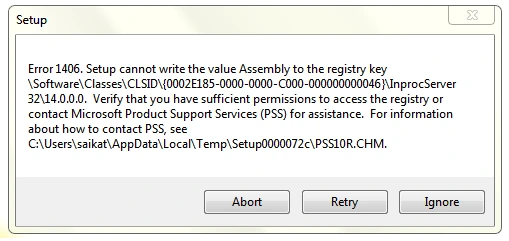
Here are some common experiences users may encounter:
- The QuickBooks installation freezes or stops unexpectedly.
- An error message appears stating, “Could not write value to key.”
- Users are unable to finish the installation or update process.
- The system may become slow or unresponsive during setup.
- QuickBooks Desktop may fail to launch after partial installation.
- Repeated installation attempts may show the same registry-related error.
- Security software or Windows permissions may block the installer from making required changes.
Read More: Troubleshooting QuickBooks Error H202: A Step-by-Step Guide
Possible Reasons Why You Encounter QuickBooks Error 1406
Here are some possible causes that can trigger error code 1406 during the installation or update of QuickBooks Desktop:
- Windows OS might be outdated
- Incorrect installation or the program file might be damaged
- Damaged or corrupted Windows components
- The Windows registry might be damaged or corrupted
- Third-party applications might be hindering the software installation
How to Troubleshoot QuickBooks Error 1406 When Installing or Updating?
The following troubleshooting methods can help you resolve QuickBooks error 1406 and complete the QuickBooks installation successfully.
1. Update Windows OS
Updating the Windows OS ensures that all components are compatible with QuickBooks, making the installation easier:
- Tap the Windows logo key to launch the Windows Start menu.
- In the Windows search, type Settings and press Enter.
- Go to Windows Update in the left menu bar.
- Click on Check for Windows updates.
- Click on Download & Install if the updates are available.
- Your computer will automatically download and run the Windows updates.
- When done, restart your computer to apply the updates.
2. Run the QuickBooks Install Diagnsotic tool
Let’s repair the QuickBooks Desktop installation using the Install Diagnostic tool:
a. Download and install QuickBooks Tool Hub
The QuickBooks Tool Hub lets you resolve common issues and errors you may encounter during installation, updates, or other situations. Let’s get the tool in the most recent version by following these steps:
- Close QB Desktop.
- Download the QuickBooks Tool Hub in the most recent version (1.6.0.8). Save the program file in a place where you can easily locate it.
Note: If you’ve installed Tool Hub before, you can find out which version you have. Select the Home tab. The version will be at the bottom.
- Locate the downloaded file and open it (QuickBooksToolHub.exe).
- Follow the instructions on your screen and accept the terms and conditions to install.
- When done, double-click on the QB Tool Hub icon on the Windows desktop.
Note: If you can’t locate the icon, search for QuickBooks Tool Hub on your Windows desktop and select the program.
b. Run the QB Install Diagnostic tool
If something went wrong during installation or if it’s incomplete, it can cause issues when trying to use it. Let’s resolve such issues using the QB Install Diagnsotic tool:
- Launch the QuickBooks Tool Hub.
- In the left menu bar, click on Installation Issues.
- Hit on QuickBooks Install Diagnsotic tool. The tool may take up to 20 minutes to finish; wait until then.
- When done, restart your computer, open QuickBooks Desktop, and then your company file.
- Make sure QuickBooks is up to date with the latest release to ensure you use the most recent fixes and security updates.
Explore More Topics: Pro Guide to Troubleshoot Installation QuickBooks Error 1904
3. Manually repair the Windows components
If the QuickBooks Install Tool and the latest updates still don’t resolve the issue, you may need to repair certain Windows components manually.
These steps are recommended only for advanced Windows users, IT professionals, or anyone working under the guidance of Microsoft support.
Register the MSXML DLL files
64-Bit operating system, register MSXML with the following steps
- Launch the Windows Start menu.
- Type cmd in the Windows search.
- Right-click on CMD in the search results.
- Then,choose Run as Administrator.
- Type cdwindowssyswow64 in the C: prompt.
- Now, type regsvr32 MSXML6.dll and press Enter.
- When done, install your QuickBooks Desktop.
32-Bit operating system, register MSXML with the following commands
- Launch the Run command by tapping on the Windows+R key.
- In the Run, type cmd and press Enter.
- Now, type regsvr32 MSXML6.dll, then press Enter.
- Install QuickBooks Desktop.
4. Repair the Windows registry
Let’s run the SFC scan to repair the Windows registry by following these steps:
- Launch the Quick Link menu by pressing Windows + X.
- In the prompted menu, choose Command Prompt (Admin).
NOTE: You can also run the System File Checker (SFC) from Windows PowerShell (Admin).
- Hit Yes on the User Account Control (UAC) prompt on your screen.
- In the Command Prompt on your screen, type SFC /scannow, and then hit Enter.
- The SFC tool will automatically verify the integrity of Windows system files and then run a quick repair.
- When done, restart your computer.
5. Install QuickBooks in Selective startup
Installing QuickBooks in Selective startup ensures that third-party apps do not interfere with the process. Here’s how to switch to Selective startup:
a. Switch to Selective startup
To make sure nothing interrupts the installation, switch to Selective startup. If the steps seem challenging, consult your computer’s manufacturer or a Windows expert.
- Launch the Windows Run command.
- In the Run prompt, type msconfig, then select OK.
- Move to the General tab.
- Choose Selective startup and Load system services.
- Navigate to the Services tab.
- Select the Hide all Microsoft Services checkbox.
- Click on Disable all.
- Clear the Hide all Microsoft services checkbox.
- Choose the Windows Installer service.
- Then, hit OK.
- Select Restart on the System Configuration window.
b. Uninstall or install QuickBooks Desktop
- Reinstall your QuickBooks Desktop.
- Tap the Windows+R keys to launch the Run command.
- In the Run, type msconfig, then select OK.
- Move to the General tab.
- Choose Normal startup.
- Now, click OK.
- On the System Configuration window, select Restart.
Preventive Measures for QuickBooks Desktop Error 1406
- Keep Windows updated before installing or updating QuickBooks.
- Disable antivirus/firewall temporarily during installation.
- Ensure the Windows Registry has proper permissions.
- Use the latest version of QuickBooks Desktop.
- Install Microsoft .NET Framework and MSXML updates.
- Log in with a Windows admin account for installations.
- Restart the computer before starting installation or updates.
Read More: How to Fix QuickBooks Error 324: Account Not Found
Final Words
We have reached the end of this blog covering details of QuickBooks error 1406, when the error occurs, why, and the simple and easy steps to troubleshoot the error promptly. Hopefully, this information has helped you resolve the error quickly and ensure a smoother software installation. You can connect with QuickBooks experts if you need any further assistance.
Frequently Asked Questions
What is error code 1406 in QuickBooks?
Error code 1406 in QuickBooks is an installation or update issue that occurs when the software cannot write to specific Windows registry keys or files. Typically caused by security software (firewall/antivirus) blocking the installation, corrupted registry files, or insufficient Windows permissions.
How do I fix QuickBooks error 1406 during installation?
To fix QuickBooks error 1406 during installation, which occurs when Windows prevents updating specific registry files, immediately run the installation as an administrator, temporarily disable antivirus software, and ensure you have proper Windows permissions.
Does reinstalling QuickBooks fix error 1406?
Yes, performing a “clean install” (uninstalling, deleting temp folders, and reinstalling) can fix error code 1402. This error usually indicates a damaged Windows installer or blocked registry keys
Can damaged registry permissions trigger error 1406?
Yes, damaged or restricted registry permissions are a primary cause of error 1406. This error generally appears when the Windows Installer service is unable to write specific values to the registry during software installation or updates, most frequently with Microsoft Office, QuickBooks, or similar applications.
Is error 1406 related to Windows updates?
Yes, error 1406 is frequently related to Windows updates, primarily because updates can change registry permissions or leave behind corrupted keys that interfere with software installation.
About The Author

Elora Havencrest
Elora Havencrest is an accomplished Accounting Writer with over 12 years of experience crafting clear, engaging, and informative financial content. She specializes in bookkeeping, tax planning, and financial analysis, making complex accounting concepts easy to understand for business owners and finance professionals.
Elora's dedication to accuracy and clarity ensures her writing not only educates but also empowers readers to make confident and informed financial decisions.