Fix QuickBooks Error 6123 0 When Opening a Company File
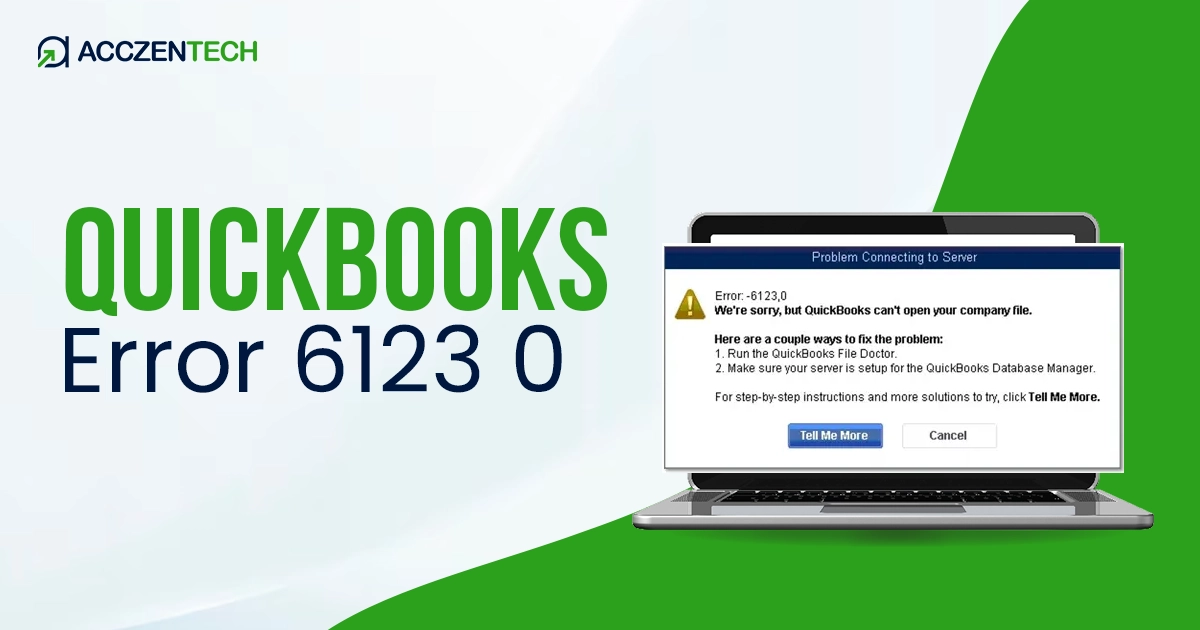
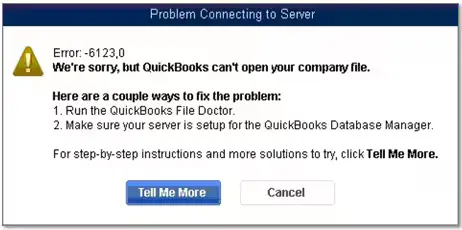
When working in QuickBooks, running into errors while opening or restoring your company file can quickly bring your workflow to a halt. One such common issue is QuickBooks error 6123, 0, which typically appears with the message: “We’re sorry, but QuickBooks can’t open your company file.” This error generally occurs due to network connectivity problems, corrupted company files, or misconfigured system settings. Understanding what causes this issue—and how to resolve it efficiently—is essential to maintaining smooth business operations. In this blog, we’ll break down the reasons behind error code 6123 and guide you through practical solutions to fix it quickly and open the company file with no issues.
QuickBooks Error 6123: A Detailed Overview
| Parameter | Details |
| Error Name | Quickbooks Error 6123 0 |
| Error Code | 6123 |
| Error Message | “Error 6123, 0: Connection to the QuickBooks company file has been lost” |
| Description | The error usually occurs due to network problems, corrupted files, or incorrect system settings, and other factors we will discuss below. |
| Category | Company File / Network Connection Error |
| Common Causes | Damaged company file, firewall blocking connection, network interruption, or corrupted multi-user setup |
| Affected Versions | All versions of QuickBooks Desktop |
| Quick Fix | Use QuickBooks File Doctor and verify network connection or restore backup file |
Key Signs of QuickBooks Desktop Error 6123
 1. Unable to Open Company File
QuickBooks fails to open the company file and displays Error 6123, 0 on the screen.
2. Sudden Disconnection from Company File
The connection to the company file is unexpectedly lost while working or restoring data.
3. Error Message During Restore Process
The error appears when trying to restore a backup file or open a company file from a network location.
4. Slow or Unresponsive QuickBooks Performance
QuickBooks may freeze or respond slowly before showing the error message.
5. Multi-User Mode Access Failure
Users are unable to access the company file in multi-user mode due to connection issues.
6. Network Path Not Found Error
QuickBooks may indicate that it cannot locate the company file on the server or shared drive.
7. Frequent Application Crashes
The QuickBooks application may crash or close unexpectedly when trying to access the company file.
Related Articles: Troubleshooting QuickBooks Error H202: A Step-by-Step Guide
What Triggers Company File Error 6123, 0 in QuickBooks?
Here are some of the most common reasons it shows up that trigger error code 6123 when opening a company file:
- Corruption in the main company file can prevent QuickBooks from opening it.
- Network Data or Transaction Log files may get damaged and disrupt file access.
- An incorrect multi-user setup can block communication between systems.
- More than one system hosting the file creates conflicts.
- Security software may block QuickBooks from accessing files or network ports.
- Older versions can lead to file access errors.
- Improper or corrupted backup restore can result in error 6123, 0.
Fix QuickBooks Error 6123, 0 When Opening Company File Instantly
Now that you understand what QuickBooks error 6123, 0 is and why it occurs, let’s walk through some quick and effective solutions to fix the issue and get access to your company file again.
1. Run QuickBooks File Doctor
If you’re dealing with QuickBooks Error 6123, running the built-in repair tool is often a good first step. Here’s how to run the File Doctor in the Tool Hub: a. Download and install QuickBooks Tool Hub
- Close QuickBooks before starting the process.
- Download the latest version (1.6.0.8) of QuickBooks Tool Hub and save it in an easy-to-find location like your desktop or Downloads folder.
- If Tool Hub is already installed, open the Home tab to check the current version at the bottom.
- Open the downloaded file (QuickBooksToolHub.exe).
- Follow the on-screen instructions and accept the terms and conditions to install it.
- Once installed, double-click the Tool Hub icon on your desktop to open it.
Note: If you can’t find the icon, search for “QuickBooks Tool Hub” in the Windows search bar and open it from there.
- b. Run QuickBooks File Doctor
Open QuickBooks Tool Hub and go to Company File Issues. - Click on Run QuickBooks File Doctor (it may take up to a minute to open).
- If the tool doesn’t launch, search for QuickBooks Desktop File Doctor on your system and open it manually.
- In QuickBooks File Doctor, choose your company file from the dropdown. If it’s not listed, click Browse to locate it.
- Select Check your file (middle option) and click Continue.
- Enter your QuickBooks admin password and select Next.
- Let the scan complete (it may take 10–15 minutes, depending on file size).
- Once done, reopen QuickBooks and try opening your company file again.
2. Rename .ND and .TLG Files
Any damages to the .ND (Network Data) and .TLG (Transaction Log) can cause QuickBooks error 6123, 0 when opening the company file. Let’s rename these files to replace them with the newer ones:
- Locate the folder where you save the company file.
- Look for .ND and .TLG files extensions at the end.
- Now, right-click on each file.
- Choose Rename from the options.
- Then add “.old” to the end of each file name (for example, companyfile.qbw.nd.old).
Close the folder. - Restart QuickBooks and open the company file again.
This resets the network settings and helps fix the problem, so QuickBooks can access the file properly.
Similar Topic To Read: QuickBooks Error 30159: Causes, Symptoms, and Proven Solutions
3. Open Company File from a Different Location
Moving the company file to a different location helps identify and bypass these issues. Follow these steps to open the company file using a different location:
- Locate your QuickBooks company file (.QBW).
- Copy the file to your Desktop or a local drive.
- Open QuickBooks Desktop.
- Click on Open or Restore an Existing Company.
- Select Open a Company File.
- Browse and choose the file from the Desktop.
- Open the file and check if it loads successfully.
The issue may be related to your original folder, network drive, or permission settings if the company file opens without any issues. If so, you will need to modify network settings and folder access.
4. Turn Off Hosting on Every System
QuickBooks error 6123, 0 can also result from improper or numerous hosting settings. Conflicts and improper access may arise when the company’s file is hosted on multiple systems. Steps to Fix:
- Open QuickBooks Desktop on each workstation.
- Go to the File menu.
- Click Utilities.
- If you see Stop Hosting Multi-User Access, select it.
- Repeat this process on all workstations (not the server).
- Enable the hosting settings on the server.
- Restart QuickBooks on all systems and try opening the company file again.
This ensures only one system acts as the host, improves network communication, and reduces conflicts that may prevent QuickBooks from accessing the company file correctly.
5. Verify the security and firewall settings
A smooth, constant connection is facilitated by properly adjusting Windows Firewall and antivirus settings.
- Launch the Control Panel for Windows.
- Launch the Windows Defender Firewall program now.
- Select “Allow an app or feature through Windows Firewall.”
- Select Change Settings.
- Add QuickBooks program files (like QBW32.exe, QBDBMgrN.exe).
- Ensure both Private and Public options are checked.
- Open Advanced Settings and verify that the required QuickBooks ports are allowed.
- Disable antivirus software temporarily (for testing only).
- Try starting QuickBooks again after restarting your computer.
Make permanent exclusions in your firewall and antivirus software if QuickBooks continues to function after these modifications to prevent further disruptions.
6. Restore a Backup File
Using a clean backup to restore the data can help avoid these issues and regain access. Steps to Fix:
- Open QuickBooks Desktop.
- Go to the File menu.
- Click on Open or Restore Company.
- Select Restore a backup copy.
- Choose Local Backup and click Next.
- Browse and select a valid backup file (.QBB).
- Save the restored file in a new folder or another location.
- Complete the process by following the instructions on the screen.
- After that, open the restored file in QuickBooks.
Using a different location for the restore helps prevent problems caused by file corruption or location conflicts, allowing QuickBooks to open your data smoothly.
QuickBooks Error 6123 – Prevention Tips
Follow these simple prevention tips to reduce the risk of QuickBooks Error 6123:
- Keep your QuickBooks Desktop up-to-date to the latest release so you have the newest features, fixes, and security updates.
- Always keep a backup of your company file so you can quickly restore data if something goes wrong.
- Improper shutdowns can damage your company’s files. Always close QuickBooks and shut down your system properly.
- Install trusted and up-to-date antivirus software to prevent malware from interfering with QuickBooks files.
- If you’re using QuickBooks in multi-user mode, make sure your network is configured correctly to avoid connectivity and file access issues.
Following these steps can help you reduce the risk of Error 6123 and keep your QuickBooks running smoothly.
Related Articles: Pro Guide to Troubleshoot Installation QuickBooks Error 1904
Final Thoughts
Finally, we have reached the end of this blog covering QuickBooks Error 6123, 0. You may encounter the error due to network issues, damaged company files, or incorrect security settings, and it may prevent users from accessing or restoring their company data. However, with the right troubleshooting steps—such as using QuickBooks Tool Hub, checking firewall or antivirus settings, repairing files, and ensuring proper hosting configuration.
FAQs – QuickBooks Error 6123 0
1. What does QuickBooks error 6123 0 mean?
Error 6123, 0 means QuickBooks is unable to open, restore, or access a company file. This mainly happens due to file corruption, network problems, or security settings blocking the connection.
2. What are the main causes of QuickBooks error 6123 0?
This error is mainly caused by damaged company files, firewall or antivirus restrictions, incorrect hosting settings, or unstable network connections between systems.
3. Can I fix QuickBooks Error 6123 0 manually?
Yes, it can usually be fixed manually using methods such as renaming files, using QuickBooks Tool Hub, updating QuickBooks, checking firewall settings, and repairing the .ND and .TLG files.
4. Does data loss result from QuickBooks error 6123, 0?
No, it usually doesn’t result in irreversible data loss. However, until the problem is resolved, you might not be able to view your company file.
5. What causes QuickBooks error 6123 0 in multi-user mode?
This error can occur in multi-user mode due to incorrect hosting setup, network interruptions, or issues with the server where the company file is stored.
6. How much time does it take to fix QuickBooks error 6123, 0?
The fixing time depends on the cause. If they are simple, you can resolve them within minutes using the Tool Hub, while complex network or file problems may take longer.
7. Does fixing this problem require technical assistance?
Not all the time. Simple troubleshooting procedures are simple to follow. However, for more complex network or file repair problems, expert assistance might be needed if the mistake persists.
About The Author

Elora Havencrest
Elora Havencrest is an accomplished Accounting Writer with over 12 years of experience crafting clear, engaging, and informative financial content. She specializes in bookkeeping, tax planning, and financial analysis, making complex accounting concepts easy to understand for business owners and finance professionals.
Elora's dedication to accuracy and clarity ensures her writing not only educates but also empowers readers to make confident and informed financial decisions.