Windows Firewall is Blocking QuickBooks? Here’s What to Do
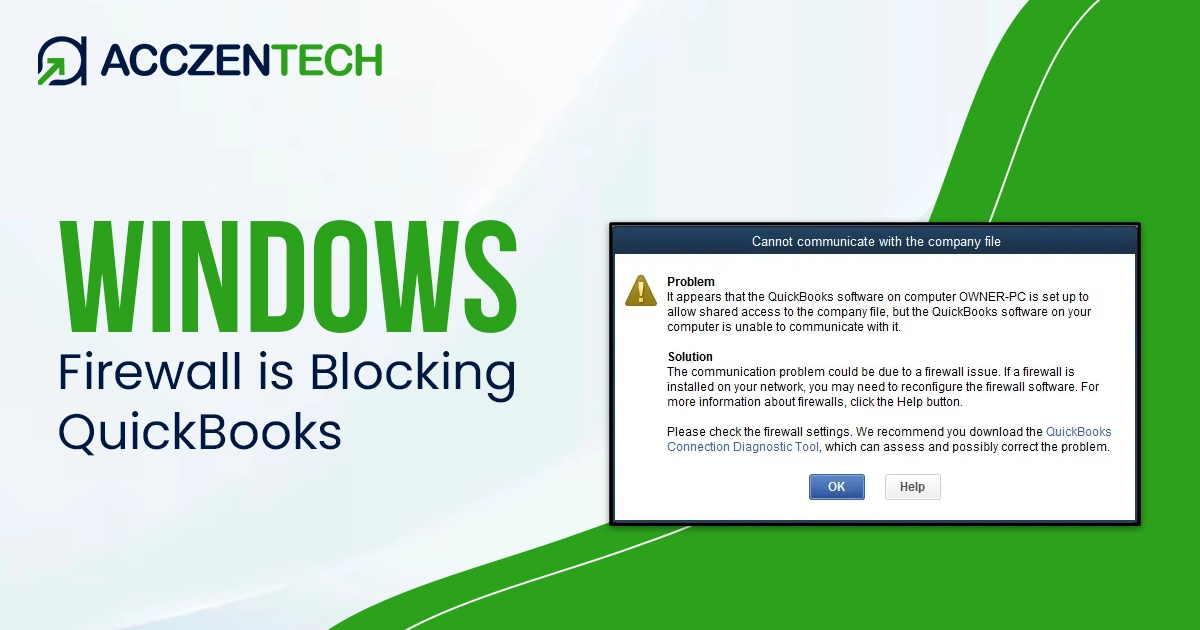
Windows Firewall, now called Microsoft Defender Firewall, is a security application that protects your computer from malware, unauthorized network access, and potential security threats.
If the Windows Firewall is blocking QuickBooks, it might be considering the software a threat to your computer, or the assigned port number is blocked from running the QuickBooks processes.
In such cases, you won’t be able to open your company file or run updates, or you will eventually fail to run other common operations. This detailed article will help you configure the Windows Firewall for your QuickBooks and ensure you can run your business operations smoothly.
What QuickBooks Operations Does Windows Firewall Block?
When Windows Firewall considers QuickBooks a non-trusted program, it blocks almost all business operations you run using QB Desktop. This includes sharing your company file over the network or in multi-user mode, collaboration, running QuickBooks Database Server Manager, formally opening the company file, accessing certain features, and even updating the software and tax table. It may even blocks you from sending your payroll data to another user.
Setting Up the Windows Firewall and Security Settings for QuickBooks Desktop
Windows Firewall and other security applications may also block your QuickBooks program from running your common accounting and financial management processes. In this section, we will explore the stepwise instructions to ensure you can enjoy an uninterrupted experience with QuickBooks. Let’s walk through the below steps carefully:
1. Run QuickBooks File Doctor
The QuickBooks File Doctor can help you fix Firewall issues automatically, but not always. You may need to manually configure the Windows Firewall settings.
Let’s try to resolve the issues by using the QuickBooks File Doctor. To access the utility, download and install QuickBooks Tool Hub to the latest release.
a. Download and install QuickBooks Tool Hub
Here’s how to download and install QuickBooks Tool Hub Hub to access the File Doctor utility:
Note: Exit QuickBooks Desktop before starting the download and install process. For a better experience, we recommend you use Tool Hub on Windows 10, 64-bit.
- Exit QuickBooks Desktop.
- Download the most recent version available of QuickBooks Tool Hub (1.6.0.8). Save the downloaded file from where you can easily access it such as Download folder and your Windows desktop.Note: If you already use Tool Hub and don’t know which version, go to the Home tab of Tool Hub and check the version at the bottom.
- Locate the downloaded file (QuickBooksToolHub.exe) and double-click on it to open.
- Follow the instructions displayed on your screen and agree to the tool’s terms and conditions.
- Once the installation finishes, double-click on the Tool Hub icon from the Windows desktop to open it.
b. Run Quick Fix my File
The Quick Fix my File shuts down the QuickBooks processes running in the background and runs a quick repair on your program.
- Choose Company File Issues from the QB Tool Hub.
- Hit on Quick Fix my File.
- Click OK when the process is complete and launch QuickBooks.
c. Make use of QB File Doctor
QuickBooks File Doctor scans your company files to identify existing issues and performs quick fixes if needed, such as data corruption, network connectivity, and more.
- Click on Company File Issues from the QB Tool Hub.
- Hit on Run QuickBooks File Doctor. The tool might take up to one minute or more to open the file doctor; wait until then.Note: If the QuickBooks File Doctor does not open, search for QuickBooks File Doc in the Windows Start menu and open it manually.
- Now, select your company file from the drop-down menu in QuickBooks File Doctor. If you can’t see your file, click on Browse and find your data file.
- Hit on Check your file and network and then Continue.
- Type the QuickBooks admin password to allow the tool to scan your file and select Next.
The scan time for your company file depends on the size and may take 10-15 minutes. Even if the scan is successful and fixes the issue, it can still say that it was unsuccessful. We recommend you check if you can open the company file and run other processes. If you still see the problem, continue moving to the next solution.
2. Update QuickBooks Desktop
Not having an up-to-date version of QuickBooks Desktop can cause compatibility issues with the software and Windows components, leading to the blocking of QuickBooks processes. Let’s proceed with the below steps to update your program:
- Select Help at the top menu bar.
- Click on Update QuickBooks Desktop from the dropdown. It will open the Update QuickBooks window.
- Go to the Update Now tab in the redirected window.
- Select the checkbox for Reset Updates.
- Mark the checkbox for Reset Updates.
- Now, click on Update Now to get your QB updates.
- Finally, restart your computer to install the updates.
3. Udpate Windows
An outdated operating system can be incompatible with QuickBooks Desktop, which is essential for a seamless experience and functioning. As a Windows component, the Windows Firewall can be incompatible and block your program. Proceed with the below steps to update your operating system to the latest release:
- Hit the Windows logo key to launch the Windows Start menu.
- Type Settingsin the search bar and hit the Enter key.
- Choose Windows Updatefrom the left pane and hit Check for Windows Updates.
- If the updates are available, click on Download & Install. Doing this will automatically download and install the Windows update.
- Now, restart your computer to take the changes into effect.
4. Configure the Windows Firewall for QuickBooks Desktop
If the Windows Firewall is blocking QuickBooks, you must configure the ports and create exceptions manually for QuickBooks Desktop to allow them to communicate through the firewall when QuickBooks File Doctor fails to fix the issue. Depending on the number of versions of QuickBooks you use.
Follow the below steps to allow your QuickBooks to run the processes on your computer in different ways:
a. Add Firewall port exception for QuickBooks
Perform the below steps to create exceptions in the firewall if you use multiple versions of QuickBooks Desktop:
- Click on the Windows icon on your keyboard to launch Windows Start.
- Search for Windows Firewall and hit the Enter key.
- Go to Advanced settings.
- Right-click on Inbound Rules and choose New Rule.
- Choose Port and then click on Next.
- Ensure the Rule type is selected as TCP.
- In the Specific local ports field, enter the ports specified for your version of QuickBooks.
- QuickBooks Desktop 2020 and later: 8019, XXXXX.
- QuickBooks Desktop 2019: 8019, XXXXX.
- QuickBooks Desktop 2018: 8019, 56728, 55378-55382.
- QuickBooks Desktop 2017: 8019, 56727, 55373-55377
Important Note: QuickBooks Desktop 2019, QuickBooks Desktop 2020 and the future versions of QuickBooks use dynamic port numbers, which are not specified for any version. This ensures the program gets exclusive use of a given port.
- Here’s how to get the dynamic port number
- Launch the Windows Start menu on your computer.
- In the search box, type QuickBooks Database Server Manager and select Open to open it.
- Move to the Port Monitor tab.
- Look for your QuickBooks Desktop version and note down the Port Number. You will use this to create the program’s firewall exceptions.
Remember that you can change the assigned port number to QuickBooks by clicking on Renew. If you do the same, go to the Scan Folders tab to reset the Windows Firewall permissions. You can only renew the port number for QuickBooks Desktop 2019 and future versions. The port number for older versions is specific and can’t be changed.
- Now, enter the port number and click on Next.
- Choose Allow the Connection, then hit Next.
- Ensure all the profiles are marked when prompted and select Next.
- Finally, create this rule by naming it “QBPorts(year).”
- When all is done, click Finish.
Once done, repeat the above steps to create outbound rules. Follow all the steps the same except select Outbound Rules on step 4.
b. Create Windows firewall exceptions for QuickBooks programs
QuickBooks uses executable files (.exe) to run various tasks such as updates or even when you run the company file.
Perform the below instructions to create exceptions for each of the executable files listed below:
- Press the Windows logo key to open the Windows Start menu.
- Type Windows Firewall and select Windows Firewall from the search results.
- Click on Advanced Settings.
- Right-click on Inbound Rules and tap on New Rule.
- Choose the rule type as Program and click Next.
- Click on This Program Path and then click on Browse.
- Find the executable files you want to configure in the Windows Firewall from the table below. Then, click on Next.
- Choose Allow the Connection and hit on Next.
- Ensure all the profiles are marked on the prompted screen and click on Next.
- Finally, create this rule and name it like “QBFirewallException(name.exe).”
| Executable files | Location |
| AutoBackupExe.exe | C:\Program Files\Intuit\QUICKBOOKS YEAR |
| Dbmlsync.exe | C:\Program Files\Intuit\QUICKBOOKS YEAR |
| DBManagerExe.exe | C:\Program Files\Intuit\QUICKBOOKS YEAR |
| FileManagement.exe | C:\Program Files\Intuit\QUICKBOOKS YEAR |
| FileMovementExe.exe | C:\Program Files\Intuit\QUICKBOOKS YEAR |
| QuickBooksMessaging.exe | C:\Program Files\Intuit\QUICKBOOKS YEAR |
| QBW32.exe | C:\Program Files\Intuit\QUICKBOOKS YEAR |
| QBDBMgrN.exe | C:\Program Files\Intuit\QUICKBOOKS YEAR |
| QBServerUtilityMgr.exe | C:\Program Files\Common Files\Intuit\QuickBooks |
| QBCFMonitorService.exe | C:\Program Files\Common Files\Intuit\QuickBooks |
| QBLaunch.exe | C:\Program Files\Common Files\Intuit\QuickBooks |
| QBUpdate.exe | C:\Program Files\Common Files\Intuit\QuickBooks\QBUpdate |
| IntuitSyncManager.exe | C:\Program Files\Common Files\Intuit\Sync |
| OnlineBackup.exe | C:\Program Files\QuickBooks Online Backup |
Repeat the above steps to create outbound rules and follow the same steps except selecting the outbound rules in step 4.
Note: If you see Program Files as (x86), don’t worry; it just shows you are using a 64-bit Operating system.
Launch QuickBooks Desktop and try to open the company file in multi-user mode. If you still encounter any issue, move to the below steps.
c. Check your antivirus and firewall settings
Configured your Windows firewall, but are you still encountering the issues?
The Windows Firewall handles applications on your computer and can also block Quoks Desktop when considered a threat to your computer.
Ensure your QuickBooks Desktop has general permissions so the application is not blocked. Check the official website of the antivirus you use for instructions on how to set up the permissions for your antivirus software.
d. Add QuickBooks ports exception on your antivirus
If you still encounter issues opening a company file over the network in multi-user mode, add the port exceptions for the executable files listed above in the antivirus applications you use on the computer.
Ensure the program type is selected as TCP, and enter the ports needed for your QuickBooks version (year). Check the port number in “Step 1: Configure firewall manually.”
Remember that if you use multiple versions of QuickBooks Desktop, you will need to add the port exception for each of the year versions.
e. Restart your computer
Once you have configured Windows Firewall, antivirus, and other security applications, we recommend that you restart your computer. This is because some applications require you to restart to save or apply the changes you made.
5. Disable your Windows Firewall
If configuring the Windows Firewall does not help you fix the ‘Windows Firewall is blocking QuickBooks’ issue, consider disabling the Windows Defender on your computer and then running your QuickBooks operations, such as updating or opening your company file.
Note: Keep in mind that turning off the Windows Firewall can hamper system security and make the system vulnerable to security threats and malware. To avoid security issues, we recommend that you enable the Windows Firewall just when the QuickBooks processes are done.
- Press the Windows icon key to open the Windows Start menu.
- Search for Windows Defender Firewall and hit Enter.
- Now, select the Turn Windows Firewall on or off the tab.
- Mark the checkbox for Turn Off Windows Defender Firewall to disable it.
If the Windows Firewall is blocking QuickBooks even after performing the above troubleshooting steps, we recommend you contact professionals for help.
Summary
So, we are at the end of this detailed article covering all the information about the ‘Windows Firewall is blocking QuickBooks’ issue and the operations when you may encounter the same issue. We hope this information has helped you identify the blocked operations and the steps to configure the security application for QuickBooks Desktop.
If you get stuck somewhere or find it challenging to perform these steps, you must seek professional assistance. The team of QuickBooks experts are available to assist you with the best. Dial TFN and talk to a QuickBooks ProAdvisor now!
About The Author

Elora Havencrest
Elora Havencrest is an accomplished Accounting Writer with over 12 years of experience crafting clear, engaging, and informative financial content. She specializes in bookkeeping, tax planning, and financial analysis, making complex accounting concepts easy to understand for business owners and finance professionals.
Elora's dedication to accuracy and clarity ensures her writing not only educates but also empowers readers to make confident and informed financial decisions.
Frequently Asked Questions
What is Windows Firewall?
The Windows Firewall by Microsoft is a security application that protects your computer from unwanted visitors, malicious attacks, malware, and viruses. Now, the application is called Microsoft Defender Firewall, and it keeps your computer protected.
How do you fix Windows Firewall is blocking QuickBooks?
If Windows Firewall is blocking QuickBooks, try running the QuickBooks File Doctor. If you still see the issue, you need to configure the specific ports of Windows Firewall for QuickBooks Desktop, allowing you to run all the associated programs such as opening your company file, updating QuickBooks and more.
Why Windows Firewall blocks some programs to run?
As we know, the Windows Firewall is a security application. It may block some applications if they are considered a threat to your computer or by default when the port number assigned to the application is incorrect. To fix this, you must configure the port number of program files manually in the Windows Firewall.
I have installed and launched an application on the system. But, security or firewall settings blocking my connection. Should I allow access to the application?
Yes, you must allow access to the application by configuring the port number or the program files to run the application smoothly on your computer. Also, make sure the applications do not affect your computer, and it is trustworthy. If it’s not, it is recommended that the application not be run.
What sort of applications may suffer firewall restrictions?
Applications like VPNs, peer-to-peer file-sharing tools, gaming platforms, streaming services, and encrypted messaging apps may face firewall restrictions due to security policies, bandwidth control, or regional content regulations.