How to Fix QuickBooks Error 6150 (Quick Troubleshooting Guide)
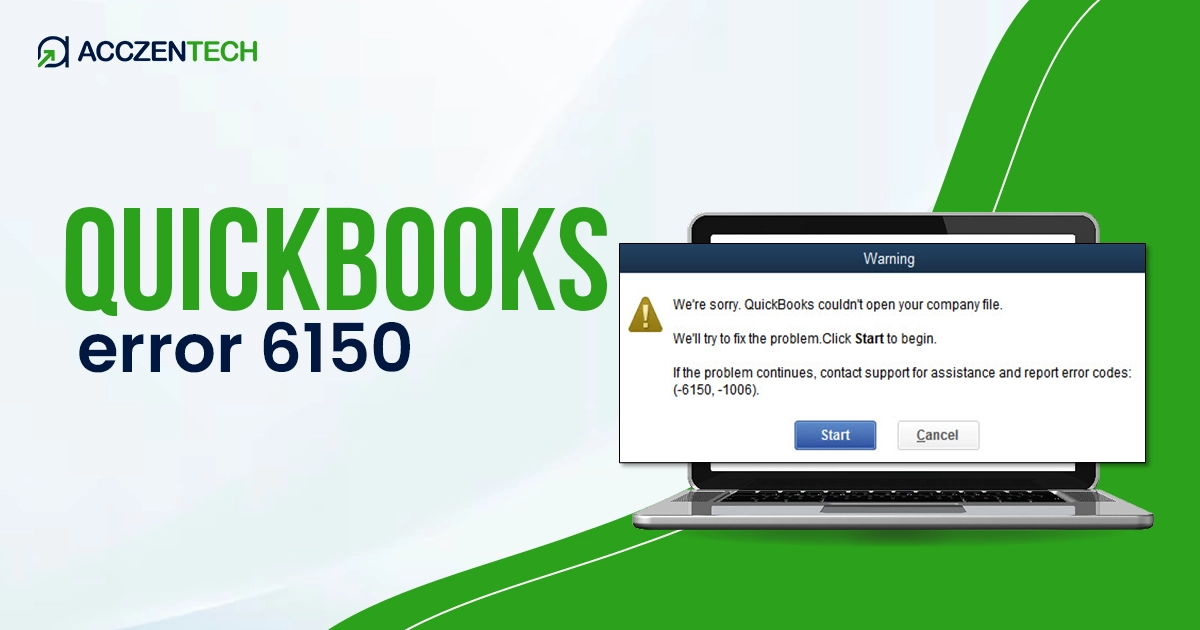
QuickBooks error 6150 is a common issue that prevents users from accessing the company file in Desktop. While facing this error, users find a message that states, “QuickBooks couldn’t Open Your Company File.” Typically, this problem occurs due to improper QuickBooks Desktop installation or corrupt business files. In this guide, we will cover all the possible causes, signs to watch for, and troubleshooting methods to fix this company file error.
Before you begin troubleshooting, make sure you create a data backup to avoid any possible threats or data loss.
Quick Overview of QuickBooks Error Code 6150
|
Parameter |
Details |
|
Error Name |
QuickBooks Error 6150 |
|
Error Code |
6150 |
|
Error Message |
We’re sorry. QuickBooks couldn’t open your company file. |
|
Description |
Occurs when a user tries to access a company file in QuickBooks Desktop. |
|
Category |
Company file error |
|
Common Causes |
Malware, damaged company data, missing QuickBooks files, and firewall interruptions |
|
Quick Fix |
Updating company file location |
What Signs to Notice with QuickBooks Error Code 6150?
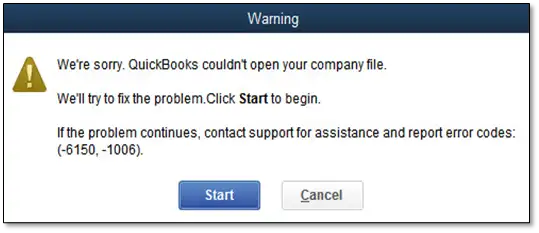
QuickBooks error code 6150 is often noticed with -1006. As briefed above, this error occurs when a user tries to open a company file in QuickBooks Desktop. Alongside, users may notice the signs given below:
- The file access fails, and QuickBooks crashes, displaying the error code 6150.
- The QuickBooks error message 6150 is another major sign, indicating corruption of QuickBooks business files.
- Customer, employee lists, or vendor appear blank or entirely missing from the QuickBooks Desktop software.
- The active program running in the background suddenly closes, or QuickBooks abruptly stops when launching.
- With QuickBooks error message 6150, your Windows system also starts freezing, and you won’t get any response from mouse clicks or keyboard tabs.
Read More: QuickBooks Error 15101 When Updating Desktop or Payroll
Primary Reasons for QuickBooks Company File Error 6150
One of the main reasons for facing a QuickBooks company file error 6150 is a damaged QuickBooks file that you’re trying to access. Below, we have listed the major reasons for facing this problem. Have a look:
- Company files related to QuickBooks are mistakenly or maliciously removed by another program.
- An incomplete QuickBooks installation can also cause a damaged QuickBooks file issue.
- Users may notice the error 6150 QuickBooks if any malware or virus infection has corrupted Windows system files or program files.
- If the extension of your QuickBooks company files is changed, it can cause the QuickBooks company file error 6150.
- Damaged Windows registry files are also a prominent reason for meeting an error code 6150 in QuickBooks Desktop.
- If you try to open a portable company file without opening your QuickBooks Desktop, it can cause damaged file issues, resulting in error code 6150.
- Another major reason for QuickBooks error 6150 is the damaged software itself.
Quick Solutions to Troubleshoot QuickBooks Error Code 6150
Before you begin fixing the QuickBooks Desktop error 6150, create a backup file of your company data. Also, remember that Intuit Data Services will not repair the malware-infected files.
Carefully perform the step-by-step methods below to fix the issue:
Method 1 – Run QuickBooks File Doctor Utility from the Tool Hub
The QuickBooks File Doctor tool is an excellent utility for resolving company file problems. We can use this tool to get rid of the error code 6150. For this, you need to first download QuickBooks Tool Hub. Here’s the complete process:
- First of all, close your QuickBooks software and any other open programs on your computer.
- Now, visit the official Intuit website and look for the QuickBooks Tool Hub download link.
- Click this link and download the installer file QuickBooksToolHub.exe. Save this file on your computer.
- Next, close all the windows and double-click this installer file to open. Perform QuickBooks Tool Hub installation, and once done, choose the Finish button.
- After this, open the Tool Hub, and move to the Company File Issues tab.
- Open the Company File Issues tab, and choose the Run QuickBooks File Doctor option.
- You will be asked to upload the company file that needs to be repaired. Choose the Browse button to upload the file.
- Enter admin credentials to begin QuickBooks company file repair. Wait till the repairing process is finished.
- Once done, click the Finish button. Now, verify the resolved QuickBooks error 6150.
Method 2 – Run Quick Fix My File Tool
Another available tool in QuickBooks Tool Hub, which resolves company file issues, is Quick Fix My File. Here are the quick steps to follow:
- Go to the Company File Issues tab.
- Select the Quick Fix My File option.
- Let the tool finish the QuickBooks company file repair.
- Once done, choose the OK button.
- Open your QuickBooks software again, and retry accessing the company file.
Method 3 – Rename the .ND and .TLG Files
If something is wrong with your QuickBooks configuration, it will definitely trigger the QuickBooks company file error 6150. Try renaming the .ND and .TLG files to fix the corrupted configuration file issue.
- Open the folder where you have saved your QuickBooks company files. Typically, the default location is C:UsersPublicDocumentsIntuitQuickBooksCompany File.
- Within this folder, look for the files with .ND or .TLG extensions.
- Once you locate the file, right-click it, and choose Rename option.
- When you rename, add .old to the file extension.
- Once done, choose the Yes option.
Related Topic: How to Resolve QuickBooks Error 12031?
Method 4 – Clean Install your QuickBooks Desktop Software
As mentioned earlier, an incomplete or corrupt QuickBooks Desktop installation can cause issues when you try to open the company file, resulting in the QuickBooks company file error 6150. To fix it, perform a clean installation of the software:
- First of all, close your QuickBooks Desktop software, and make sure no other program is running in the background.
- Open Control Panel, and go to the Programs and Features tab.
- Within this tab, look for the QuickBooks Desktop software from the list of programs installed on your computer.
- Choose the Uninstall option and follow the prompts for uninstallation.
- Once the process is over, select Finish.
- Reinstall QuickBooks Desktop software. Make sure it’s the latest released one.
- Run the software as an admin and retry opening the company file.
- If you still encounter the QuickBooks error message 6150, try another method to troubleshoot the issue.
Method 5 – Create a New QuickBooks Company Data File
Let’s try creating the QuickBooks company data file from scratch. This is an effective QuickBooks company file repair approach. Carefully perform the stepwise method below:
- Begin this method by first moving to the QuickBooks Desktop.
- Now, look for the No Company Open Window.
- Click this window, and then create a new company.
- After this, look for the QuickBooks Setup window.
- Open this window and fill in the required information.
- Select Create a Company option.
Note – You’re allowed to access the “Old data. However, if the “Old data,” doesn’t exist, you cannot verify or check your new data against the old. By this, you are no longer sharing the “Desktop file” on the network.
How to Avoid Facing QuickBooks Error 6150? Preventive Tips
To prevent QuickBooks error code 6150 from occurring, you need to consider a few things. Have a look:
- Always keep your QuickBooks company file on your local hard drive. It’s because running files directly over a cloud sync folder or an unstable network can interrupt save processes and cause corruption, resulting in QuickBooks company file error code 6150.
- Regularly update your QuickBooks Desktop for the latest security patches.
- Ensure turning-off your antivirus program while running QuickBooks company file.
- Set up scheduled backups and use the QuickBooks Auto Data Recovery feature to ensure you have a clean, restorable copy of your company files at all times.
- Never close QuickBooks process forcefully via Task Manager while a save operation or backup is in progress. Always use the standard Exit option.
- Excessively large files are more prone to data corruption, which results in damaged QuickBooks file problems. Periodically use the Condense Data Utility to trim file size and maintain optimal performance.
- Run the built-in Verify Data tool if you notice minor glitches, and follow it up with Rebuild Data to resolve any discovered file damage.
- Download the QuickBooks Tool Hub and run the File Doctor to automatically scan your company file for potential damage or network connectivity issues.
Popular Topic: How to Fix QuickBooks Error 1334?
The Bottom Line!
So, here we end this comprehensive blog post. QuickBooks Error 6150 seems like a major problem, but it doesn’t have to ruin your entire operations. By understanding the root causes, whether it’s a damaged company file, incomplete installation, or a misplaced file extension, and troubleshooting the error with the right fixes as given above, you can protect your data and restore your workflow. If you still need help, reach out to the live QuickBooks expert today for quick assistance and expert help.
Frequently Asked Questions
Question 1 – What causes QuickBooks error 6150?
QuickBooks error code 6150 typically indicates company file problem, which occurs when QuickBooks fails to access or open the company file. It mainly gets triggered due to a damaged or corrupt .qbw file, a misspelled file extension, or an outdated QuickBooks application trying to open a newer file version.
Question 2 – Can I fix QuickBooks Desktop error 6150 without losing my data?
Yes. By using the QuickBooks Tool Hub or restoring a recent backup, you can protect your data while fixing error 6150 in QuickBooks. However, to avoid any accidental data loss, it is highly recommended to manually create a copy of your company file before starting the repair process.
Question 3 – How does the QuickBooks Tool Hub help fix this error?
The QuickBooks Tool Hub contains a built-in feature called QuickBooks File Doctor. This tool automatically scans your company file, detects network or file corruption issues, and attempts to repair the damage that is triggering error 6150.
Question 4 – What should I do if error 6150 happens during a backup restoration?
If you encounter QuickBooks error message 6150 while restoring a file, the backup file itself might be damaged, or the destination folder may have restricted permissions. Try saving the restored file to a different, local folder instead of a network drive.
Question 5 – When should I contact a live QuickBooks expert for error 6150?
If you have tried running the File Doctor, renaming file extensions, and restoring file backups but still see the error, your file may undergo severe data corruption. At this stage, it’s best to contact a live QuickBooks expert or data recovery expert to prevent permanent data loss.
About The Author

Elora Havencrest
Elora Havencrest is an accomplished Accounting Writer with over 12 years of experience crafting clear, engaging, and informative financial content. She specializes in bookkeeping, tax planning, and financial analysis, making complex accounting concepts easy to understand for business owners and finance professionals.
Elora's dedication to accuracy and clarity ensures her writing not only educates but also empowers readers to make confident and informed financial decisions.
Recent Posts
-

How to Fix QuickBooks Error 6177, 0 (Easy Step-by-Step Guide)
-
QuickBooks Error 1402: Causes, Symptoms & Easy Fixes
-
How To Fix QuickBooks Compile Error in Hidden Module? (Outdated Version Issue)
-
How to Fix QuickBooks Error 6150 (Quick Troubleshooting Guide)
-
Why QuickBooks Error 6000 832 Occurs & How To Fix It?