Top 7 Solutions to Resolve QuickBooks Error 12031

QuickBooks error 12031 is part of the 12000 series errors that occur when QuickBooks Desktop fails to connect to the internet during updates. This can interrupt software or payroll updates and trigger messages like “QuickBooks cannot complete this update” or “Unable to access server.”
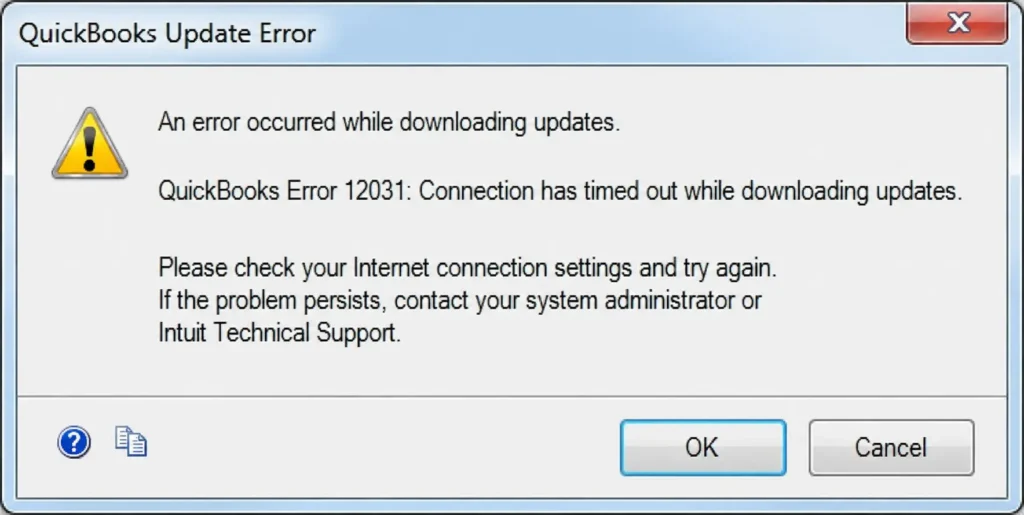
The error is usually caused by unstable internet settings, outdated security protocols such as TLS 1.2, or incorrect network configuration. In this article, we’ll cover the common causes of error 12031 and the effective methods to resolve it quickly.
Quick Overview of QuickBooks Error 12031
| Parameter | Details |
|---|---|
| Error Name | QuickBooks Error 12031 |
| Error Code | 12031 |
| Error Message | “QuickBooks Error 12031: Connection has timed out while downloading updates.” |
| Description | Occurs when QuickBooks fails to connect to the internet or update servers while downloading payroll or software updates. |
| Category | Network / Update Error |
| Common Causes | Unstable internet connection, incorrect SSL settings, firewall restrictions, network timeout issues, or misconfigured Internet Explorer settings. |
| Affected Versions | All QuickBooks Desktop versions that require internet-based updates. |
| Quick Fix | Verify internet connectivity, check SSL settings, configure firewall permissions, and rerun the QuickBooks update. |
Similar QuickBooks Error 12000 Series
The QuickBooks 12000 error series includes several error codes that typically appear when an update process is interrupted or fails unexpectedly.
You may encounter different error codes in this series, each showing its own warning message:
|
QuickBooks Error 12045 |
QuickBooks Error 12002 |
QuickBooks Error 12157 |
|
QuickBooks Error 12007 |
QuickBooks Error 12031 |
QuickBooks Error 12009 |
|
QuickBooks Error 12037 |
QuickBooks Error 12038 |
QuickBooks Error 12009 |
Possible Reasons of QuickBooks Update Error 12031
Error code 12031 can occur due to several system, network, or configuration-related issues. Below are the most common causes:
- Incorrect system date and time settings interfering with secure connections.
- Outdated or unsupported TLS 1.2 security protocol on Windows.
- Unstable or weak internet connection disrupting update downloads.
- Incorrect internet or proxy configuration settings in QuickBooks.
- Firewall or antivirus blocking QuickBooks from accessing the internet.
- Background programs or startup services interfering with the update process.
- Corrupted or stuck QuickBooks update files preventing successful installation.
Keep Reading Further:Top 7 Solutions to Resolve QuickBooks Error 12031
How to Troubleshoot QuickBooks Error 12031 When Trying to Update?
If you encounter QuickBooks Error 12031 during an update, it is important to identify and resolve the underlying causes to restore a smooth update process.
The troubleshooting methods below can help you fix the error effectively:
1. Check the system date and time on the computer
As updates are time-based processes, incorrect date and time settings can interfere with the update or payroll process.
Here’s how to verify the system date and time on your computer:
- Right-click on the clock on the lower left of your system.
- Select Adjust Date/Time from the options.
- Click Change date and time, then specify the current date and time.
- Hit OK twice.
- Now, close QuickBooks Desktop and open it.
- When done, try to run the QB Desktop update again.
2. Run the TLS 1.2 Readiness tool
The QuickBooks Tool Hub helps check and update your Windows settings to ensure compatibility with the latest TLS 1.2 security protocol. Before running the Tool Hub, make sure to close QuickBooks completely.
For optimal performance, it is recommended to use the Tool Hub on a 64-bit version of Windows 10.
- Open the QuickBooks Tool Hub.
- In the left menu bar, choose Installation Issues.
- From the bottom right corner, choose QuickBooks TLS 1.2 Tool.
- Now, click OK to open the TLS Tool, then Yes to the EULA Agreement.
- Select Run.
- Once this is done, click Exit.
Read More: 5 Easy Ways to Fix QuickBooks Error 1406 During Installation
3. Test your secure internet access
To check whether your internet connection is secure, try accessing a trusted secure website in your web browser:
- Open the web browser (Google Chrome) on your computer.
- Now, try to open a secure website, such as Chase.com.
- If you can open the site normally, the root issue might be with QB and not internet connectivity.
- If it doesn’t open, verify your internet connection settings.
- If it doesn’t open, verify internet connection settings.
4. Check your Internet Connection settings
An unstable or improperly configured internet connection can also interrupt the QuickBooks update process. Follow the steps below to resolve the issue:
- Go to Help in the top menu bar.
- Choose the Internet Connection Setup option.
- Now, select Use my computer’s Internet connection settings to establish a connection when this application accesses the Internet.
- Click Next.
- Then, choose Advanced Connection Settings.
- Move to the Advanced tab.
- Click on Restore Advanced Settings. Then, click OK, and Done.
- Finally, try updating QuickBooks Desktop again.
Keep the following in mind:
- Download accelerators may disrupt the update download process. Disable any download accelerator before attempting to install updates. If needed, contact your Internet Service Provider (ISP) for further assistance.
- If you are using a dial-up internet connection, ensure that the connection speed is at least 28.8 Kb/s.
- For users accessing the internet through America Online (AOL), sign in using the primary account username whenever possible and make sure Parental Controls are turned off. You can refer to AOL’s online support resources for additional guidance.
5. Configure internet security, personal firewall, and parental control applications
To maintain smooth performance and secure operation, it is essential to correctly configure your internet security settings, firewall, and parental control software. When working with accounting software, you may also need to adjust Windows Firewall settings for QuickBooks Desktop to permit required network communication, as overly strict rules can block important services.
In addition, creating a dedicated antivirus exception for QuickBooks ensures that security software does not incorrectly identify or disrupt legitimate processes, helping you maintain both protection and uninterrupted functionality.
6. Start Microsoft Windows in Safe mode (msconfig)
To reduce interference from background applications and create a clean environment for troubleshooting QuickBooks Error 12000, boot Microsoft Windows into Safe Mode using the MSConfig utility.
- Launch the Run command by pressing Windows + R keys.
- In the Run window, type msconfig.
- Press the Enter key.
- Go to the Boot tab.
- Under Boot options, choose Safe Boot.
- Click on Minimal.
- When done, click OK and then Restart.
7. Reset the QuickBooks updates
If updating issues continue, you may need to reset the updates in QuickBooks to clear any stuck or corrupted update files.
- Select the Help menu from the top.
- Choose Update QuickBooks from the drop-down.
- In the prompted window, move to the Update Now tab.
- Now, select the checkbox for Reset Updates.
- Hit the Get Updates button.
- Finally, reopen QuickBooks Desktop to apply the updates.
Explore In-Depth Guide: QuickBooks Error PS032: Complete Troubleshooting Guide
Conclusion
In conclusion, QuickBooks error 12031 is generally a result of communication issues between QuickBooks and the internet services required for updates or payroll features. While the error may appear technical at first, it is often connected to simple factors such as unstable network settings, blocked connections, or incorrect internet configurations.
Taking a systematic approach to troubleshooting not only helps fix the current error but also improves the overall performance and reliability of QuickBooks in the long run.
Frequently Asked Questions
-
What is QuickBooks Error 12031?
QuickBooks error 12031 is a payroll update error that usually occurs when the software cannot connect to the internet or Intuit servers. It commonly appears during payroll updates or QuickBooks updates.
-
Why does Error 12031 occur in QuickBooks?
Error 12031 is an update-related issue that triggers when the software experiences an internet connection timeout. It typically occurs when QuickBooks Desktop tries to download payroll updates, tax tables, or software patches but is prevented from successfully communicating with Intuit’s servers.
-
Can Windows firewall settings cause Error 12031?
Yes, Windows Firewall settings frequently cause Error 12031. This error indicates a network timeout or connection reset, meaning your security software is likely blocking the application (such as QuickBooks or an FTP client) from communicating with external update servers.
-
Does QuickBooks Error 12031 affect payroll updates?
Yes, error 12031 directly prevents payroll updates. It is a network timeout issue indicating that QuickBooks cannot connect to Intuit’s servers. Without a stable connection, QuickBooks cannot download the latest tax tables or software updates
-
Can outdated QuickBooks software trigger Error 12031?
Yes, using an outdated version of QuickBooks can lead to connectivity and update-related errors, including Error 12031.
About The Author

Elora Havencrest
Elora Havencrest is an accomplished Accounting Writer with over 12 years of experience crafting clear, engaging, and informative financial content. She specializes in bookkeeping, tax planning, and financial analysis, making complex accounting concepts easy to understand for business owners and finance professionals.
Elora's dedication to accuracy and clarity ensures her writing not only educates but also empowers readers to make confident and informed financial decisions.