Why QuickBooks Error 6000 832 Occurs & How To Fix It?
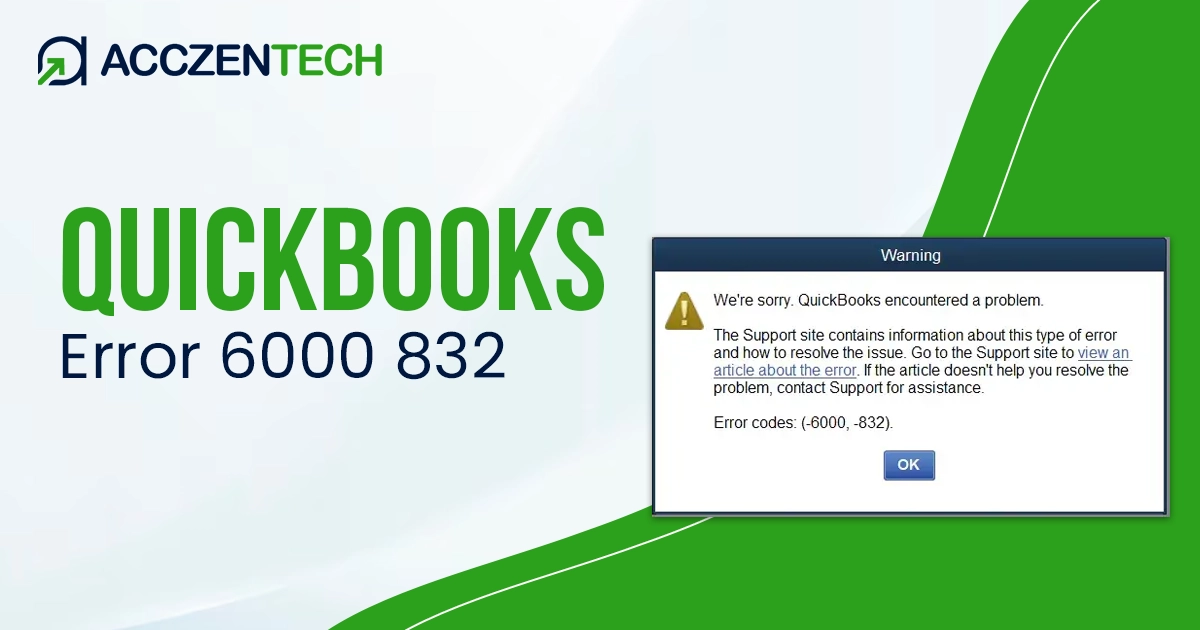
QuickBooks Error 6000, 832 usually appears when users try to open or access a company file in multi-user mode. This issue is mainly caused by damaged .ND or .TLG files, incorrect hosting settings, network problems, or corrupted company data. As a result, QuickBooks may freeze, crash, or fail to open the company file. In this guide, we’ll discuss the causes, symptoms, and effective solutions to fix QuickBooks Desktop Errors 6000 and 832 quickly.
Quick Overview of QuickBooks Error 6000 832
|
Parameter |
Details |
|
Error Name |
QuickBooks Error 6000 832 |
|
Error Code |
6000 832 |
|
Error Message |
“An error occurred when QuickBooks tried to access the company file. Please try again. Error Codes: (-6000, 832).” |
|
Description |
QuickBooks Error 6000, 832 mainly occurs while trying to open, restore, or access a company file in multi-user mode. This error reflects the issues with the company file, network setup, or hosting configuration. |
|
Category |
Company File Error / Network Error |
|
Common Causes |
Corrupted company file, damaged .ND or .TLG files, incorrect hosting settings, firewall restrictions, network connectivity issues, or hosting configuration. |
|
Affected Versions |
QuickBooks Desktop Pro, Premier, Enterprise, and Accountant versions (2017 and later). |
|
Quick Fix |
Rename the .ND and .TLG files, run QuickBooks File Doctor, verify hosting settings, update QuickBooks Desktop, and check firewall configuration. |
What You Might Experience When You Face QuickBooks Error Code 6000 832?
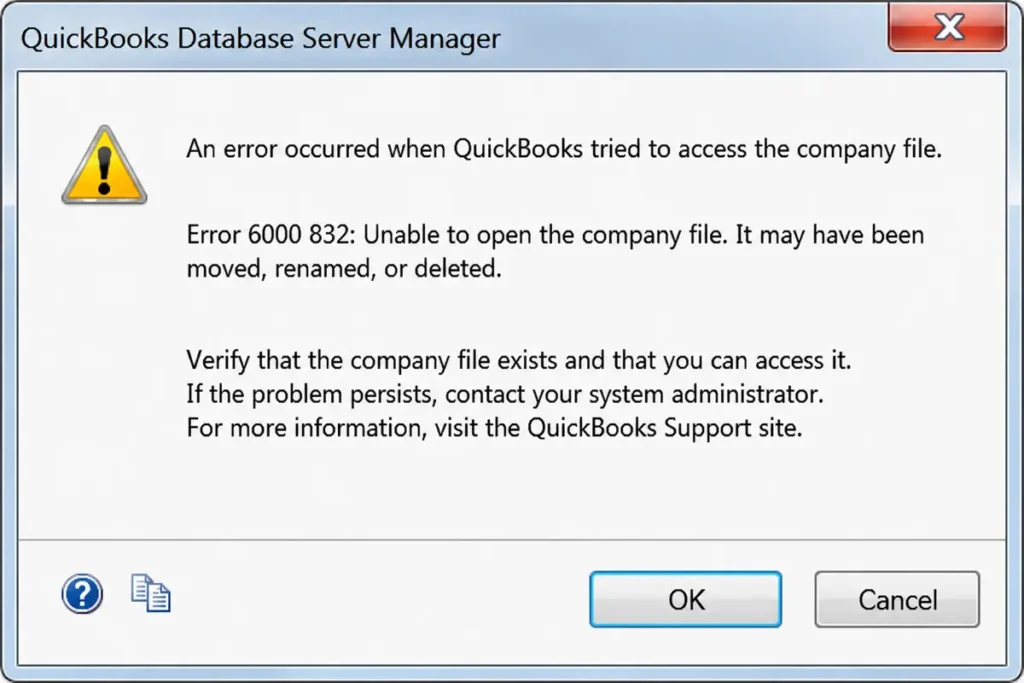
The following are the symptoms you may notice when the QuickBooks Error Code 6000 832 appears;
- Fails to open the company file, especially in multi-user mode.
- Inability to switch to multi-user mode.
- The application freezes or becomes unresponsive while accessing the company file.
- Sudden crashing of the application when trying to access company data.
- The error 6000 832 message appears repeatedly.
- Workstations couldn’t connect to the server computer.
Keep Reading Further:Top 7 Solutions to Resolve QuickBooks Error 12031
Common Causes of QuickBooks Desktop Error 6000, 832
The following are the major root causes of QuickBooks Desktop Errors 6000 and 832.
- Older QuickBooks Desktop versions fail to open the company file.
- Corrupted or damaged network data and transaction log file.
- If the hosting settings on your server computer are on, it may cause this issue.
- Incorrect network connectivity might interrupt while accessing the company file.
- The folder containing the data file doesn’t have proper read or write access.
- An incomplete or damaged download interrupts the QuickBooks installation.
Effective Methods to Resolve QuickBooks Company File Error 6000, 832
In this blog section, we will describe all the troubleshooting methods to fix QuickBooks Company File Error 6000, 832.
Method 1: Update QuickBooks Application
An outdated QuickBooks version may cause Error 6000, 832, but updating QuickBooks ensures your software remains compatible with the latest company file version. Here’s what to do to update the application.
- Open the QuickBooks program.
- Now, move to the Help menu and click Update QuickBooks Desktop.
- Select the Update Now option.
- Relaunch your computer after installing the updates.
Method 2: Rename the .ND and .TLG Files
Network data and transaction log are the configuration files that enable QuickBooks to access the data file. If these files are damaged, you may encounter Error Code 6000 832 when opening them.
- Open the QuickBooks folder having your data file.
- Now, locate the files with names similar to your data file but with different extensions .ND and .TLG.
- Right-click on each file and choose Rename. Then, add OLD at the end of the file name.
- Try running QuickBooks again and opening the data file.
Related Article: A Troubleshooting Guide for QuickBooks Error Code 6000 77
Method 3: Run Quick Fix My Program
Quick Fix My Program closes all the background processes that’s creating problems while accessing the company file. Thus, it helps you fix issues such as 6000, 832 in QuickBooks.
- Download the updated version of QuickBooks Tool Hub.
- Open the QuickBooksToolsHub.exe file and follow the on-screen steps to complete the installation.
- Double-click the Desktop icon to open Tool Hub after completing the installation.
- Choose Program Problems.
- Now, run the Quick Fix My Program tool.
- Restart the computer and retry accessing the company file.
Method 4: Run QuickBooks File Doctor Tool
The QuickBooks File Doctor tool will help fix the damage or corruption in the company file. Perform the following steps to run this tool.
- Open the QuickBooks Tool Hub and choose Company File Issues.
- Click the Run QuickBooks File Doctor tool and let it repair the damage.
- In QB File Doctor, pick the company file by clicking the drop-down menu. If you can’t see the file, choose Browse and locate your file.
- Now, choose Check your file and click Continue.
- Enter the QuickBooks admin password, then click Next.
- Restart your computer and try opening the company file to check if the issue still exists.
Method 5: Verify that Hosting is turned off on all Systems
Make sure that you have only one server/PC hosting the company file. However, to ensure you have disabled the hosting mode, follow these steps.
- First, press the F2 key to open the Product Information window.
- After this, search and click on Local server information.
- Check that the hosting is turned off.
Method 6: Confirming Folder Permissions
Improper folder permissions may prevent you from accessing the company file. Perform the following steps to verify and adjust folder permissions.
- Right-click on the QuickBooks company file folder and click Properties.
- Go to the Security tab and select Advanced.
- Now, search for the QBDataServiceUserXX and click Edit.
- Make sure the following permissions are enabled.
- Traverse folder/Execute file.
- Read the qualities.
- List folders/Read data.
- Read extended characteristics.
- Create files and write data.
- Create folder/append data
- Write characteristics.
- Write extended attributes.
- Read permissions.
Correct folder permissions
- If QuickBooks folder permissions are incorrect, right-click the folder and click Properties.
- Move to the Security tab and click Edit.
- Choose QBDataServiceUserXX, enable Full Control, and hit Allow.
- Apply the changes by selecting Apply and then OK.
Expert Tips To Prevent QuickBooks Error 6000 -832 in Desktop Version
To avoid QuickBooks Error 6000 832 in the Desktop version, you must take care of the following things.
- Keep your QuickBooks Desktop updated.
- Don’t forget to take a backup of the QuickBooks company file.
- Make sure to have proper Windows file permissions.
- Use the QuickBooks Tool Hub periodically.
- Place your company file locally on the server.
- Ensure that the server and workstations are connected to a stable internet connection to prevent interruptions to file access.
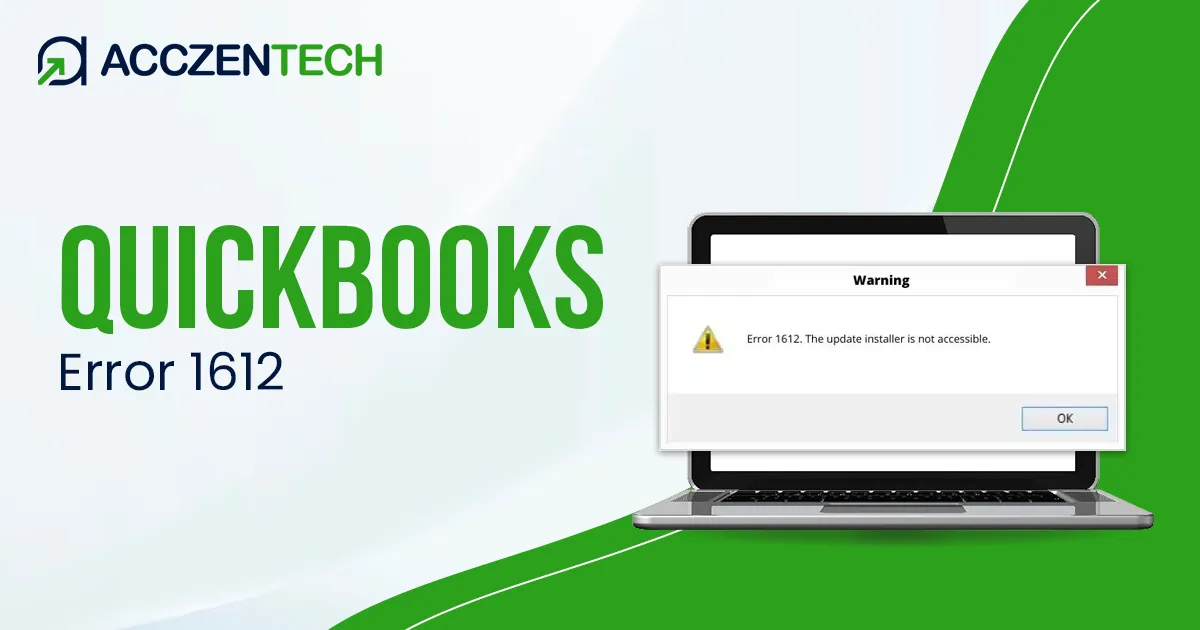
Learn More: How to Fix QuickBooks Error 1612 Update Installer Unavailable?
Final Thoughts
QuickBooks Error 6000 832 is a company file issue caused by hosting being turned on or by the .ND file doesn’t work right. You can fix this issue easily by turning on hosting settings, updating QuickBooks Desktop, running Quick Fix My Program or File Doctor, or renaming.ND and .TLG files. To prevent this error, make sure your internet connection is stable.
Frequently Asked Questions
-
What is QuickBooks Error 6000 832?
The QuickBooks Error 6000 832 is a company file access issue that appears when QB fails to open the file due to damaged network files, incorrect hosting settings, or corrupted company data.
-
Why am I getting Error 6000 832 in multi-user mode?
The QuickBooks Error 6000 832 may occur in multi-user mode due to incorrect hosting setup, clocked database services, or network issues between the server and workstations.
-
Can I access my company file after Error 6000 832 occurs?
You can recover the QuickBooks company file by running the repair tools, backups, or network troubleshooting options.
-
Can firewall settings trigger QuickBooks Error Code 6000 832?
Yes, firewall or antivirus software may block QuickBooks services and cause QuickBooks Error Code 6000 832 while opening the company file.
-
Does updating QuickBooks help fix Error 6000 832?
Yes, by installing the latest QuickBooks updates, you can resolve Error 6000 832.
About The Author

Elora Havencrest
Elora Havencrest is an accomplished Accounting Writer with over 12 years of experience crafting clear, engaging, and informative financial content. She specializes in bookkeeping, tax planning, and financial analysis, making complex accounting concepts easy to understand for business owners and finance professionals.
Elora's dedication to accuracy and clarity ensures her writing not only educates but also empowers readers to make confident and informed financial decisions.