QuickBooks Error 6175: Causes and Complete Troubleshooting Guide
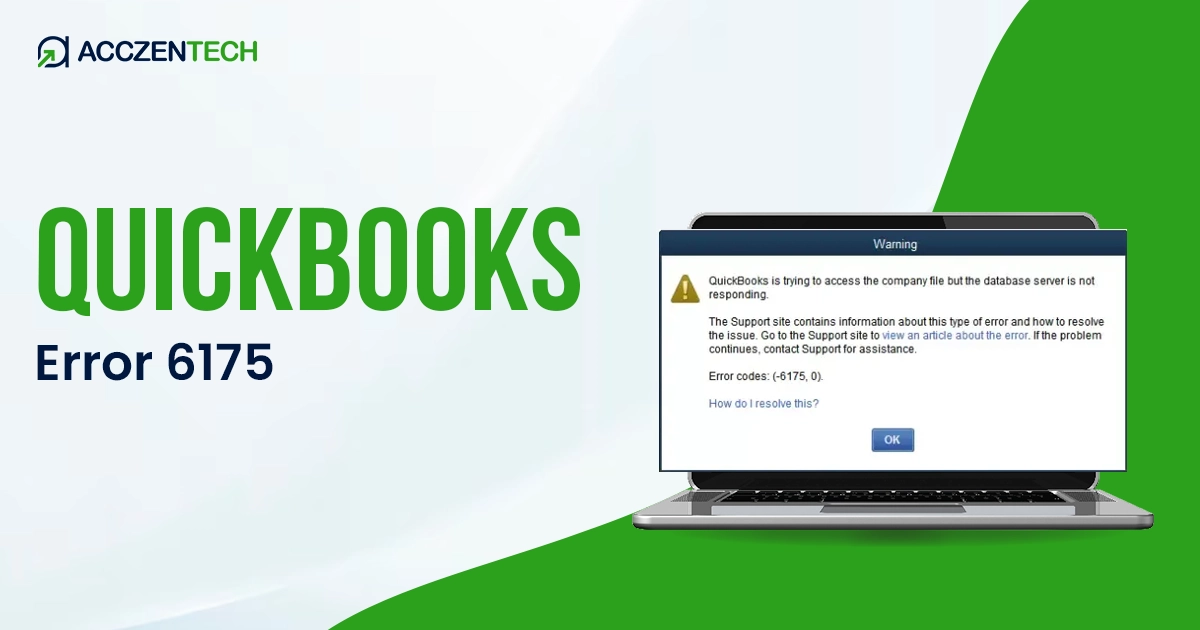
If you are seeing QuickBooks Error 6175 on your screen, it usually means your QuickBooks workstations have lost their connection to the main server. This error code comes when the QuickBooks Database Server Manager is not functioning correctly or when multiple systems try to host the same File. In this blog post, we will walk through the most effective, step-by-step solutions to resolve error 6175 and get your team back to work.
Overview of QuickBooks Error 6175
| Parameter | Details |
| Error Name | QuickBooks Error 6175 |
| Error Code | 6175 |
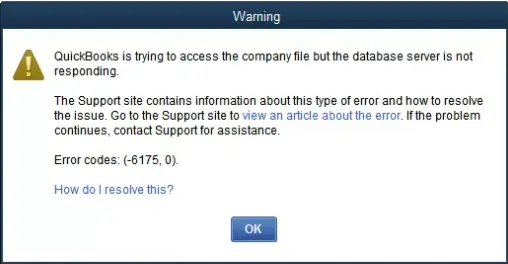
| Error Message | “QuickBooks is trying to access the company file but the database server is not responding.” |
| Description | Occurs when QuickBooks cannot connect to the server hosting the company file in multi-user mode |
| Category | Multi-User / Server Connection Error |
| Common Causes | QuickBooks Database Server Manager issues, firewall blockage, incorrect hosting settings, or network connectivity problems |
| Affected Versions | All versions of QuickBooks Desktop |
| Quick Fix | Restart QuickBooks Database Server Manager and configure firewall permissions |
Symptoms of QuickBooks Error Message 6175
QuickBooks Error 6175 shows several noticeable signs that indicate a breakdown in multi-user communication:
-
- Error message “QuickBooks Error 6175, 0” appears on the screen.
- The company file fails to open in multi-user mode.
- QuickBooks freezes or becomes unresponsive.
- Unable to switch from single-user to multi-user mode.
- Server connection fails repeatedly, even after restarting.
- The system slows down while accessing QuickBooks data.
- Workstations cannot detect the company file.
If you see these signs, it usually means you are dealing with QuickBooks multi-user network issues or a hosting misconfiguration.
Read More Here: QuickBooks Error 1311 Installation Problem: A Complete Repair Guide
What Triggers QuickBooks Error Code 6175?
Identifying the root cause of Error 6175 is the first step toward a permanent fix. This error generally occurs due to one of the following technical or network-related factors:
- Incorrect Hosting Setup
You may face this error when several computers are configured to host a company file. The correct hosting is done by the server.
- QuickBooks Database Server Manager Failure
In case the QuickBooks Database Server Manager is stopped on your server, then QuickBooks can not find or open your company file across the network.
- Firewall and Antivirus Restrictions
Your security software might block necessary QuickBooks ports or files, preventing the server and workstations from communicating with each other.
- Damaged Company File Path
If your company file has been moved to a new folder, renamed, or the location path is damaged, it can lead to the failure of QuickBooks’ ability to find your company file.
- Network Instability
A weak LAN connection or an unstable Wi-Fi signal can interrupt the data flow between your computer and lead to Error 6175.
- Incorrect Multi-User Mode Setup
Improper configuration of multi-user mode is one of the most common causes of this error in business environments.
Proven Methods to Fix QuickBooks Error 6175
QuickBooks Error 6175 typically occurs in multi-user mode when a workstation cannot communicate with the server hosting the company file . The following official solutions from Intuit and industry best practices that can help you to resolve this issue.
1. Restart QuickBooks Database Server Manager (Most Effective Fix)
The first and most reliable solution is restarting the server service responsible for file sharing.
Steps:
- Click on the Start Menu option, then Search for QuickBooks Database Server Manager.
- Open QuickBooks Database Server Manager and select Scan Folders.
- Select the folder containing the company file.
- Allow the tool to scan and repair access permissions.
- Once finished, try to restart your system.
This process resets network services and resolves most QuickBooks Error 6175 issues caused by service failure or miscommunication.
2. Check Hosting Settings on All Computers
Incorrect settings in the hosting options will cause error code 6175 for QuickBooks when used in multi-user modes.
Steps:
- Open QuickBooks on every workstation.
- Go to File and select the Utilities menu.
- Ensure the host multi-user access option is checked only on the server computer.
- Turn off hosting on all other systems immediately
- Restart QuickBooks on all machines
This ensures only one computer manages the file at a time, and this will stop hosting conflicts to keep your data stable
3. Configure Firewall and Antivirus Settings
Firewall and antivirus restrictions are one of the most common causes of QuickBooks Error 6175.
Steps:
- Launch Windows Defender Firewall.
- Add QuickBooks programs as exceptions and allow the required ports (8019, 56728, etc.)
- Add Database Server Manager to trusted applications
- Temporarily disable the antivirus to test connectivity
If the error code is fixed, you can set up the security settings accordingly to allow QuickBooks communication.
4. Use QuickBooks Tool Hub and File Doctor
QuickBooks Tool Hub is an official utility designed to fix file corruption and network errors.
Steps:
- Download and install the QuickBooks Tool Hub from Intuit’s website.
- Open the hub and click on the Company File Issues tab.
- Select the Run QuickBooks File Doctor button and browse for your company file.
- Allow the repair process to fix your potential issues.
This tool fixes damaged file paths, network issues, and hidden configuration errors that trigger QuickBooks Error 6175.
5. Restart QuickBooks Services
In some instances, background services stop working, and your server won’t be able to share files. Resetting them often clears the connection.
Steps:
- Press Windows + R and type services.msc.
- Find QuickBooksDBXX service.
- Right-click it, select Restart, and ensure the Startup Type is set to Automatic.
- Repeat these steps for the QBCFMonitorService.
This ensures your database stays active and communicates to all workstations.
6. Check Network Configuration & Connectivity
A stable and secure internet connection is the best way to prevent Error 6175 from interrupting your workflow.
Steps:
- Make sure all the systems are connected to the same network.
- Restart the router or switch device.
- Prefer a wired LAN instead of Wi-Fi.
- Verify the IP address of the server system.
- Run a network diagnostic test.
Unstable connectivity is one of the biggest reasons behind repeated QuickBooks error 6175
7. Rename .ND and .TLG Files
Damaged network descriptor files can also cause QuickBooks error 6175.
Steps:
- Go to the company file folder
- Find files with extensions .ND and .TLG
- Rename them by adding “.old” at the end
- Restart QuickBooks
This forces QuickBooks to recreate fresh configuration files.
Read More: Fix QuickBooks Error 6123 0 When Opening a Company File
Prevention Tips to Avoid QuickBooks Error 6175
Preventing QuickBooks Error 6175 ensures smooth business operations:
- Ensure only your main server is set to host the file; multiple hosts cause constant conflicts.
- Always keep your QuickBooks Desktop updated with the latest releases.
- Use a stable wired network connection.
- Set your security software to allow QuickBooks access before issues start.
- Restart QuickBooks services weekly.
- Avoid duplicate hosting setups across systems.
These practices reduce network conflicts and improve system stability.
Conclusion
The QuickBooks Error 6175 is generally triggered by hosting conflicts or network disruptions. By carefully verifying your server settings, restarting database services, and ensuring a stable connection, you can fix this issue and restore access to your company file. Following these solutions will help you maintain a reliable multi-user environment.
Frequently Asked Questions
What is QuickBooks Error 6175?
This error usually occurs when QuickBooks is unable to access the company file in multi-user mode due to a communication failure between the workstation and the server.
Why does QuickBooks Error 6175 happen?
It happens due to incorrect hosting setup, firewall blocking, network issues, or failure of the QuickBooks Database Server Manager.
Does QuickBooks Error 6175 affect data?
No, your data remains secure. This is a connectivity issue that prevents access to the file; it does not cause data corruption or loss.
How do I fix QuickBooks Error 6175 quickly?
Restarting the Database Server Manager and correcting hosting settings are the fastest solutions.
Is QuickBooks Error 6175 a network problem?
Yes, it is a network error that deals with the protocols needed for multiple users to access the same file.
About The Author

Elora Havencrest
Elora Havencrest is an accomplished Accounting Writer with over 12 years of experience crafting clear, engaging, and informative financial content. She specializes in bookkeeping, tax planning, and financial analysis, making complex accounting concepts easy to understand for business owners and finance professionals.
Elora's dedication to accuracy and clarity ensures her writing not only educates but also empowers readers to make confident and informed financial decisions.