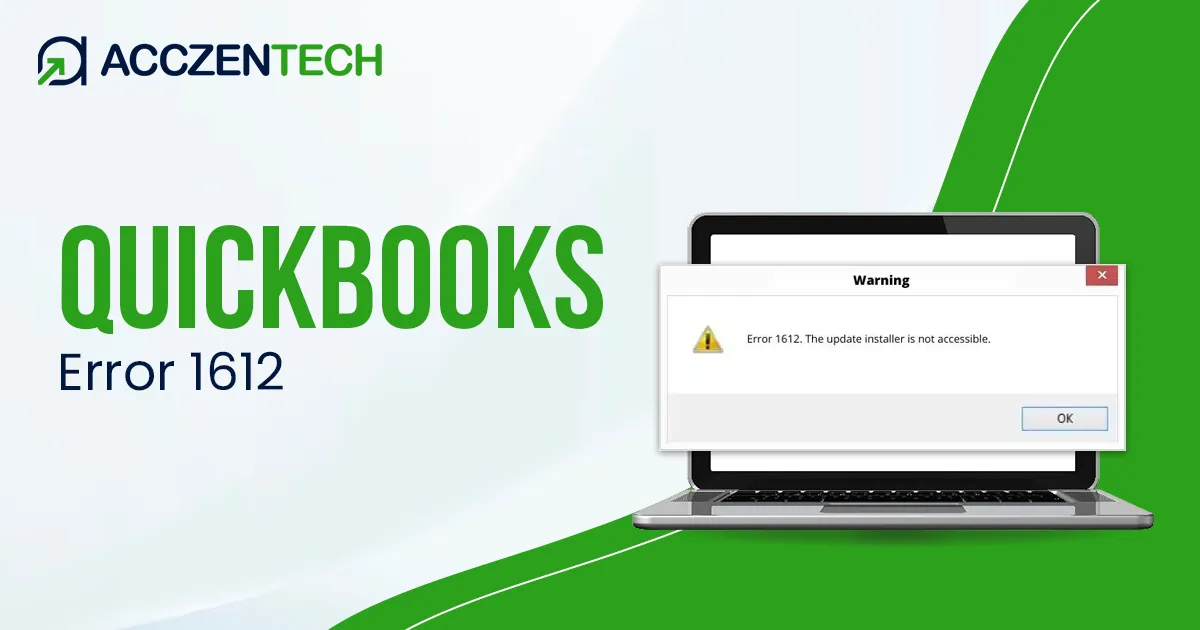
Fix QuickBooks Error 1601 During Installation or Update

QuickBooks Error 1601 may often appear while trying to install or update QuickBooks Desktop. When it comes up, it flashes the following warning message stating Error “1601: Windows Installer is not accessible.” It usually occurs when the Windows installer is inaccessible, which plays a crucial role in running updates and installing program components. However, when this error occurs, it prevents the users from installing or updating the software, causing productivity delays. In this guide, we’ll mention all the possible causes and effective troubleshooting methods to fix the error.
Quick Overview of QuickBooks Error 1601
|
Parameter |
Details |
|
Error Name |
QuickBooks Error 1601 |
|
Error Code |
1601 |
|
Error Message |
Windows Installer is not accessible |
|
Description |
QuickBooks Error 1601 occurs when the Windows Installer Service becomes unavailable or corrupted during QuickBooks installation, update or repair. |
|
Category |
Installation & Update Error |
|
Common Causes |
Corrupted Windows Installer Service, damaged QuickBooks installation files, outdated Windows OS, registry issues, or interrupted installation process. |
|
Affected Versions |
All versions of QuickBooks Desktop including Pro, Premier, Enterprise, and Accountant editions. |
|
Quick Fix |
Restart the Windows Installer Service, update Windows, run QuickBooks Tool Hub, and reinstall QuickBooks if necessary. |
What You Might Experience When You Come Across QuickBooks Error Code 1601
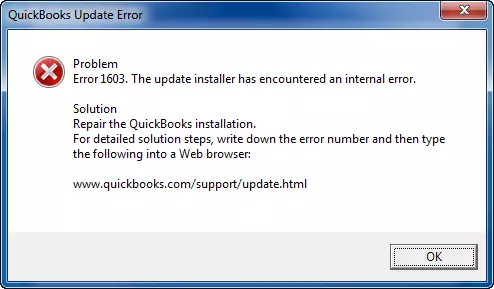
Users may notice the following symptoms;
- QuickBooks installation freezes unexpectedly.
- Windows installer service fails to respond properly.
- Users may experience issues while updating QuickBooks Desktop.
- QuickBooks may crash during installation.
- Error 1601 message flashes on the screen.
- The system starts working slowly.
Find Out More Topics: QuickBooks Error 1722: Causes, Symptoms & Easy Fixes
Causes of QuickBooks Install Error 1601
The QuickBooks Install Error 1601 may appear due to various reasons. Understanding these causes will help identify the root cause of this issue and make troubleshooting more convenient.
- Corrupted Windows Installer service.
- An incomplete or damaged QuickBooks may interrupt the installation.
- Issues with the Windows Registry files.
- Corrupted Windows Installer components.
- Using the outdated Windows or QuickBooks Desktop application.
- Interrupted QuickBooks updates.
- Security software or antivirus programs are blocking the installation or update process.
How to Fix QuickBooks Windows Installer Error 1601
Now that you have studied the causes behind QuickBooks Windows Installer Error 1601, let’s walk you through the tried and tested solutions to fix the issue.
Method 1: Update QuickBooks Desktop
An older version of QuickBooks may give rise to certain errors such as Error 1603 QuickBooks. Therefore, to avoid such issues, it’s best to update QuickBooks.
- Open QuickBooks and click Close Company/Log Off below the File menu.
- Tap on Exit and shut down the File menu.
- After this, access the menu on QuickBooks Desktop, and choose Run as Administrator.
- When the No Company Open window appears, select the Help menu and click Update QuickBooks.
- Select Mark All from the Options menu and click Save.
- Make sure to tick-mark the Reset Update checkbox from the Update Now tab.
- Once you see the Update Now tab, move to Get Updates and shut down the application.
- Restart QuickBooks and click Yes from the Install Updates pop-up.
Method 2: Update Windows Operating System
An outdated Windows operating system may prevent the proper QBDT application installation and cause the QuickBooks error code 1601.
- Click on the Settings option and choose Windows Update.
- Select the Check for updates option.
- You will see the available Windows updates on your screen.
- Finally, choose the Download & Install option.
Method 3: Verify the Windows Service
If updating QuickBooks and Windows doesn’t resolve the issue, verify that the Windows Installer service is running properly.
- First, click on the Start menu, type msc in the search box, and hit the Enter key.
- Select the Services Local option.
- Move to Windows Installer and choose Properties.
- When you are in the Properties window, check the “Startup type” setting.
- If it’s set to Disabled, change it to Manual.
- After this, search for the service status and hit Start to begin the service.
- Make sure that the Windows Installer Service is running correctly.
Helpful Resource: How to Fix QuickBooks Online Error 101 When Bank Sync Fails
Method 4: Re-Register the Windows Installer
Re-registering the Windows Installer can help fix the QuickBooks Update Error 1601.
- Initially, open the Command Prompt.
- Now, type “msiexec/unreg” and hit the Enter key.
- Tap on OK for the confirmation.
- After this, type “msiexec/reg” and press the Enter key to re-register the installer.
- Restart your computer and then relaunch the Windows Installer Service.
- At last, update or repair the Windows installer when required.
Method 5: Update or Repair Windows Installer
If the above solutions don’t work, try to update or repair the Windows Installer to fix the issue.
Update Windows Installer
- Hit the Windows + R keys to bring up the Run window.
- Now, within the Command Prompt screen, run the following commands one by one;
- msiexec/unregister: hit the Enter key
- msiexec/regserver: hit the Enter key
- Exit from the Command Prompt screen and relaunch your computer.
- Finally, try installing or updating QuickBooks again.
Method 6: Run the QuickBooks Install Diagnostic Tool
If the issue continues, use QuickBooks Install Diagnostic tool to repair damaged installation components.
- Firstly, download and install the latest QuickBooks Tool Hub from Intuit’s official website.
- After this, open the Tool Hub by clicking on its icon.
- Choose the Installation Issues tab.
- Move to the QuickBooks Install Diagnostic tool. Allow the tool some time to scan your computer.
- When it’s done, relaunch your computer and start QuickBooks Desktop. Then, launch your data file.
- Finally, update your QuickBooks Desktop and see if the issue still exists.
Method 7: Repair or Reinstall the Microsoft .NET Framework
Since QuickBooks relies on Microsoft components for installation, repairing the .NET Framework may help resolve the issue. So, to fix the issue, you need to repair or reinstall .NET Framework components.
- Launch the Control Panel from your Windows Taskbar.
- Choose Programs and tap on Programs and Features.
- Opt for the Turn Windows features on or off.
- Now, look for the affected versions of .NET Framework and make sure the checkbox of disable is unmarked.
- Click OK to confirm and disable the selected version.
- Relaunch your PC to finish the removal process.
- After restarting, move to Programs and Features.
- Click Turn Windows features on or off again.
- Tick-mark the checkbox of Microsoft .NET Framework 3.5 or 4.0 to reinstall it.
- Click OK and wait for the process to complete.
- At last, relaunch your PC and see if the QuickBooks functions are working properly.
Method 8: Reinstall QuickBooks Desktop
- Click on the Start menu and type Control Panel.
- Open the Control Panel and click Programs.
- Choose the Programs and Features or Uninstall a Program.
- A list of programs will open on your computer.
- Select QuickBooks Desktop and hit Uninstall, Remove, and Next option.
- After the reinstallation is over, download and install QuickBooks Desktop again.
- The QuickBooks Desktop will create new folders and rename the old folders during the installation.
Expert Tips to Prevent Error 1601 QuickBooks
To avoid getting the Error 1601 QuickBooks, make sure to implement the following practices;
- Keep your Windows OS up-to-date.
- Make sure that you are using the updated version of QuickBooks Desktop.
- Ensure that the internet connection is stable during the installation or update process.
- Also, make sure you are using a trusted antivirus and malware protection software.
Explore More Topic: QuickBooks Error PS032: Complete Troubleshooting Guide
Conclusion
QuickBooks Error 1601 is a common Windows Installer issue that can interrupt QuickBooks installation or updates. Fortunately, the error can be fixed by restarting the installer service, updating Windows, using QuickBooks Tool Hub, or reinstalling QuickBooks Desktop. Applying these troubleshooting methods mentioned above can help restore smooth QuickBooks installation and prevent future issues.
Frequently Asked Questions
-
What is QuickBooks Error 1601?
QuickBooks Error 1601 occurs when the Windows Installer service becomes inaccessible during QuickBooks installation or updates. It also indicates that the QuickBooks installation isn’t completely updated or has been damaged in between.
-
Why am I seeing error messages when I install or update QuickBooks?
Error messages usually appear while trying to install or update QuickBooks due to following reasons including incorrect system date and time, internet connectivity problems, incorrect firewall or antivirus software settings.
-
Does reinstalling QuickBooks fix Error 1601?
Yes, reinstalling QuickBooks Desktop can help fix the Error 1601 if corrupted installation files are causing the error.
-
Is QuickBooks Error 1601 related to Windows Installer?
Yes, QuickBooks Error 1601 is associated with Windows Installer service becoming inaccessible or malfunctioning.
-
Which QuickBooks versions are affected by Error 1601?
The QuickBooks Error Code 1601 affects all versions of QuickBooks Desktop including Pro, Premier, Enterprise, and Accountant Editions.
About The Author

Elora Havencrest
Elora Havencrest is an accomplished Accounting Writer with over 12 years of experience crafting clear, engaging, and informative financial content. She specializes in bookkeeping, tax planning, and financial analysis, making complex accounting concepts easy to understand for business owners and finance professionals.
Elora's dedication to accuracy and clarity ensures her writing not only educates but also empowers readers to make confident and informed financial decisions.