QuickBooks Error 15227: Easy Solutions to Resolve Update Issues
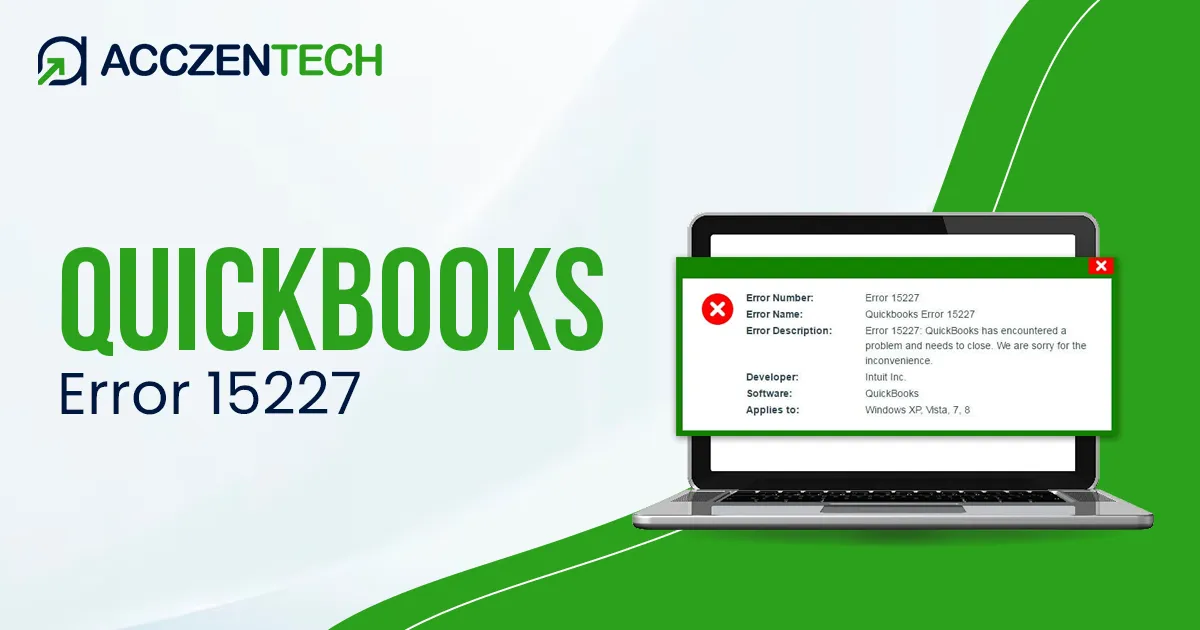
Keeping QuickBooks updated is important for smooth accounting and payroll management. However, update-related issues can sometimes interrupt the process, and one such issue is QuickBooks Error 15227.
This error generally occurs when QuickBooks fails to install updates properly due to damaged system files, registry issues, or conflicts with Windows components. As a result, QuickBooks may freeze, crash, or fail to complete software and payroll updates.
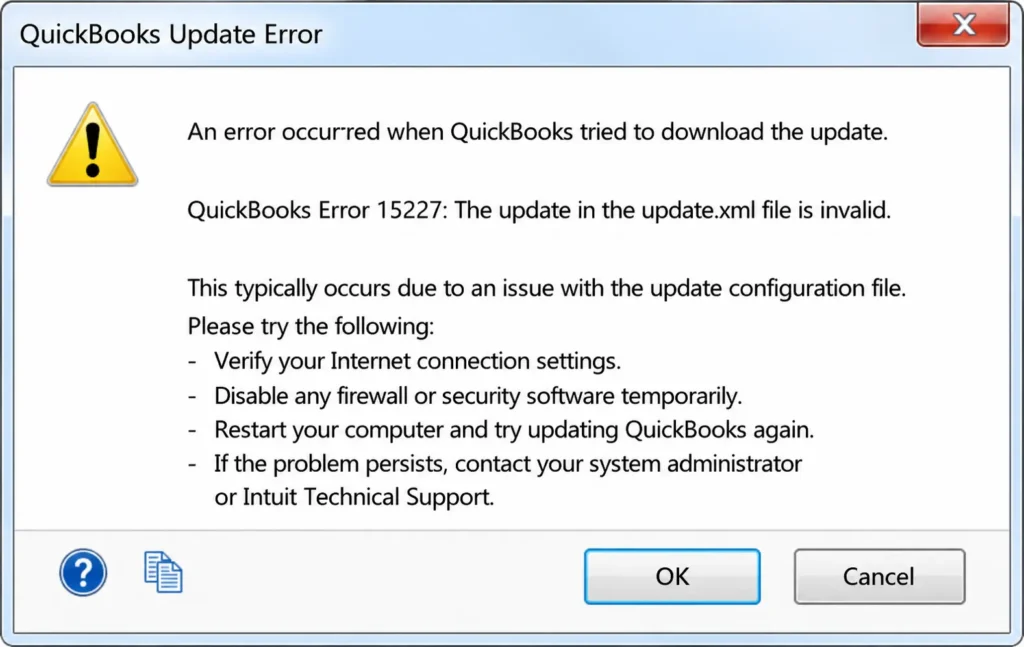
In this guide, we’ll discuss the causes of QuickBooks Error 15227 and the most effective ways to resolve it.
Quick Snapshot of QuickBooks Error 15227
| Parameter | Details |
| Error Name | QuickBooks Error 15227 |
| Error Code | 15227 |
| Error Message | QuickBooks has encountered Error 15227 |
| Description | Occurs when QuickBooks fails to install or process updates correctly |
| Category | Update Error |
| Common Causes | Corrupted Windows files, registry issues, incomplete updates |
| Affected Versions | QuickBooks Desktop (all supported versions) |
| Quick Fix | Update Windows and repair QuickBooks components |
Causes of QuickBooks Payroll Update Error 15227
QuickBooks update error 15227 can occur due to several technical and system-related issues. You might be facing this error if one or more of the following problems are present:
- The downloaded QuickBooks Desktop file is corrupted or incomplete.
- The QuickBooks installation was not completed properly.
- The Windows registry has been damaged or contains invalid entries.
- Malware, viruses, or other unwanted programs are interfering with system files.
- Windows Firewall is blocking QuickBooks from accessing the internet for updates.
- Essential QuickBooks components required for updates are missing or broken.
- The system is unable to verify the digital signatures needed for QuickBooks updates.
7 Best Solutions to Fix Error Code 15227 in QuickBooks
If you are facing QuickBooks Desktop Error 15227 during updates, follow these simple and reliable troubleshooting methods to resolve the issue.
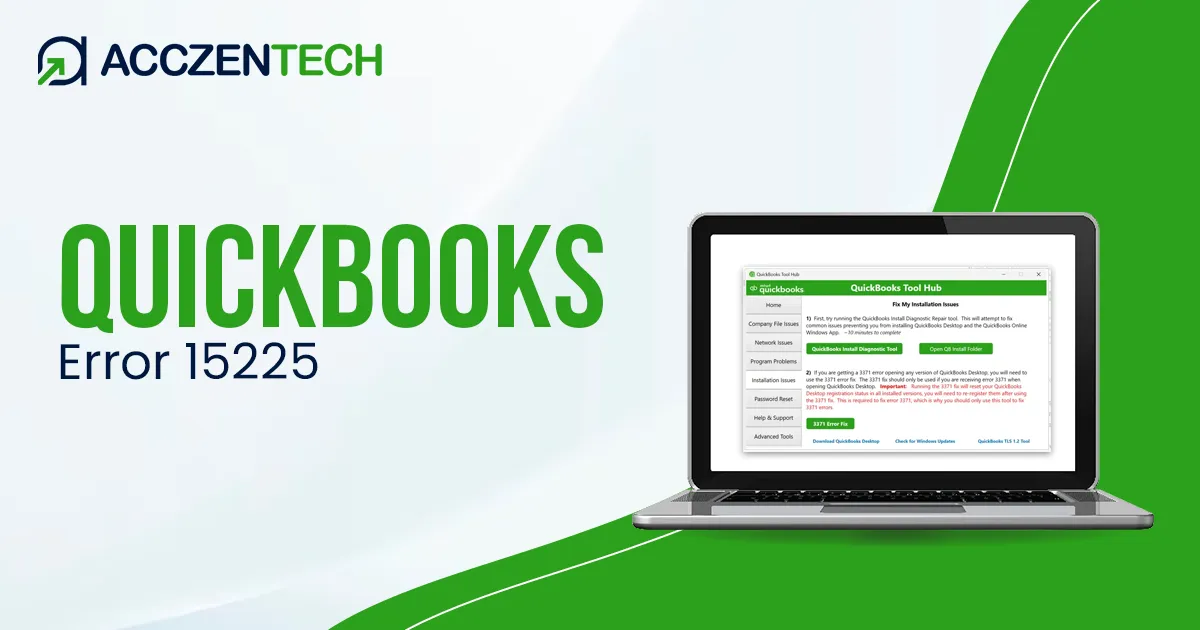
Solution 1: Run QuickBooks Tool Hub
QuickBooks Tool Hub is one of the most effective ways to fix update-related errors. Follow the steps given below:
- Download and install the latest version of QuickBooks Tool Hub from the official Intuit website.
- Open the tool and go to Program Problems.

- Click on Quick Fix My Program.
- Wait for the tool to repair background issues automatically.
- Restart QuickBooks and try updating again.
Solution 2: Reinstalling QuickBooks Updates
If QuickBooks updates are not installed correctly, you can reinstall the updates to resolve the issue. This process makes sure that any incomplete or corrupted update files are restored. Follow the steps below carefully:
- Restart your system to clear temporary system glitches.
- Open QuickBooks Desktop and right-click on its icon, then select Run as Administrator.
- Go to the Help menu and click on Update QuickBooks Desktop.
- Navigate to the Update Now tab and select Get Updates.
- Once the update is downloaded, restart QuickBooks again.
- When prompted, click on Install Now to complete the update installation process.
Similar Topics: QuickBooks Error 15101 When Updating Desktop or Payroll
Solution 3: Update Windows Operating System
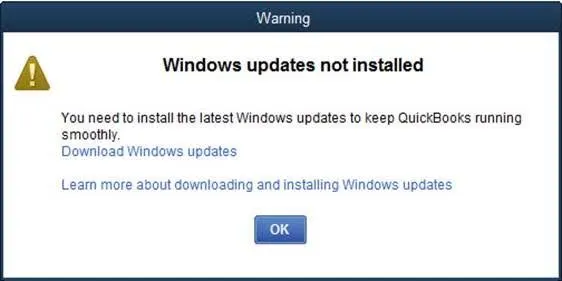
Outdated Windows files can block the QuickBooks updates and cause QuickBooks update error 15227. Follow the steps below:
- Open Settings from the Start menu.
- Go to Windows Update.
- Click on Check for updates.
- Install all available updates.
- Restart your system and try updating QuickBooks again.
Solution 4: Clear Temporary System Files
If temporary or junk files are stored in your system, they can sometimes interfere with QuickBooks updates and cause QB error code 15227. To fix this:
- Press Windows + R on your keyboard.
- Type cleanmgr and press Enter.
- Select the drive where Windows is installed (usually C:).
- Click on Clean up system files.
- Select temporary files and click OK to delete them.
Solution 5: Run System File Checker (SFC Scan)
This built-in Windows tool helps repair damaged or missing system files that may affect QuickBooks. Here’s how:
- Open the Start menu and search for Command Prompt.
- Click right on it and select Run as Administrator.
- Type the command:sfc /scannow
- Press Enter and wait for the scan to complete.
- The system will automatically repair corrupted files if found.
- Restart your computer once the process finishes.
Solution 6: Perform a Clean Installation of QuickBooks
If none of the above solutions fix error 15227, reinstalling QuickBooks can fix deeper installation issues.
- Click the Windows Start button and search for the Control Panel.
- Go to the Programs and Features option to uninstall QuickBooks.
- Download and install the latest version of QuickBooks Tool Hub.
- Open it and go to Installation Issues.
- Run the Clean Install Tool to remove damaged program files.
- Reinstall QuickBooks using the official installation file.
Solution 7: Restart Your System and Try Updating Again
After applying all the above-mentioned steps, you need to perform the following simple steps:
- Restart your computer.
- Open QuickBooks as Administrator.
- Try running the update again.
Essential Tips to Prevent QuickBooks Update Error 15227
To avoid facing QuickBooks update issue 15227 again, it is important to keep your system and QuickBooks properly maintained. These simple tips can help you prevent update issues in the future:
- Keep your Windows and QuickBooks updated regularly.
- Do not interrupt QuickBooks updates once they start.
- Allow QuickBooks through antivirus and firewall settings.
- Remove temporary and junk files from your system periodically.
- Always install updates from official Intuit sources only.
Read More Topics: QuickBooks Error 15271 – Multi-User Mode Not Working Fix Guide
Final Thoughts
QuickBooks Error 15227 is mainly an update-related issue that occurs due to system conflicts, damaged files, or interrupted update processes. While it can stop QuickBooks from installing important updates, the good news is that it can be fixed with simple solutions.
By following the solutions mentioned above, such as using QuickBooks Tool Hub, updating Windows, and repairing system files, you can effectively resolve QuickBooks Error 15227 and get your software working smoothly again.
Frequently Asked Questions (FAQs)
-
What is QuickBooks Error 15227?
QuickBooks Error 15227 is an update related issue that appears when QuickBooks fails to install or complete updates. It is usually linked to system file issues or interrupted update processes.
-
Why am I getting QuickBooks Error 15227?
This error usually occurs when something interrupts the update process, like damaged system files or an incomplete QuickBooks installation. It can also happen if your Windows version is outdated. In some cases, security tools like antivirus or firewall may also interfere with the update.
-
How do I fix QuickBooks Error 15227 quickly?
You can fix QuickBooks Error 15227 by running QuickBooks Tool Hub, updating your Windows system, and restarting your computer. These steps help you remove temporary glitches.
-
Does QuickBooks Error 15227 affect company files?
No, this error does not impact your company files or financial data. It mainly affects the update process and may stop QuickBooks from installing the latest updates.
-
Can an antivirus or firewall cause Error 15227?
Yes, Windows antivirus or firewall can sometimes block QuickBooks from connecting to update servers. To fix the error, temporarily disabling them can help you identify the issue.
About The Author

Elora Havencrest
Elora Havencrest is an accomplished Accounting Writer with over 12 years of experience crafting clear, engaging, and informative financial content. She specializes in bookkeeping, tax planning, and financial analysis, making complex accounting concepts easy to understand for business owners and finance professionals.
Elora's dedication to accuracy and clarity ensures her writing not only educates but also empowers readers to make confident and informed financial decisions.
Recent Posts
-

How to Fix QuickBooks Error 15225 Payroll Download Errors Fast?
-
QuickBooks Error 15227: Easy Solutions to Resolve Update Issues
-
QuickBooks Tool Hub: Download, Install & Advanced Error Fixing Tool
-
QuickBooks Desktop Unrecoverable Error: How to Fix Sudden Crashes
-
How to Fix QuickBooks Error 6129 When Opening a Company File?