How to Fix QuickBooks Error 15225 Payroll Download Errors Fast?
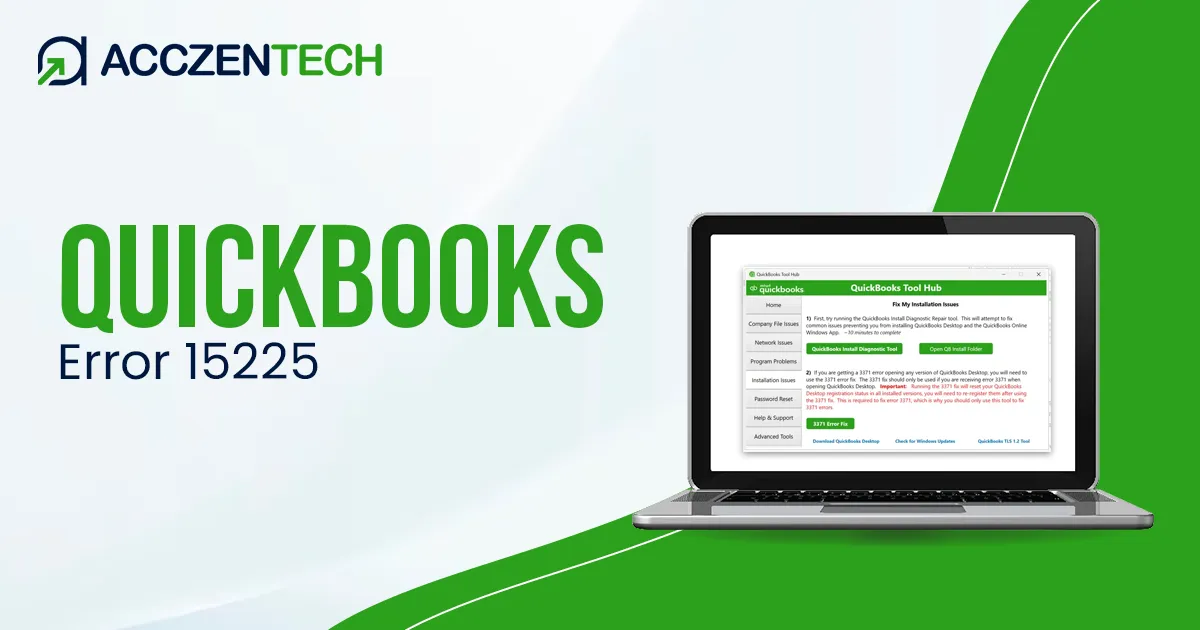
QuickBooks Error 15225 is a common update error that appears while installing QuickBooks Desktop or payroll updates. It may take place due to numerous reasons like an invalid digital signature certificate, internet issues, or third-party security software blocking the update process.
In this blog, we have covered all the major causes behind QuickBooks Error Code 15225, symptoms, and proven troubleshooting methods to fix it.
A Quick Overview of QuickBooks Error 15225
The table illustrates a quick view of the update error 15225 in QuickBooks.
| Parameter | Details |
| Error Name | QuickBooks Error 15225 |
| Error Code | 15225 |
| Error Message | “QuickBooks Update did not complete successfully” or an error indicating that QuickBooks cannot verify the digital signature of downloaded update files. |
| Description | QuickBooks Error 15225 is an update-related error that typically occurs when downloading or installing QuickBooks Desktop or Payroll updates. The error prevents QuickBooks from verifying the digital signature of update files, causing the update process to fail. |
| Category | QuickBooks Update Error / Payroll Update Error (15XXX Series Like QuickBooks Error 15101) |
| Common Causes | Incorrect or outdated Internet Explorer settings
Unregistered or invalid digital signature certificate Expired Windows security certificate Firewall or antivirus blocking QuickBooks updates Network connectivity issues or misconfigured TLS/SSL settings Corrupted or incomplete QuickBooks installation |
| Affected Versions | Primarily affects QuickBooks Desktop versions, including Pro, Premier, Enterprise, and Accountant editions when updating QuickBooks or Payroll services |
| Quick Fix | Add Intuit websites to Trusted Sites in Internet Explorer.
Verify and install the QuickBooks digital signature certificate. Update Internet Explorer and Windows security certificates. Temporarily disable firewall/antivirus and retry the update. Run QuickBooks as Administrator and download updates again |
Common Causes That Trigger QuickBooks Error Code 15225
To fix the QuickBooks Error Code 15225 instantly, it’s important to understand the root causes that trigger this issue.
- Incorrect Internet Explorer settings.
- Using an invalid or outdated digital signature certificate.
- Not having proper admin rights to install the updates.
- Damaged or missing QuickBooks installation.
- Unstable or poor internet connection.
- Windows Firewall is blocking QuickBooks from accessing the required ports and thus makes its connection to the server inaccessible.
What will happen when QuickBooks Update Error 15225 occurs?
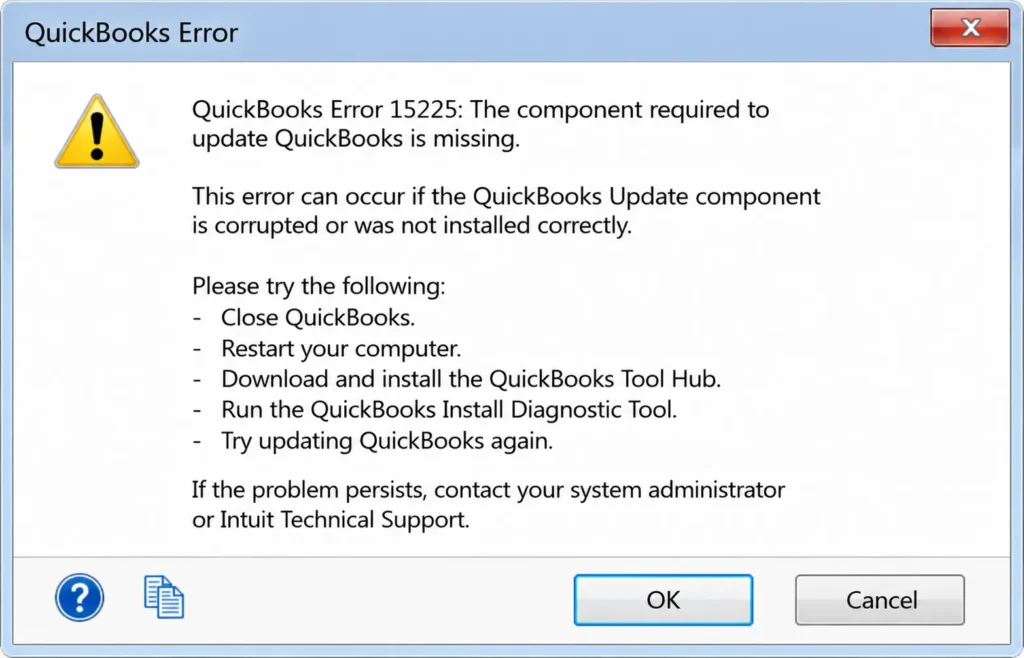
If you are facing QuickBooks update error 15225, you may notice:
- The payroll software fails repeatedly.
- Failure to download the latest QBDT or payroll updates.
- Software starts freezing during the updates.
- Unexpected crashing of the program.
- Slow system performance during the payroll updates.
Read More Topics: QuickBooks Error 15240 Explained: Fix Update Problems Quickly
How to Fix QuickBooks Error 15225 when downloading QuickBooks updates?
Facing QuickBooks Payroll Update Error 15225 and unable to download the updates? Perform the following troubleshooting methods to fix this issue smoothly.
1. Run the Updates as an Admin User
Users have enough administrator permissions to make changes to the computer. If you don’t have enough permissions, you may face problems while downloading updates. Perform these steps to run QBDT as an administrator.
- Shut down any windows of QuickBooks if they’re open.
- Move to the Desktop, where you will get the QuickBooks icon, right-click on it.
- Select Run as Administrator.
- When prompted to enter admin credentials, enter them. Click Yes if the system asks you whether you want to make changes to your computer.
- Now, move ahead to get the QuickBooks Desktop and payroll updates.
2. Add Intuit as a Trusted Website
By adding Intuit as a trusted website in the settings of Internet Explorer, it won’t consider it a threat. Thus, it will allow you to download the latest payroll updates smoothly. Here’s how to add it as a trusted website.
- Open Internet Explorer and press Windows + R to open the Run dialog box.
- Choose the Internet Options.
- Click on the Security tab and hit the Trusted Sites option.
- Select Sites option and then add the following URLs as the trusted websites.
- https://www.intuit.com/ for the US version).
- https://www.intuit.ca/ (for the Canada version).
- After this, check all sites in this zone and tap on the Add option.
- Click OK and then select the Close option.
3. Install a Fresh Digital Signature Certificate for QuickBooks
QuickBooks uses the digital signature certificate to prove the authenticity of the program and allow you to install updates to Windows.
Apply the following steps to install a fresh copy of the digital signature for QuickBooks.
- Open the File Explorer and browse to C:\Program Files \ QuickBooks.
- Look for the QBW32.exe file and right-click on it.
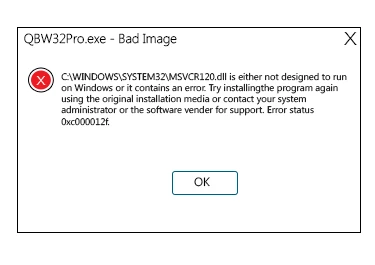
- Select Properties and open the Digital Signatures tab.
- Make sure that Intuit is marked in the signature list.
- Click Details and then the View Certificate option from the Digital Signature Details window.
- Now, head to Install Certificate > Next.
- Continue clicking Next until you see Finish.
- Lastly, select Finish.
Restart your computer and try updating your QuickBooks. If you still get the QuickBooks Error Code 15225, move to the next step.
4. Clear the SSL State
Clearing the SSL state will help in fixing the Error Code 15225 in QuickBooks.
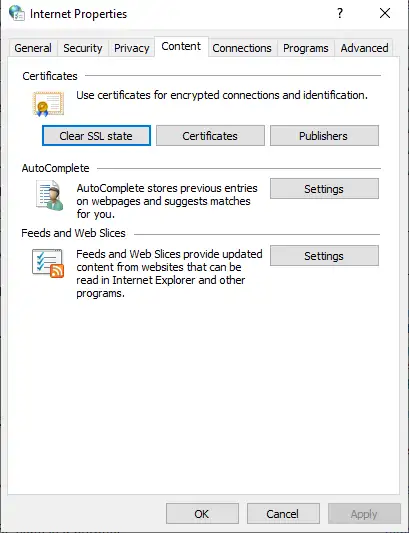
- Open Internet Explorer and select the Gear icon.
- Now, select the Internet Options.
- Navigate to the Content Sections tab and select Clear SSL State.
- Finally, click OK to complete the process.
5. Clean Installation of QuickBooks Desktop
Running the clean install on QuickBooks Desktop will remove all the damage, corruption, or technical issues from the program. Thus, it installs a fresh copy of the software so that you can run the updates successfully. This can be done by following these steps.
- Select the Start menu and double-tap on the Control Panel.
- Press Windows + R to open the Run Window. Here, type “appwiz.cpl” in the search box and click OK.
- Choose QuickBooks from the Programs and Features section.
- Click Uninstall or remove QuickBooks.
- Now, perform the on-screen instructions to finish the process.
- Restart QuickBooks and run the QuickBooks clean install tool.
- After this, allow the tool to perform the necessary tasks.
- Start installing QuickBooks again and provide the license and product keys.
- Lastly, you can use the software and see if the issue continues.
Expert Tips to Avoid QuickBooks Desktop Error 15225
To prevent the QuickBooks Desktop Error 15225 in the future, you must perform these healthy practices.
- Keep your QuickBooks Desktop up-to-date.
- Renew your payroll subscription before it expires.
- Access a stable and secure internet connection.
- Always maintain the active security certificates.
- Perform the installation of Windows Updates.
- Add Windows as an exception in Windows Firewall.
More Topics: Troubleshooting QuickBooks Update Error 1603 – A Complete Guide
Final Thoughts
QuickBooks Desktop and payroll updates are essential for maintaining software performance, compliance, and payroll accuracy. If you encounter QuickBooks Error 15225, use the troubleshooting methods outlined above to resolve this issue and restore update functionality.
Frequently Asked Questions
-
Why am I getting Error 15225 while updating payroll?
This error mainly occurs due to multiple reasons, including digital signature certificate failure, expired security certificates, firewall restrictions, or misconfigured internet settings.
-
What if I get an error downloading a QuickBooks Desktop Update?
If you get an error while downloading a QuickBooks Desktop update, test your internet connection, run QuickBooks as an administrator, and ensure the firewall isn’t blocking the update.
-
Does QuickBooks Error 15225 affect payroll updates?
Yes, this error prevents downloading the latest tax table update, which may affect payroll processing unless it’s resolved.
-
Can antivirus software cause QuickBooks Error Code 15225?
Yes, interference from the antivirus software blocks the QuickBooks update process. Thus, it prevents update files from downloading or installing correctly.
-
How do I manually update QuickBooks Desktop?
Open QuickBooks Desktop, go to Help > Update QuickBooks Desktop, select Update Now, and click Get Updates. Restart QuickBooks once the update is complete.
About The Author

Elora Havencrest
Elora Havencrest is an accomplished Accounting Writer with over 12 years of experience crafting clear, engaging, and informative financial content. She specializes in bookkeeping, tax planning, and financial analysis, making complex accounting concepts easy to understand for business owners and finance professionals.
Elora's dedication to accuracy and clarity ensures her writing not only educates but also empowers readers to make confident and informed financial decisions.
Recent Posts
-

How to Fix QuickBooks Error 15225 Payroll Download Errors Fast?
-
QuickBooks Error 15227: Easy Solutions to Resolve Update Issues
-
QuickBooks Tool Hub: Download, Install & Advanced Error Fixing Tool
-
QuickBooks Desktop Unrecoverable Error: How to Fix Sudden Crashes
-
How to Fix QuickBooks Error 6129 When Opening a Company File?