How to Fix QuickBooks Error 6129 When Opening a Company File?
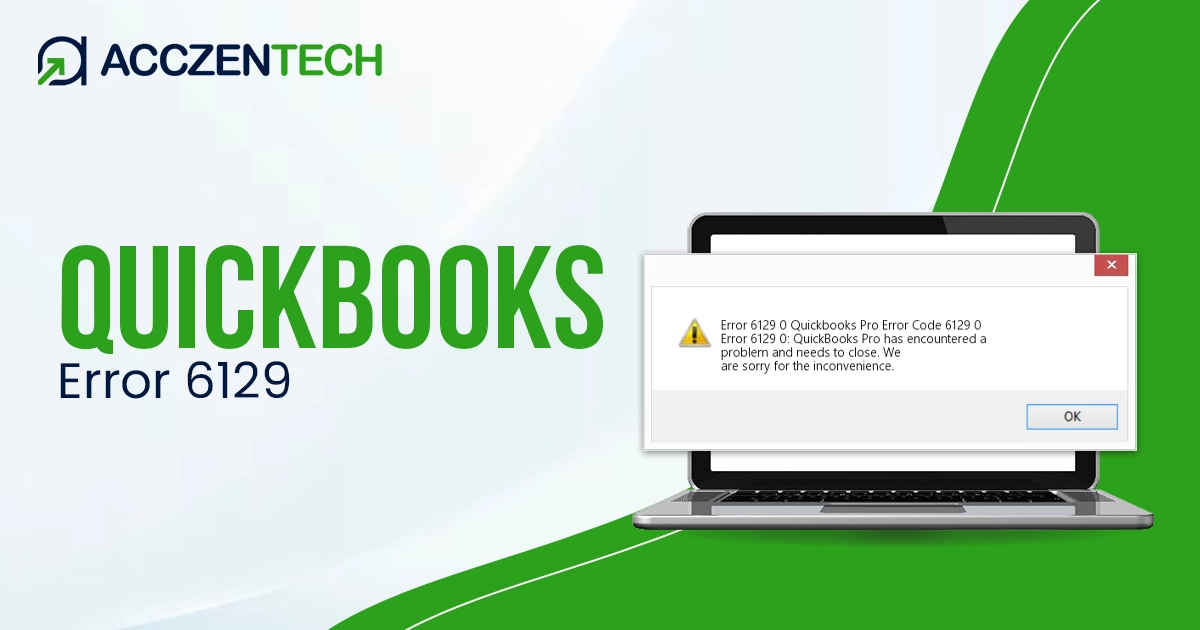
Facing QuickBooks error 6129 can be stressful, especially when you are unable to open your company file or switch to multi-user mode. This error usually occurs when QuickBooks fails to establish a proper connection with the QuickBooks Database Server Manager. It is commonly seen in network-based environments where multiple users access the same company file through QuickBooks Desktop.
If the error isn’t resolved, it might be difficult to run your accounting operations, payroll tasks and other daily operations. Let’s walk you through this detailed guide to explore different reasons causing error 6129 and effective methods to resolve it promptly.
Quick Overview of QuickBooks Error Code 6129
Get a detailed overview of the error code 6129 when opening company file to understand the error before troubleshooting:
| Parameter | Details |
|---|---|
| Error Name | QuickBooks Error 6129 |
| Error Code | 6129 |
| Error Message | “Database connection verification failure (Error 6129, 0)” |
| Description | Occurs when QuickBooks cannot verify the database connection while opening or creating a company file |
| Category | Database / Network Error |
| Common Causes | Network misconfiguration, corrupted files, and antivirus blocking |
| Affected Versions | All versions of QuickBooks Desktop |
| Quick Fix | Rename .ND file and verify hosting settings |
What Causes QuickBooks Error 6129 When Opening a Company File?
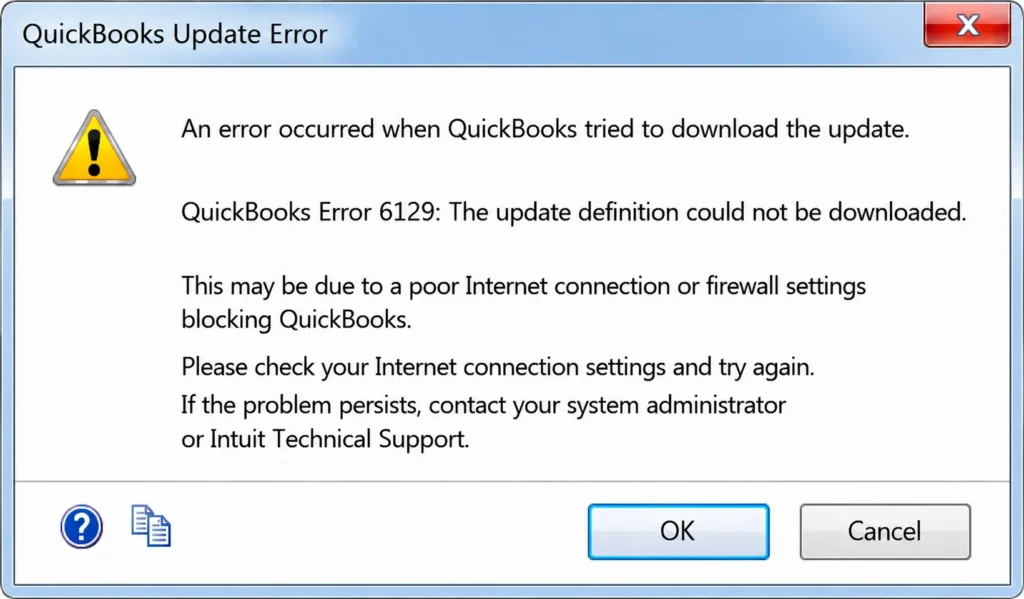
This error mainly occurs when QuickBooks cannot establish or verify a connection with the database server. Several technical and environmental issues can trigger QuickBooks error code 6129:
- Damaged or corrupted .ND file contains the network configuration
- Incorrect multi-user hosting setup
- Multiple computers hosting the company file
- Windows Firewall or other system security applications might be blocking the multi-user connection
- QuickBooks Database Server Manager might be inactive
Read More: QuickBooks Error 2107
Detailed Solutions to Fix QuickBooks Error 6129
Now that you understand what causes the error code 6129 when opening a company file, let’s explore the suitable troubleshooting steps to resolve the error and ensure seamless hosting on the network:
1. Rename the Network Data (.ND) File
The .ND file is a component of QuickBooks company file that stores network related information.
If the file is damaged, it will interupt the hosting or connect with the database server. Let’s rename the file so QuickBooks can create a new one after the scan when hosting:
- Open the folder where your company file is saved.
- Locate the file ending with .ND.
- Right-click the file and select Rename.
- Add .old at the end of the file name.
- Save changes and close the folder.
- Reopen QuickBooks and access your company file again.
When QuickBooks detects that the original .ND file is missing; it automatically creates a new healthy file with updated network settings. This often resolves database communication issues immediately.
2. Correct Multi-User Hosting Configuration
Improper hosting settings are among the most common causes of QuickBooks error 6129. Only the server system should host the company file.
- Open QuickBooks on every connected workstation.
- Go to File → Utilities.
- If you see Stop Hosting Multi-User Access, do not click it on the server.
- On workstations, click Stop Hosting Multi-User Access if available.
- Ensure only the server computer has hosting enabled.
- Restart all systems after making changes.
Having multiple systems acting as hosts creates network conflicts. Correcting hosting settings ensures a stable communication path between QuickBooks and the database server.
3. Restart QuickBooks Database Server Manager
The QuickBooks Database Server Manager is responsible for sharing company files over the network. If this service stops running, users cannot connect to the company file.
- Press the Windows +R to open the Run command.
- In the Run field, type services.msc.
- Press Enter to open the Services window.
- Locate the QuickBooksDBXX service.
- Right-click the service and choose Restart.
- Open Propertiesand set Startup Type to Automatic.
- Click Apply and restart your system.
Restarting the service refreshes database connectivity, allowing QuickBooks to communicate with the server again.
Discover More Topics: QuickBooks Error 6176
4. Configure Firewall and Antivirus Settings Properly
Antivirus software and firewalls can mistakenly block QuickBooks services or ports required for multi-user communication.
- Open Windows Firewall settings.
- Select Allow an app through firewall.
- Add QuickBooks to the allowed programs list.
- Open the required QuickBooks ports manually.
- Add QuickBooks folders as antivirus exclusions.
- Restart your computer and test QuickBooks again.
Allowing QuickBooks through firewall and antivirus settings removes restrictions that interrupt database communication.
5. Verify and Rebuild the Company File
A corrupted company file can trigger database verification errors. Running the Verify and Rebuild utilities helps repair damaged data.
- Launch QuickBooks Desktop in single-user mode.
- Navigate to the File menu.
- Choose Utilities and then click on Verify Data.
- When the scan finishes, verify the scan results.
- If the data damage found, click on Rebuild Data.
- Create a backup when prompted.
- Let the rebuild process complete fully.
The rebuild process repairs damaged entries and restores data consistency within the company file.
6. Use QuickBooks File Doctor Tool
QuickBooks File Doctor is an advanced repair tool that automatically fixes both network and company file problems.
- Download QuickBooks Tool Hub.
- Install and open the application.
- Go to Company File Issues.
- Select Run QuickBooks File Doctor.
- Choose your company file.
- Start the scan and wait until it finishes.
The tool automatically detects damaged network files, connectivity issues, and data corruption, making it one of the most effective solutions for Error 6129.
Prevention Tips for QuickBooks Error 6129
- Make sure QuickBooks Desktop is up-to-date to the latest release.
- The multi-user setup must be enabled only on the server.
- Maintain a stable and secure network connection.
- Backup your company file data regularly.
- Make sure Windows Firewall and antivirus applications aren’t blocking QB
- Run the Verify Data utility regularly to keep the data safe.
Following these practices reduces the risk of future database connection issues.
Helpful Resource: QuickBooks Error 1334
Conclusion
In conclusion, QuickBooks error 6129 is a common error that can appear when the database connection is inetrrupted on the multi-user environment. While the error may seem technical, it is usually caused by network misconfiguration, damaged files, or blocked services.
By carefully following the troubleshooting methods above, you can restore proper connectivity and access your company file without any interruption. For further help, talk to QuickBooks professionals.
Frequently Asked Questions
-
What does QuickBooks error 6129 mean?
QuickBooks error 6129 means something is interrupting the database connection the multi-user environment. This generally happens due to damaged .ND files, hosting conflicts or blocked communication network between QB and the server manager because of security applications.
-
Can QuickBooks error 6129 occur in single-user mode?
Error code 6129 is generally more common in the multi-user environment, however, you may also encounter it in the single-usre mode. This happens when your company file is damaged or the Windows Firewall and system security applications blocks the QB, making it challenging to open the company file.
-
How do I know if the .ND file is causing the problem?
If QuickBooks works after renaming the .ND file, then the original network data file was likely corrupted. This file controls network connectivity, so damage within it often leads to error 6129.
-
Is QuickBooks File Doctor safe to use?
Yes, QuickBooks File Doctor is an official Intuit tool designed specifically for repairing file and network issues. It safely scans the company file and repairs problems without affecting your accounting data.
-
What is the fastest method to fix error 6129 in QB?
To fix error 6129 promptly, rename the .ND file, restart QuickBooks Database Server Manager and make sure no security applications blocks QB. Doing this will refresh the network connection and restore the access immediately.
About The Author

Elora Havencrest
Elora Havencrest is an accomplished Accounting Writer with over 12 years of experience crafting clear, engaging, and informative financial content. She specializes in bookkeeping, tax planning, and financial analysis, making complex accounting concepts easy to understand for business owners and finance professionals.
Elora's dedication to accuracy and clarity ensures her writing not only educates but also empowers readers to make confident and informed financial decisions.
Recent Posts
-

QuickBooks Tool Hub: Download, Install & Advanced Error Fixing Tool
-
QuickBooks Desktop Unrecoverable Error: How to Fix Sudden Crashes
-
How to Fix QuickBooks Error 6129 When Opening a Company File?
-

QuickBooks Error “The File Exists”: Effective Methods to Fix the Issue
-
QuickBooks Missing PDF Component – Fix PDF & Printing Issues