How to Resolve QuickBooks Error PS032 Payroll Update Issue
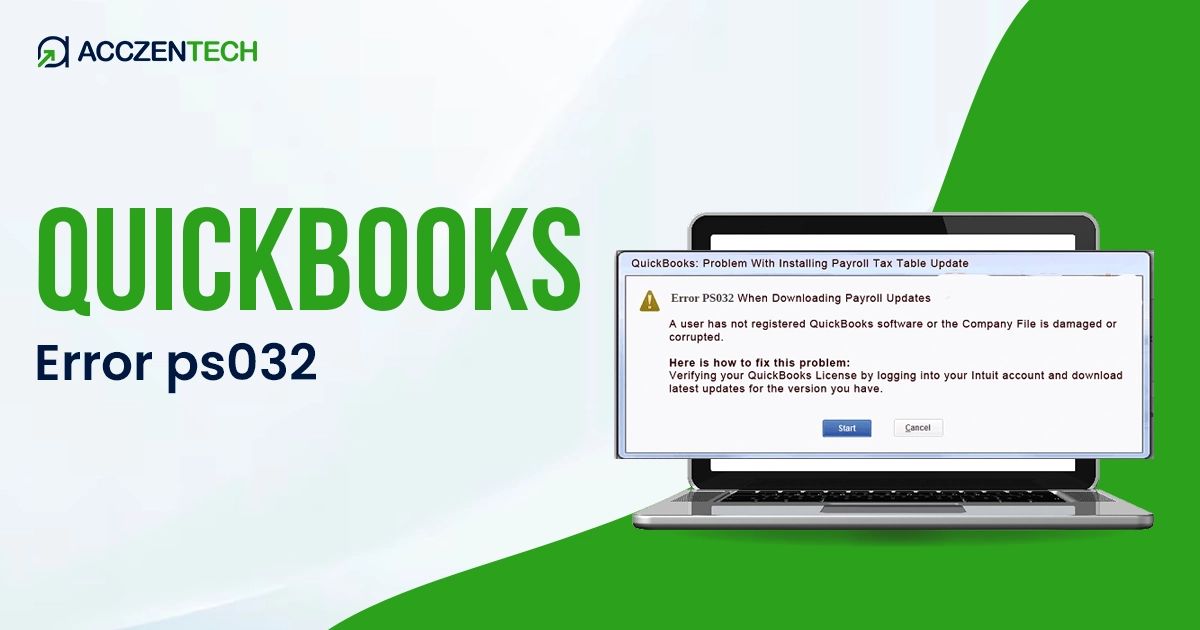
QuickBooks Error PS032 comes when the software is unable to verify your payroll subscription status during the update. This prevents you from downloading the latest tax tables and delays your employees’ payments. It is often caused by outdated billing info, a damaged payroll file, or an old version of the software. Don’t worry, this issue can be fixed easily by following the effective troubleshooting steps.
Quick Overview of QuickBooks Error Code PS032
| Parameter | Details |
| Error Name | QuickBooks Error PS032 |
| Error Code | PS032 |
| Error Message | “QuickBooks is having trouble installing payroll updates.” |
| Description | Occurs when QuickBooks is unable to verify the payroll subscription during updates |
| Category | Payroll / Subscription Error |
| Common Causes | Incorrect billing info, corrupted company file, damaged CPS folder, outdated QuickBooks |
| Affected Versions | QuickBooks Desktop |
| Quick Fix | Update QuickBooks, verify payroll subscription, and rename CPS folder |
What are the Signs of Error Code PS032 in QuickBooks?
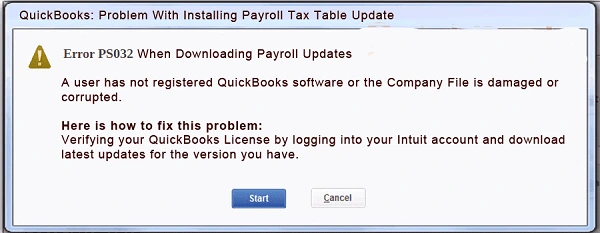
Before QuickBooks Error PS032 appears, you may notice several warning signs that indicate something is wrong with your payroll setup or system configuration. Recognizing these early can help prevent bigger disruptions.
- My payroll updates keep failing or getting stuck.
- I’m frequently getting error messages when I try to run payroll.
- QuickBooks becomes slow or unresponsive
- Payroll subscription not recognized
- Issues accessing payroll features
- Facing random interruptions during the updates
These issues usually occur due to corrupted files, incorrect billing details, or outdated software.
Read More: QuickBooks Error 30159: Causes, Symptoms, and Proven Solutions
Causes of QuickBooks Error Code PS032
- Incorrect or Outdated Billing Information
Your credit card or bank information on file with Intuit may have expired or changed. Because QuickBooks cannot verify your payment method, it blocks the payroll service.
- Damaged or Corrupted Company File
A corrupted company file can interfere with payroll functions and prevent QuickBooks from reading your payroll information correctly.
- Outdated QuickBooks Version
You might be running the older version of QuickBooks, which can lead to compatibility issues with payroll services. If the software is not updated regularly, it may fail to connect with Intuit servers for payroll verification.
- Incorrect Employer Identification Number (EIN)
If the EIN entered in your company file is missing or incorrect, QuickBooks may not be able to validate your payroll subscription, resulting in Error PS032.
- Corrupted CPS Folder
There is a specific folder on your computer called the “CPS” (Client Payroll Service) folder that stores your payroll instructions. If this folder gets scrambled, the update process will fail.
- Improper System Configuration
Sometimes your Windows settings or security software block the software. If QuickBooks doesn’t have admin rights, it can not reach the files it needs.
- Interrupted Payroll Update Process
If a payroll update is interrupted due to network issues or system shutdowns, it may leave files incomplete or corrupted, causing verification problems later.
How to Fix QuickBooks Error Code PS032?
Below are the recommended solutions to fix QuickBooks Desktop Error Code PS032 quickly and effectively. Follow the troubleshooting methods step by step to restore payroll update functionality without interruptions.
1. Update QuickBooks to the Latest Release
Running an outdated version of QuickBooks can trigger the PS032 error. Here’s how to fix it:
- Open your company file.
- Click the Help menu tab at the top of the screen.
- Select Update QuickBooks Desktop and click on the Update Now tab.
- Once finished, restart QuickBooks to apply the new changes.
2. Verify Your Payroll Subscription
QuickBooks needs to confirm that your payroll service is active.
- Go to the Employees menu.
- Hover over My Payroll Service.
- Select Account/Billing Information.
- Sign in with your Intuit credentials.
- Review your status to ensure it is marked as “Active.”
3. Check and Update Billing Information
Log in to your account and verify that your payment method, billing address, and subscription status are accurate.
- Open a web browser and log in to the Intuit Account Manager.
- Look for the Billing & Subscription or Payment Methods section.
- Check your payment method, expiration date, and billing address.
- If anything is outdated, click Edit and update the information to fix the error.
4. Rename the CPS Folder
A damaged CPS folder can cause payroll errors.
- First, exit QuickBooks and other applications completely.
- Open your file explorer and go to the C:Program Files (x86)IntuitQuickBooks [Your Version]ComponentsPayrollCPS
- Right-click the folder named CPS.
- Click on the Rename and change the name to CPSOLD.
- Open QuickBooks, and the software will automatically generate a clean, new CPS folder.
Related Topics: QuickBooks Error 1311 Installation Problem: A Complete Repair Guide
5. Verify and Rebuild Company File
Data damage within your company file can trigger this error.
- Go to the File menu.
- Hover over Utilities.
- Click Verify Data to let the system scan for issues.
- If the system reports an error, go back to File > Utilities.
- Click Rebuild Data and follow the on-screen prompts to fix the file.
6. Run QuickBooks as Administrator
Lack of proper permissions can interfere with payroll updates.
- Close QuickBooks.
- Right-click the QuickBooks shortcut icon on your desktop.
- Select Run as Administrator from the menu.
- When a prompt appears on the screen, click Yes to allow the new changes.
7. Check Employer Identification Number (EIN)
Make sure your EIN is entered correctly.
- Click the Company menu.
- Select My Company.
- Locate the EIN field.
- Verify the number matches your tax documents accurately.
- Click OK to save any corrections you made.
If none of the above methods works, consider reinstalling QuickBooks.
- Open the Windows Control Panel and choose Uninstall a program.
- Find QuickBooks in the list and click Uninstall.
- Rename your old installation folder to ensure old files are removed.
- Download and install a fresh version of QuickBooks from the official website.
Tips to Prevent QuickBooks Desktop Payroll Error PS032
Taking proactive measures can help you avoid encountering Error PS032 in the future. Here are the key prevention strategies:
1. Keep QuickBooks Desktop Updated
Regularly updating your QuickBooks software is the most effective way to prevent payroll errors. Updates include critical bug fixes, security patches, and compatibility improvements for payroll tax tables. Set a monthly reminder to check for updates via Help > Update QuickBooks Desktop.
2. Maintain an Active Payroll Subscription
An expired or inactive payroll subscription is a primary cause of Error PS032. Regularly verify your subscription status by navigating to Employees > My Payroll Service > Account/Billing Information. Ensure your billing information is current and your service key shows as “Active”.
3. Configure Firewall and Antivirus Settings Correctly
Overprotective firewall or antivirus software can block QuickBooks from communicating with Intuit’s servers, triggering update errors. Add QuickBooks as an exception in your firewall and antivirus programs. If you need to temporarily disable protection during updates, remember to re-enable it immediately afterward.
4. Back Up Your Company File Regularly
Data corruption in your company file can lead to various payroll errors, including PS032. Create regular backups of your company file, especially before performing any payroll updates or system changes. This ensures you can restore your data if corruption occurs.
5. Run QuickBooks as Administrator
Running QuickBooks with administrative rights ensures the software has the necessary permissions to write new payroll data and update files to your hard drive. Right-click the QuickBooks icon and select Run as Administrator to launch the program with elevated privileges.
6. Maintain a Stable Internet Connection
Unstable or interrupted internet connections can cause incomplete payroll updates and file corruption. Ensure you have a reliable internet connection before initiating payroll updates, and avoid other bandwidth-heavy activities during the update process.
7. Use QuickBooks Tool Hub Periodically
The QuickBooks Tool Hub includes utilities like “Quick Fix My Program” that can identify and resolve potential issues before they cause errors. Run these diagnostic tools periodically as part of your regular system maintenance routine.
8. Avoid Abrupt System Shutdowns
Unexpected shutdowns during payroll updates can corrupt update files and trigger errors. Always allow QuickBooks to complete updates fully before closing the program or shutting down your computer.
9. Keep Windows User Account Control (UAC) Settings Moderate
While UAC provides important security benefits, overly restrictive settings can interfere with QuickBooks updates. Configure UAC at a moderate level rather than disabling it completely, or temporarily lower it only during scheduled payroll updates.
10. Document Your Payroll Service Key
Keep a record of your correct payroll service key in a secure location. This allows you to quickly verify and re-enter the key if subscription verification issues arise, without having to search for it through your Intuit account.
Similar Topic: QuickBooks Error 6175: Causes and Complete Troubleshooting Guide
Final Words
Dealing with the unexpected issues like QuickBooks Error PS032 can be frustrating. Understanding the root causes of the error helps you resolve the problem much faster. This error code comes due to outdated software, incorrect billing details, or damaged payroll data.
By understanding the causes, warning signs, and applying the proper methods, you can restore your payroll functionality without major disruptions.
Frequently Asked Questions
1. Is the internet connection responsible for QuickBooks Error PS032?
Yes, an unstable or interrupted internet connection can prevent QuickBooks from verifying payroll data and downloading updates, which may trigger this error.
2. Can outdated payroll tax tables cause Error PS032?
Yes, QuickBooks relies on the latest tax tables to verify your payroll. If these are not updated, the system can’t validate the data and triggers the PS032 problem.
3. Does system permission affect this error?
Yes, QuickBooks needs “administrator” access to modify its own payroll files. If your Windows user account lacks these permissions, QuickBooks gets blocked from performing essential tasks, leading to this error.
4. Can an antivirus or firewall trigger Error PS032?
Yes, if your security settings are configured improperly, they can prevent QuickBooks from connecting with the Intuit server.
5. Is the company file damage linked to Error PS032?
Yes, even a minor corruption in your company file can disrupt the validation process. This usually causes the error when the software tries to run a subscription check or an update.
About The Author

Elora Havencrest
Elora Havencrest is an accomplished Accounting Writer with over 12 years of experience crafting clear, engaging, and informative financial content. She specializes in bookkeeping, tax planning, and financial analysis, making complex accounting concepts easy to understand for business owners and finance professionals.
Elora's dedication to accuracy and clarity ensures her writing not only educates but also empowers readers to make confident and informed financial decisions.