How to Fix QuickBooks Error 557 in Minutes
Even though QuickBooks makes it fairly easy to update payroll services, things don’t always go as smoothly as expected. There are several factors that can interrupt the update process and lead to errors like QuickBooks error 557.
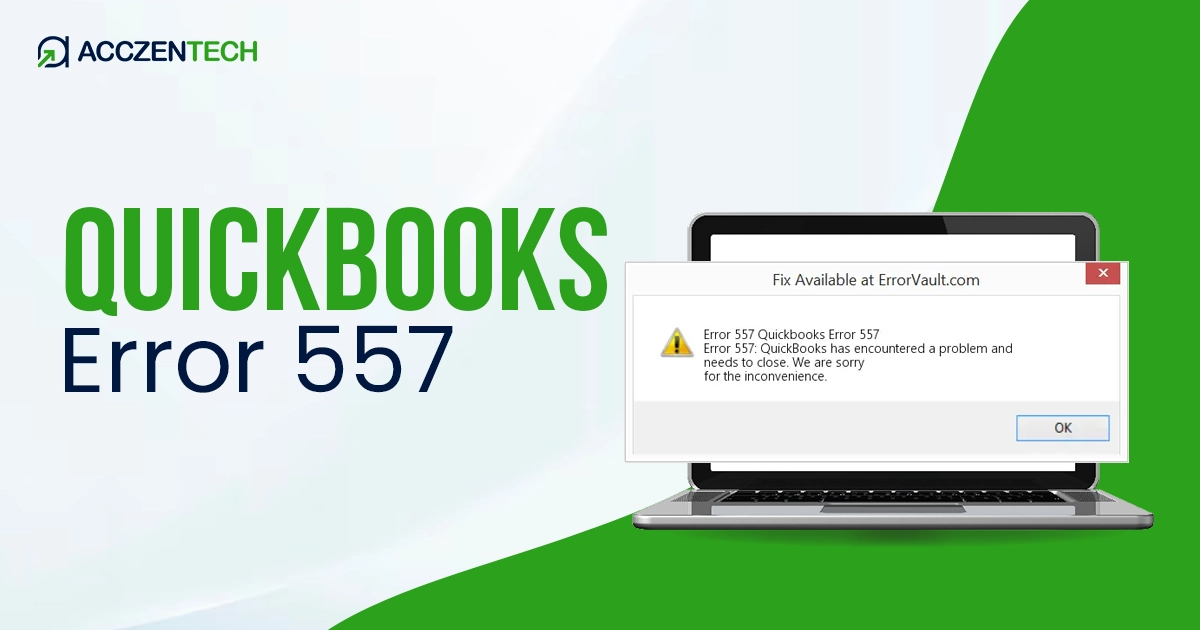
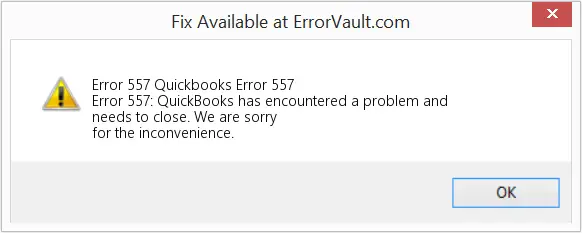
When this happens, you might see a message on your screen saying:
“QuickBooks has encountered an unexpected problem and needs to close. We apologize for any inconvenience caused.”
This issue is commonly seen on Windows systems like XP, Vista, 7, and 8, and it can stop your payroll updates from completing.
To avoid further interruptions, it’s important to fix error code 557 as soon as possible. In this guide, we’ll walk you through the steps to resolve it and get your payroll updates running again.
Quick Summary of QuickBooks Error 557
| Parameter | Details |
| Error Name | QuickBooks Error 557 |
| Error Code | Error 557 |
| Error Message | “Error 557: QuickBooks has encountered a problem and needs to close. Error 557.” |
| Description | Error 557: QuickBooks has encountered a problem and needs to close. We are sorry for the inconvenience |
| Category | Payroll / Update Error |
| Common Causes | Inactive payroll subscription, corrupted company file, incomplete QuickBooks updates, network issues, or incorrect payroll settings |
| Affected Versions | All versions of QuickBooks Desktop with Payroll |
| Quick Fix | Verify payroll subscription status and update QuickBooks to the latest release |
What is QuickBooks Error 557?
 QuickBooks error is a payroll update issue that prevents users from updating the payroll tax table or processing direct deposits. It appears with the message,
“QuickBooks has encountered an unexpected problem and needs to close. We apologize for any inconvenience caused.”
This error generally occurs due to an inactive payroll subscription, an incorrect service key, damaged program files, or a corrupted software installation, among other causes, which we will discuss in the section below.
Suggested Articles: How to Fix QuickBooks Error 324: Account Not Found
Common Causes Behind QuickBooks Payroll Error 557
As discussed earlier, an incorrect payroll service key and other issues can hamper your payroll updates and trigger error code 557. Let’s get familiar with each of these factors:
- The QuickBooks payroll plan has expired or been canceled
- The service key is your payroll identity — even one wrong character blocks QuickBooks from verifying your subscription status.
- An incomplete QuickBooks Desktop installation or the program files might be damaged
- Registry entries modified by third-party software or by improper shutdowns significantly destabilize QuickBooks payroll components.
- Firewalls and antivirus programs frequently misidentify QuickBooks update traffic as a threat, blocking payroll server connections.
- Insufficient storage on your system drive prevents QuickBooks from saving downloaded payroll update files, causing Error Code 557 mid-download.
Top 5 Solutions to Troubleshoot QuickBooks Error 557 When Updating Payroll
Below are five practical and easy-to-follow solutions that can help you resolve this error and restore smooth payroll updates without further interruptions:
1. Update QuickBooks Desktop to the latest release
An outdated version of QuickBooks Desktop can cause compatibility issues with payroll services, preventing access to the latest tax table. Let’s update QuickBooks to the latest release to resolve and use the up-to-date security patches and features:
- Close all open company files in QuickBooks Desktop
- Right-click the QuickBooks Desktop icon and select Run as Administrator.
- Go to the Help menu and click Update QuickBooks Desktop.
- Navigate to the Options tab and click Mark All, then hit Save.
- Switch to the Update Now tab and check the Reset Update box.
- Click Get Updates and wait for the process to complete.
- Restart QuickBooks when prompted and relaunch your company file.
- Retry submitting payroll or downloading the tax table update.
|
Pro Tip: Always run QuickBooks as Administrator before updating — permission issues silently block update downloads. |
2. Reactivate your payroll subscription
Due to an expired or inactive payroll subscription, QuickBooks fails to verify active entitlement to payroll services, which triggers error code 557 in QuickBooks.
Let’s reactivate the payroll subscription using two different methods:
a. Via QuickBooks Desktop
- Open your QuickBooks company file
- Go to the Employees menu and select My Payroll Service.
- Click Account/Billing Info and sign in to your Intuit account
- Locate your payroll plan under Status.
- Click Resubscribe and follow the on-screen steps to reactivate.
- Once activated, open QuickBooks Desktop and try to download the payroll updates again.
b. — Via Web Browser (CAMPs Portal)
- Open your browser and sign in to the Customer Account Management Portal (CAMPs).
- Select your QuickBooks product from the Manage your QuickBooks page.
- Click the Payroll Subscription tile.
- If status shows Canceled, click the Resubscribe link.
- Verify all billing details and click Save and Continue.
|
Pro Tip: Always use the same Intuit admin credentials used during the original QuickBooks setup to avoid login mismatches. |
Further Reading: How to Fix QuickBooks Error 1327 | Invalid Drive Error
3. Verify and correct your payroll service key
A wrong or mismatched service key silently blocks QuickBooks from authenticating your payroll account — even if your subscription is fully active.
Follow these steps to ensure the payroll service key is accurate:
- Launch QuickBooks Desktop and go to the Employees tab.
- Select My Payroll Service and click Manage Service Key.
- Check that the Service Name and Status both appear as Active.
- Click Edit and carefully verify every digit of your service key.
- If incorrect, enter the valid service key provided by Intuit.
- Click Next, uncheck the Open Payroll Setup checkbox.
- Click Finish — this triggers a complete fresh payroll update download.
- Restart QuickBooks and try updating the payroll services again.
|
Pro Tip: Your correct service key is always available inside your Intuit account under Products & Services. |
4. Run Quick Fix My Program via QuickBooks Tool Hub
Let’s run a quick repair to the QuickBooks Desktop installation using the Quick Fix my Program utility in the Tool Hub to fix QuickBooks error 557 and get the updates efficiently:
a. Download and install QuickBooks Tool Hub
The QuickBooks Tool Hub is a hub for multiple tools & utilities that help you resolve various issues and errors in QuickBooks Desktop. Let’s download and install the tool in the latest release:
Note: You must close QuickBooks when using the QuickBooks Tool Hub. For a good experience, it is recommended to use the Tool Hub on Windows 11 (64-bit).
- Exit QuickBooks Desktop.
- Visit Intuit’s official site and download QuickBooks Tool Hub in the most recent version (1.6.0.8). Once the file is downloaded, save it in a location you can easily access, such as the Download folder or your Windows desktop.
Note: If you have already installed QuickBooks Tool Hub, go to the Home tab and check which version you are using. You will see the version at the bottom.
- Open the file you just downloaded (QuickBooksToolHub.exe).
- Now, follow the instructions on your screen and agree to the product’s terms & conditions.
- When the installation finishes, double-click on the QB Tool Hub icon on the Windows desktop to open the Tool Hub.
Note: If you can’t find the icon, manually search for QuickBooks Tool Hub in Windows search and select the program to open it.
b. Run Quick Fix my Program
The Quick Fix my Program closes all QuickBooks processes running in the background, including payroll update processes, and then runs a quick repair on the program.
- Launch the QuickBooks Tool Hub.
- Select Program Problems in the left menu bar.
- Click on Quick Fix my Program.
- Launch QuickBooks Desktop and then open your company file.
|
Pro Tip: If Quick Fix My Program does not resolve the issue, try the QuickBooks Install Diagnostic Tool from the same Program Problems tab for a deeper system scan. |
5. Download the entire payroll tax table update
An outdated or partially downloaded tax table is a silent driver of QuickBooks error code 557. Downloading the full update refreshes all payroll calculation data and clears version conflicts.
Follow these steps:
- Open QuickBooks Desktop and go to the Employees menu.
- Click Get Payroll Updates.
- Check the tax table version next to “You are using tax table version.”
- Visit Intuit’s official payroll news page to confirm the latest version number.
- Select Download Entire Update — do not choose partial update.
- Click Update and wait for the full download to finish.
- An informational confirmation window will appear when complete.
- Restart QuickBooks Desktop and check your payroll status again.
|
Pro Tip: Always select Download Entire Update rather than incremental updates — partial downloads are a leading cause of recurring error code 557. |
Read More: How to Resolve QuickBooks Error PS032 Payroll Update Issue
Prevention Tips
The best way to deal with QuickBooks payroll update error 557 is to never encounter it again. Here is how:
- Auto-Renew Your Payroll Plan — Set your Intuit payroll subscription to renew automatically — a lapsed plan is the single biggest cause of Error 557
- Run QuickBooks as Administrator Always — Launching QB with admin rights prevents permission-related update failures before they start
- Update Tax Tables Monthly — Download the full payroll tax table update every month to stay current and avoid version conflicts
- Regularly Verify Billing Details — Keep your Intuit account payment method updated to prevent subscription interruptions
- Use QuickBooks Tool Hub Proactively — Run a Quick Fix My Program scan monthly to catch and fix minor glitches before they escalate into major errors
Conclusion
QuickBooks error 557 may halt your payroll — but it never has to stop your business. The fixes are straightforward: reactivate your subscription, correct your service key, update your software, and run a Tool Hub repair if needed. Apply these solutions in order, and your payroll will be running smoothly again in minutes.
Stay proactive with regular updates and renewals to keep error 557 gone for good.
FAQs
Q1. What is QuickBooks error code 557?
QuickBooks Error Code 557 is a payroll error in QuickBooks Desktop that blocks payroll updates and direct deposit submissions. It is triggered by an expired subscription, a wrong service key, or corrupted program files.
Q2. How do I fix QuickBooks error 557 quickly?
The fastest fix is to reactivate your payroll subscription through your Intuit account or the CAMPs portal. If already active, verify your service key under Employees → My Payroll Service → Manage Service Key.
Q3. Can an expired subscription cause QuickBooks error code 557?
Yes — an expired or canceled payroll subscription is the most common trigger of Error Code 557. Reactivating your subscription through your Intuit account resolves this error instantly.
Q4. Does QuickBooks Tool Hub fix error 557?
Yes — run Quick Fix My Program in QuickBooks Tool Hub to repair corrupted files and program glitches that cause Error 557. Download it from Intuit’s official website and navigate to the Program Problems tab.
Q5. How can I prevent QuickBooks error 557 from recurring?
Always keep your payroll subscription on auto-renewal and update QuickBooks Desktop regularly. Whitelisting QuickBooks in your antivirus and downloading full tax table updates monthly prevents this error permanently.
About The Author

Elora Havencrest
Elora Havencrest is an accomplished Accounting Writer with over 12 years of experience crafting clear, engaging, and informative financial content. She specializes in bookkeeping, tax planning, and financial analysis, making complex accounting concepts easy to understand for business owners and finance professionals.
Elora's dedication to accuracy and clarity ensures her writing not only educates but also empowers readers to make confident and informed financial decisions.