

Easy Methods to Troubleshoot QuickBooks Error 6000 301
QuickBooks error 6000 301 is a common issue that can occur when users try to open, access, or restore a company file in QuickBooks Desktop. This error is often linked to network connectivity problems, damaged company files, incorrect hosting settings, or issues with the QuickBooks installation itself. When the error appears, it can prevent users from accessing important financial data and disrupt daily accounting operations.
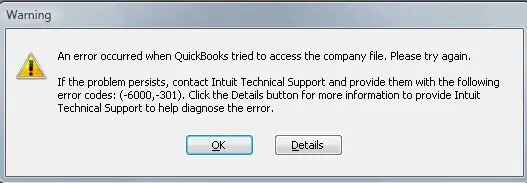
Since multiple factors can trigger Error 6000 301, identifying the root cause is essential for resolving it effectively. In this guide, we’ll explore the top 5 methods to troubleshoot error code 6000 301 and help you regain access to your company file with minimal disruption.
QuickBooks Error 6000 301: An Overview
| Field | Details |
| Error | QuickBooks Error 6000 301 |
| Error Message | QuickBooks is unable to open the company file due to file or network issues. |
| When It Occurs | When opening or accessing a QuickBooks company file |
| Cause | Damaged company file, corrupted .ND/.TLG files, incorrect permissions, long file path, or interference from security software |
| Resolve | Update QuickBooks, run QuickBooks File Doctor, rename .ND/.TLG files, check file location, and adjust security settings |
What Triggers Company File Error 6000 301 in QuickBooks?
Below is a list of possible reasons why you may encounter error code 6000 301 when opening a company file. Let’s explore them one by one:
- Damaged or corrupted QuickBooks company file (.QBW).
- Corrupted Network Data (.ND) or Transaction Log (.TLG) files.
- Interference from third-party encryption or security software.
- Incorrect folder permissions are preventing access to the company file.
- Company file stored in a damaged or inaccessible network location.
Troubleshooting QuickBooks Error 6000 301 When Opening Company File
In this section, we will walk you through the detailed troubleshooting steps for QuickBooks error 26000 301 to ensure you can access a company file without interruption.
1. Update QuickBooks Desktop
An outdated QuickBooks version can trigger company file errors, so start by installing the latest updates.
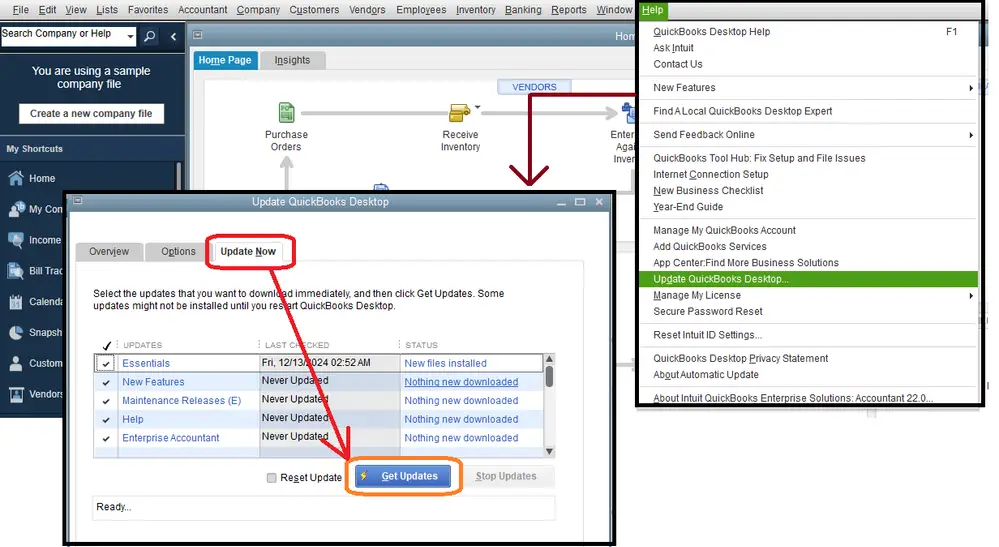
- Go to Help in the left menu bar.
- Choose Update QuickBooks Desktop from the dropdown.
- Now, go to the Update Now tab.
- Mark the checkbox for Reset Updates.
- Now, hit the Get Updates button.
- When done, reopen QuickBooks and click Yes to install the updates.
2. Run the QuickBooks File Doctor tool
To repair possible damage within the company file, run the QuickBooks File Doctor utility.
a. Download and install QuickBooks Tool Hub
- Close QuickBooks Desktop before starting the installation process.
- Download the latest version of QuickBooks Tool Hub.
- Save the downloaded file in an easily accessible location, such as the Downloads folder or Desktop.
- If you cannot locate the file, search your computer for “QuickBooksToolHub“.
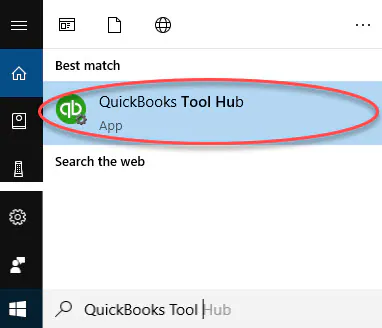
- Open the downloaded file named QuickBooksToolHub.exe.
- Follow the installation prompts and accept the terms and conditions.
- Once the installation is complete, double-click the QuickBooks Tool Hub icon on your desktop to launch it.
- To verify the installed version, open the Home tab within the Tool Hub.
b. Run QuickBooks File Doctor
- Open QuickBooks Tool Hub and select Company File Issues.
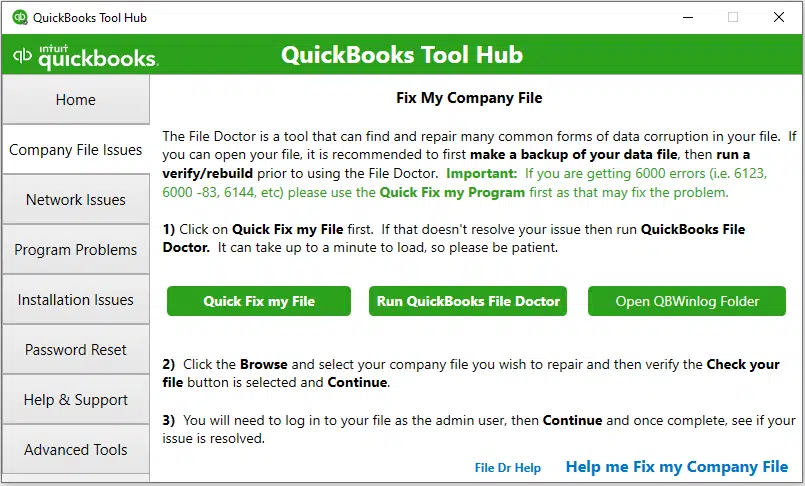
- Click Run QuickBooks File Doctor and wait for the tool to launch.
- If the tool does not open automatically, search for QuickBooks Desktop File Doctor and open it manually.
- Select your company file from the drop-down menu, or click Browse to locate it.
- Choose Check your file and click Continue.
- Enter the QuickBooks Admin password and select Next.
- Wait for the scan to complete; the process may take 10–15 minutes depending on the file size.
Even if the tool displays an unsuccessful scan message, it may still have fixed the issue.
Once the scan is finished, reopen QuickBooks and try accessing the company file again.
3. Disable encryption software
Encryption or security software running on your system can sometimes block QuickBooks from accessing company files and lead to Error 6000 301.
- Temporarily turn off any encryption or third-party security software installed on your computer.
- Check if any antivirus or firewall settings are restricting QuickBooks access.
- After disabling the software, restart QuickBooks and try opening your company file again.
- If the issue is resolved, adjust the security settings to allow QuickBooks to run without interruption.
4. Rename the .TLG and .ND file
Renaming the .TLG and .ND file will replace the old and damaged company files and resolve the issues that might be preventing you to open the company file.
- Open the folder where your QuickBooks company file is stored.
- Look for files that share the same name as your company file but have the extensions .ND and .TLG.
These files will appear as: company_file.qbw.nd and company_file.qbw.tlg.
- Right-click each file and choose Rename.
- Add OLD at the end of each filename (for example, company_file.qbw.nd.OLD).
- After renaming, reopen QuickBooks and try accessing your company file again.
- If the problem continues, proceed to the next troubleshooting method.
5. Copy the QuickBooks file to the Desktop
Moving the company file to the desktop helps determine whether the issue is related to the file’s current storage location.
- If the file opens from the desktop, the original location may be damaged or not working properly.
- The folder path may be too long and exceed Windows file path limitations.
- Moving the file helps identify whether the issue is with the storage location or the file itself.
- If the file still does not open after moving it, the company file may be corrupted or damaged.
Steps:
- Open the folder where your QuickBooks company file is stored.
- Locate the file with the .QBW extension.
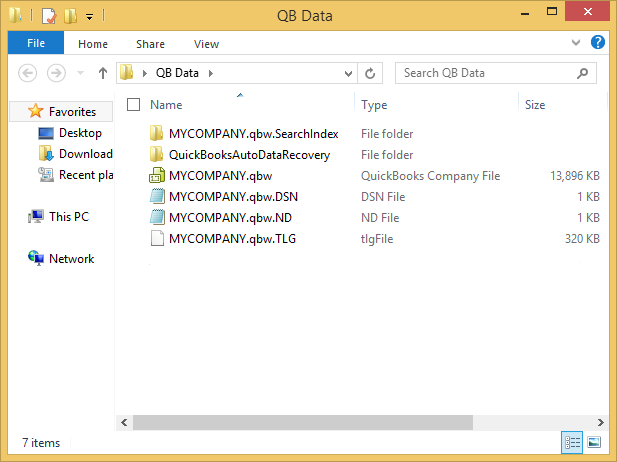
- Right-click the file and select Copy.
- Navigate to your desktop, right-click an empty area, and select Paste.
- Press and hold the Ctrl key while opening QuickBooks to access the No Company Open window.
- Select Open or Restore an Existing Company.
- Browse to the company file saved on the desktop and open it.
- Check whether the file opens successfully to determine if the original file location is causing the error.
Summing Up
QuickBooks error 6000 301 can prevent users from opening or accessing their company file, disrupting daily accounting tasks. This error is commonly caused by damaged company files, network connectivity issues, or incorrect file permissions.
By following the troubleshooting steps outlined above, such as verifying the company file location, repairing damaged data, checking network settings, or using QuickBooks File Doctor, you can resolve the error effectively.
If the problem continues, contacting a QuickBooks professional is recommended to prevent data access issues and ensure your business operations run smoothly.
Frequently Asked Questions
-
What if my QuickBooks Desktop error code is 6000?
A QuickBooks error 6000 (often accompanied by an extension like –832, -301, or –77) means the software cannot access or open your company file. This is typically caused by corrupted file support files, incorrect folder permissions, network hosting conflicts, or storing files on the cloud.
-
What if QuickBooks Desktop tried to access a company file?
If QuickBooks Desktop encounters an error when trying to access a company file, it is typically caused by a file location issue, network interruption, user permission settings, or data corruption.
-
How do I rename a QuickBooks Desktop file?
To rename a QuickBooks Desktop file, you do not change it inside the software itself. Instead, you will need to create a secure backup and rename the file via Windows File Explorer before opening it in QuickBooks.
About The Author

Elora Havencrest
Elora Havencrest is an accomplished Accounting Writer with over 12 years of experience crafting clear, engaging, and informative financial content. She specializes in bookkeeping, tax planning, and financial analysis, making complex accounting concepts easy to understand for business owners and finance professionals.
Elora's dedication to accuracy and clarity ensures her writing not only educates but also empowers readers to make confident and informed financial decisions.
Recent Posts
-
How to Reset QuickBooks Admin Password? Easy Steps to Recover Access
-
Easy Methods to Troubleshoot QuickBooks Error 6000 301
-

How to Fix QuickBooks Error 15225 Payroll Download Errors Fast?
-
QuickBooks Error 15227: Easy Solutions to Resolve Update Issues
-

QuickBooks Tool Hub: Download, Install & Advanced Error Fixing Tool