QuickBooks Error 6189, 816: Complete Guide to Fix Company File Issues
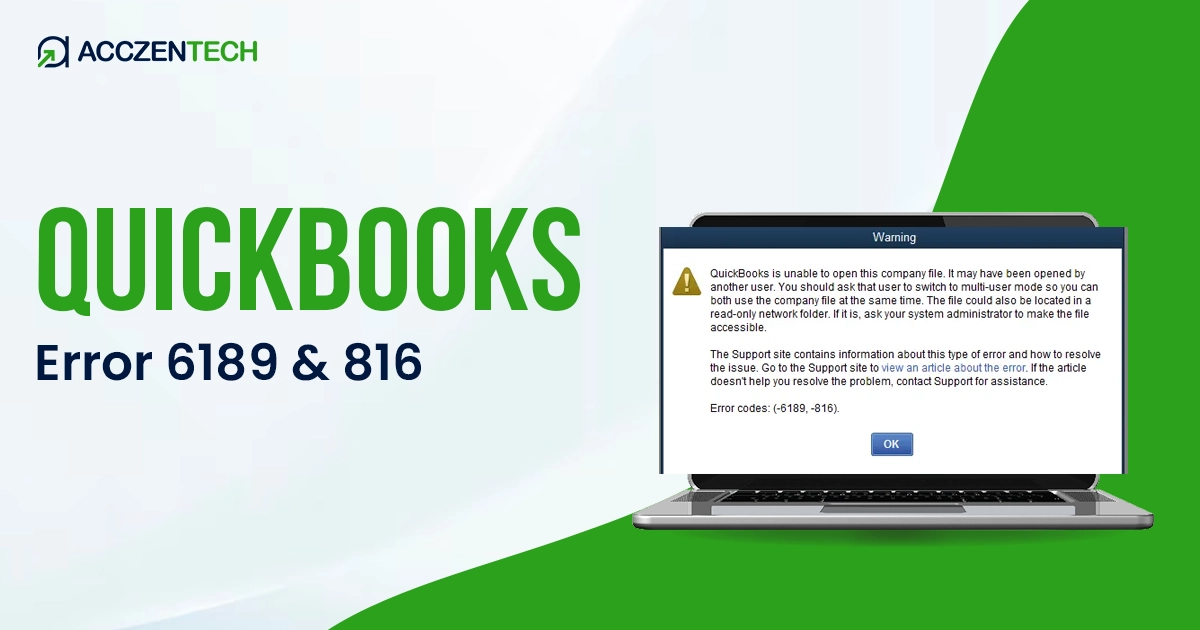
Struggling to access your company file due to QuickBooks Error 6189, 816? You may face this error during multi-user sessions or when your transaction log file fails to sync properly with your company file. It can disrupt your business workflow and prevent multiple users from working simultaneously. This guide provides the necessary steps to resolve these sync issues and restore access.
Quick Overview of QuickBooks Error 6189 and 816
| Parameter | Details |
| Error Name | QuickBooks Error 6189 and 816 |
| Error Code | 6189, 816 |
| Error Message | “QuickBooks is unable to open this company file.” |
| Description | Occurs when QuickBooks cannot access the company file because another process is using it or the network setup is incorrect |
| Category | Company File / Multi-User Error |
| Common Causes | Damaged network data file (.ND), hosting configuration issues, insufficient folder permissions, or another user accessing the file in single-user mode |
| Affected Versions | All versions of QuickBooks Desktop |
| Quick Fix | Use QuickBooks File Doctor and verify multi-user hosting settings |
How to Identify the Symptoms of QuickBooks Error 6189 and 816?
QuickBooks Error 6189 and 816 commonly occur when the application struggles to communicate with the company file. Look at the key signs of this fatal error message below:
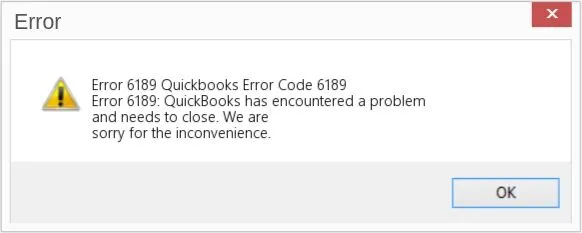
- The most common message that stating “QuickBooks is unable to open this company file (6189, 816).”
- You are unable to successfully open or interact with the company file when attempting to operate in Multi-User Mode.
- QuickBooks freezes or crashes while opening the File.
- Delayed access or loading issues on network systems.
- The system restricts access to only one user at a time, preventing additional team members from logging in.
- Unexpected disconnection from the company file.
Read More: Windows Firewall is Blocking QuickBooks? Here’s What to Do
What are the Common Causes of QuickBooks Error 6189 and 816?
Before you start troubleshooting the error 6189 and 816, you must understand the root causes of the issue. This helps you resolve the error much faster. Below are the most common root causes:
- Incorrect Hosting: Multi-user hosting is enabled on more than one machine, creating server conflicts.
- Network Instability: Weak connections interrupt the “connection” between your workstation and the host.
- Corrupted Data: The .QBW company file has been damaged, preventing you from opening the company file.
- Insufficient Permissions: When users have fewer permissions and are unable to read or write the folder.
- Access Conflicts: Improper configuration prevents the system from handling simultaneous user requests effectively.
Solutions to Fix QuickBooks Error 6189 and 816
Now, you have understood the causes and symptoms of this error message. It’s time to start the troubleshooting steps to get back your access in a multi-user environment.
Solution 1. Perform a Full System Restart
This is the simplest and most effective solution: completely restart the system to fix the potential software glitches.
- Shut down QuickBooks Desktop on every single computer in your network.
- Turn off all workstations first, and then shut down the server computer.
- Turn on the server computer first and wait for it to fully start up and connect to the network.
- Power on each workstation one by one, allowing each to fully load before moving to the next.
- Once all systems are functional, open QuickBooks on the workstations and try to access the company file again.
Solution 2. Verify and Correct Hosting Settings
Follow these simple steps to verify and correct your hosting settings on every computer in your network:
- Go to each computer on your network except for the main server.
- Open your QuickBooks and click on the File menu at the top of the window.
- Hover your mouse over the Utilities option.
- Disable Hosting:
- Look for the option that says “Stop Hosting Multi-User Access.”
- If you see this option, click it to disable hosting on that specific workstation.
- If the option says “Host Multi-User Access” instead, hosting is already disabled, and you can move on to the next computer.
Once you have confirmed that all workstations have hosting disabled, go to your main server computer. Ensure it is set to “Host Multi-User Access” so it can correctly manage the company file.
Solution 3. Rename .ND and .TLG Configuration Files
If your network files are damaged, renaming them forces QuickBooks to create fresh, working versions. Follow these steps:
- Go to the Folder on your server where your company file is saved.
- Look for files with the same name as your company file but ending in .nd and .tlg.
- Right-click on each file and rename them by adding .old to the end, companyfile.qbw.nd.old.
- Open QuickBooks and log in. The system will automatically generate new, clean files for you.
Solution 4. Check and Set Folder Permissions
Your business team needs full control over the Folder where your company stores its files to save and share the data. Follow these steps:
- Go to the Folder on your server that holds your QuickBooks company file.
- Click right on the Folder, select Properties, and click the Security tab.
- Next, click Edit, and grant full control access to all workstations that need to access QuickBooks.
Once done, click on the Save button to apply the new changes.
You May Also Read: Pro Guide to Troubleshoot Installation QuickBooks Error 1904
Solution 5. Use QuickBooks Tool Hub (File Doctor)
If the manual steps have not worked, the QuickBooks file doctor can automatically find and fix the data issues. Here’s how to fix:
- Download and install the QuickBooks Tool Hub from the official Intuit website.
- Open the tool and click on the Company File Issues tab on the left.
- Next, choose the company file from the drop-down menu (or browse to find it) and click Check your file.
- The tool will scan and repair your file. This may take a few minutes, depending on your file size.
Solution 6. Move Company File to Local System (Testing Step)
This solution helps you find if the problem is with your network or the company file itself. Follow these steps to test it:
- Go to your server, click right on your QuickBooks company file, and select Copy.
- Go to a workstation, right-click on the Desktop, and select Paste.
- Open QuickBooks on that workstation and try to open the file directly from the Desktop.
- If the file opens successfully, the issue is likely related to network configuration rather than file corruption.
Solution 7. Scan Folder Using Database Server Manager
The database server manager serves as a mediator between your server and your computer. The Scanning of the Folder ensures this connection is stable. Here’s how:
- On your main server computer, open the QuickBooks Database Server Manager.
- Click the Scan Folder tab. If your Folder is not listed, click Add Folder and select the location where your company file is stored.
- Click the Start Scan button.
- Once the scan finishes, the status should show “QuickBooks is ready for multi-user access.
- Go back to a workstation and try to open your company file.
Sometimes other processes may lock your files and prevent QuickBooks from opening them. Here are the simple steps to clear the path:
- Press Ctrl + Shift + Esc on your keyboard to open the Task Manager.
- Look for QuickBooks-related processes and end unnecessary tasks.
- Ensure no backup software or antivirus is currently running a scan on your QuickBooks folder.
- Reopen the program and try accessing your company file again.
More Topics: Troubleshooting QuickBooks Error H202: A Step-by-Step Guide
Prevention Tips QuickBooks Error 6189 and 816
Stopping errors before they start is the best way to keep your business running smoothly. Follow these best practices:
- Use a reliable server for multi-user mode to ensure a stable connection.
- Regularly install the latest QuickBooks releases to fix known bugs.
- Always keep a recent backup of your company file in case of emergencies.
- Avoid force shutdowns; always exit QuickBooks properly to prevent data corruption.
- Use Ethernet cables instead of Wi-Fi for a more reliable network connection.
- Periodically verify that users have “Full Control” over the shared company folder.
Conclusion
Dealing with QuickBooks Error 6189 and 816 can be frustrating, especially when it stops your business operations. However, most of the time, the fix is as simple as refreshing your network connection. By following the above-mentioned simple methods, you can get your multi-user access back on track without losing any data.
Frequently Asked Questions
What causes QuickBooks Error 6189 and 816?
This error is usually triggered by multi-user conflicts or when the company file is locked by another process or system.
Can I open the company file in single-user mode?
Yes, opening in the single-user mode is a great test. If it opens there but not in multi-user mode, you know the issue is with your network settings, not your data.
Does renaming .ND and .TLG files delete data?
No, renaming these files does not delete your data. QuickBooks automatically recreates them when needed.
Is QuickBooks Tool Hub necessary to fix this error?
While not mandatory, it is highly recommended as it automates fixing file and network issues.
Can a slow Wi-Fi connection cause this error?
Yes, if your internet is too slow, the connection to the server can drop. This is why you should use a stable and secure internet connection.
About The Author

Elora Havencrest
Elora Havencrest is an accomplished Accounting Writer with over 12 years of experience crafting clear, engaging, and informative financial content. She specializes in bookkeeping, tax planning, and financial analysis, making complex accounting concepts easy to understand for business owners and finance professionals.
Elora's dedication to accuracy and clarity ensures her writing not only educates but also empowers readers to make confident and informed financial decisions.