QuickBooks Error 1328: Causes, Symptoms, and Complete Fix Guide
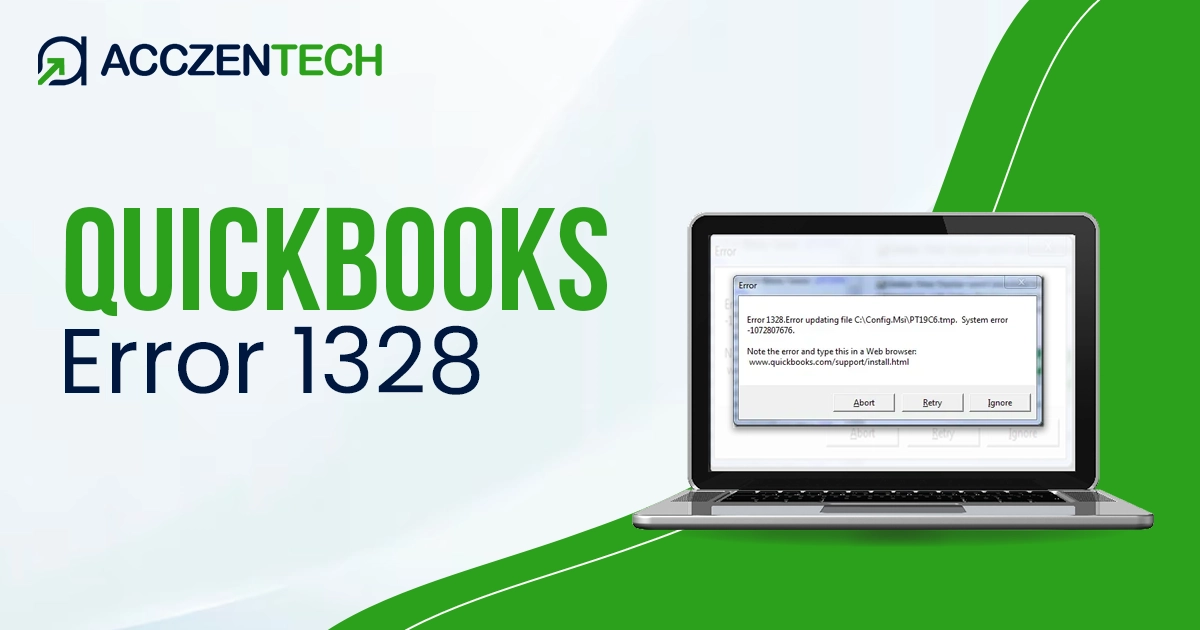
QuickBooks is one of the most popular accounting applications used by many businesses for efficient financial management. But just like any other application, there can be technical problems associated with its functionality, which affect the process flow. The problem with QuickBooks Error 1328 is one of those. It usually pops up when installing, updating, or repairing the application.
Brief Overview of QuickBooks Error 1328
| Parameter | Details |
| Error Name | QuickBooks Error 1328 |
| Error Code | 1328 |
| Error Message | “Error 1328: Error applying patch to file…” |
| Description | Occurs when QuickBooks fails to apply a patch, update, or repair due to corrupted or missing installation files. |
| Category | Installation / Update / Repair Error |
| Common Causes | Corrupted installation files, interrupted update process, damaged Windows registry entries, insufficient permissions, antivirus/firewall blocking, temporary file conflicts |
| Affected Versions | All versions of QuickBooks Desktop (Pro, Premier, Enterprise) |
| Quick Fix | Restart system, run as Administrator, clear temp files, repair QuickBooks installation, use QuickBooks Tool Hub, update Windows, perform clean install if required |
What is QuickBooks Error 1328?
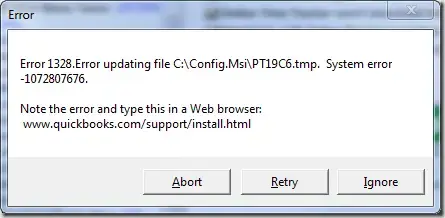
QuickBooks Error 1328 is an installation-related error that occurs when the system attempts to update or repair QuickBooks but fails due to corrupted or inaccessible files. The error message usually appears as:
“Error 1328: Error applying patch to file…”
This message indicates that QuickBooks cannot apply a patch or update file, often due to system conflicts or damaged components.
Signs to Watch for QuickBooks Error 1328
Have a look at the below given signs that can help you recognize the issue quickly:
- Error message appears during installation or update
- QuickBooks installation fails or stops midway
- Software crashes unexpectedly during setup
- System crashes, becomes slow, or unresponsive
- Unable to properly repair or uninstall QuickBooks
- Frequent interruption in update processes
Read Related Topics Here: QuickBooks Error 6189, 816: Complete Guide to Fix Company File Issues
Main Causes of QuickBooks Error Code 1328
There are several reasons why this error occurs. Below, we have mentioned some of the major ones, which will help you take the right troubleshooting steps:
- Corruption in QuickBooks Installation Files: Damage or loss of files required for installing or updating QuickBooks can cause the error.
- Incorrect Registry Entries: The presence of invalid registry entries on your computer that relate to QuickBooks can cause this error.
- QuickBooks Update Interference: Sometimes, interruptions in an update process because of a crash can also generate QuickBooks error code 1328.
- Lack of Administrative Rights: Insufficient privileges during installation or update can result in QuickBooks error message 1328.
- Antivirus/Firewall Blockage: Excessive temp files can cause issues during installation and updating.
Here’s How to Fix QuickBooks Update Error 1328
Here are some effective solutions that will help you resolve QuickBooks error update 1328. Follow them step by step for best results.
Method 1: Restart Your System
Often, a simple restart can help you resolve temporary issues, resulting in an update error 1328 in QuickBooks.
- Close all running programs
- Restart your computer
- Try reinstalling or updating QuickBooks again
Method 2: Running QuickBooks as an Administrator
By running QuickBooks as an adminstrator, you will have sufficient access necessary system files.
- Double-click the QuickBooks icon.
- Select “Run as Administrator” from the drop-down menu.
- Retry QuickBooks installation or update.
Method 3: Delete Temp Files
Temporary files deletion helps to avoid any conflict. Here’s how to remove these temp files:
- Press Windows + R to open Run Window.
- Here, type %temp% then hit Enter key.
- Delete all files from that folder
- Restart your system.
Method 4: Repair QuickBooks Installation
Repairing QuickBooks installation can fix corrupted files.
Steps:
- Open Control Panel and choose “Programs and Features”
- Within the tab, select QuickBooks and click “Uninstall/Change”
- Now, choose “Repair”
- 4. Once done, make sure you restart your system after completing the repair.
More Topics: QuickBooks Error 6175: Causes and Complete Troubleshooting Guide
Method 5: Run QuickBooks Install Diagnostic Tool
We suggest you access the QuickBooks Tool Hub and run the QuickBooks Install Diagnostic Tool. This tool can automatically fix many issues such as error 1328 in QuickBooks.
- Firstly, download the QuickBooks Tool Hub from the official website.
- Now, continue installing the Tool Hub. Once done, open it.
- Choose “Installation Issues” and run the QuickBooks Install Diagnostic Tool.
Method 6: Update Windows
An Outdated Windows can cause compatibility issues that can result in QuickBooks Desktop error 1328. Here’s how to fix it:
- Go to Settings, and choose “Update & Security” tab.
- Now, click “Check for Updates” option.
- From here, look for the available updates. If any, continue installing them.
Method 7: Disable Antivirus Temporarily
Antivirus or Security software may block installation. To avoid facing issues further, temporarily disable the security services.
- Disable antivirus temporarily.
- Install or update QuickBooks.
- Re-enable antivirus after completion.
If all the steps above fail, perform a clean installation.
- First of all, you need to Uninstall QuickBooks.
- Make sure you rename installation folders.
- Once done, now reinstall QuickBooks using fresh setup files.
If all the steps above fail, perform a clean installation.
- First of all, you need to Uninstall QuickBooks.
- Make sure you rename installation folders.
- Once done, now reinstall QuickBooks using fresh setup files.
Explore More Topics: Troubleshooting QuickBooks Error H202: A Step-by-Step Guide
QuickBooks Error 1328 Prevention Measures
In order not to get such an error in the future, adhere to the following recommendations:
- Install the latest version of QuickBooks
- Update your Windows operating system on time
- Use good antivirus software but exclude QuickBooks from protection
- Do not stop the installation process
- Have enough free space on your hard drive
Conclusion
However, although QuickBooks Error 1328 might cause hindrance while installing or updating QuickBooks, it should not be that difficult to solve with the right measures. It will be essential to find out the cause behind the problem and apply solutions such as fixing the QuickBooks, cleaning up of temporary files, and using QuickBooks Tool Hub.
Frequently Asked Questions (FAQs)
What makes QuickBooks Error 1328 occur?
QuickBooks Error 1328 typically occurs due to corrupted installation files or damaged Windows registry entries. It can also occur if a previous update or installation was interrupted.
Do I have to reinstall QuickBooks to repair this problem?
No, there are ways to repair the QuickBooks setup by using the Control Panel or clearing the temporary files. You can also access the QuickBooks Tool Hub to solve this problem.
Is QuickBooks Tool Hub useful?
Yes, QuickBooks Tool Hub is capable of diagnosing and resolving common QuickBooks problems without much effort. The Tool Hub is a convenient solution when you encounter an error such as Error 1328.
What causes the error 1328 in QuickBooks while performing updates?
This error message may pop up during the update process when your computer fails to install QuickBooks updates properly.
When should I perform a clean install?
A clean install should be done when all other troubleshooting steps fail. It ensures all corrupted files are removed and QuickBooks is installed fresh.
About The Author

Elora Havencrest
Elora Havencrest is an accomplished Accounting Writer with over 12 years of experience crafting clear, engaging, and informative financial content. She specializes in bookkeeping, tax planning, and financial analysis, making complex accounting concepts easy to understand for business owners and finance professionals.
Elora's dedication to accuracy and clarity ensures her writing not only educates but also empowers readers to make confident and informed financial decisions.