How to Reset QuickBooks Admin Password? Easy Steps to Recover Access
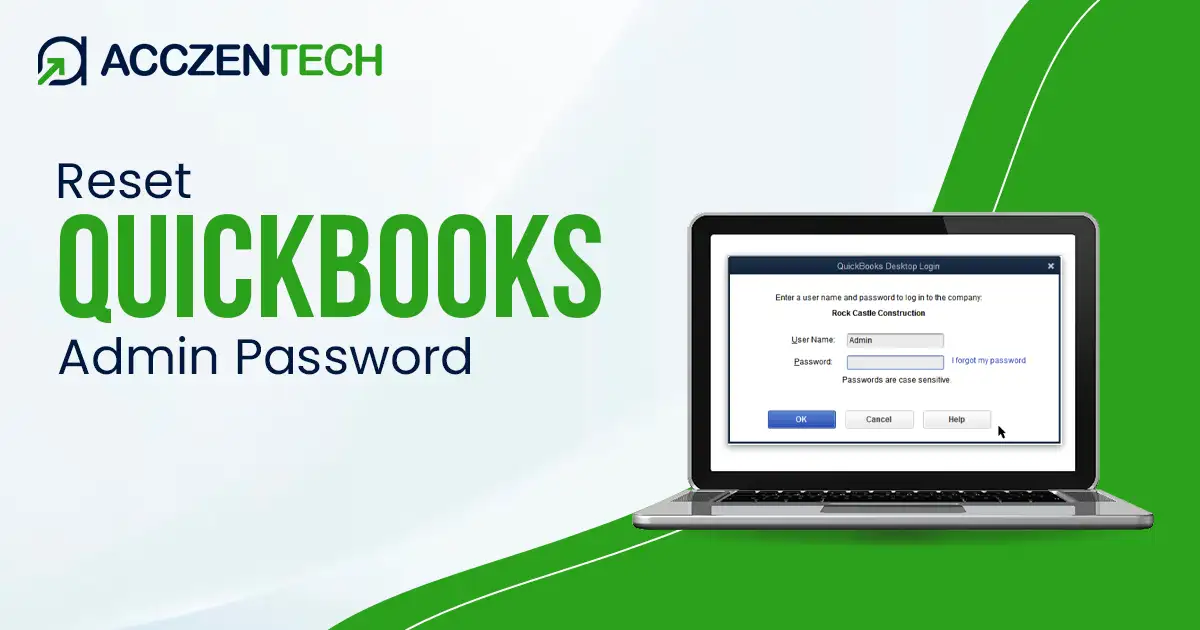
Have you forgotten your QuickBooks Admin Password and are unable to access your Company file? Need to Reset QuickBooks Admin Password to access your company file. This issue can happen when users forget their login credentials, enter incorrect passwords multiple times, or lose access to the registered email linked with QuickBooks. As the admin account controls company settings and user permissions, being locked out can temporarily disrupt your business operations.
In this guide, we’ll explain the common signs of password-related issues and the most effective ways to recover access to your QuickBooks account.
Quick Overview of QuickBooks Admin Password Reset
| Parameter | Details |
| Issue Name | QuickBooks Admin Password Reset |
| Category | Login / Password Recovery |
| Affected Versions | QuickBooks Desktop |
| Common Cause | Forgotten password, incorrect login credentials |
| Impact | Unable to access company file or admin account |
| Error Message | Incorrect Password or Login Failed |
| Quick Fix | Use the Password Reset Tool or reset through Intuit verification |
| Difficulty Level | Easy to Moderate |
When do you Need to Reset QuickBooks Admin Password?
You may need to Reset Admin Password in QuickBooks Desktop, if you experience any of the following situations:
- When you are unable to log in to QuickBooks using the admin account.
- Repeated password attempts result in login failure.
- You forgot the admin password after a long period of inactivity.
- Access to the company file is restricted due to incorrect credentials.
- The password was changed, but the new credentials are unavailable.
- Admin account recovery information is outdated.
Read More Topics: A Comprehensive Guide To Fix QuickBooks Error 7149
What Causes QuickBooks Admin Password Issues?
There are numerous factors that can lead to admin password-related problems in QuickBooks. Look at the points given below that trigger this issue:
- Entering the incorrect or forgotten admin credentials.
- Multiple failed login attempts.
- Outdated recovery email information.
- Password changes made by another administrator.
- Security updates requiring password verification.
- Corrupted user profile settings.
- Company file login information mismatch.
Easy Methods to Reset QuickBooks Admin Password
If you’ve lost access to your admin account, don’t worry. There are several ways to Reset QuickBooks Admin Password depending on your QuickBooks Desktop version. Follow the solutions below to recover your login credentials and get back into your company file without unnecessary delays.
Method 1. Reset a User Password
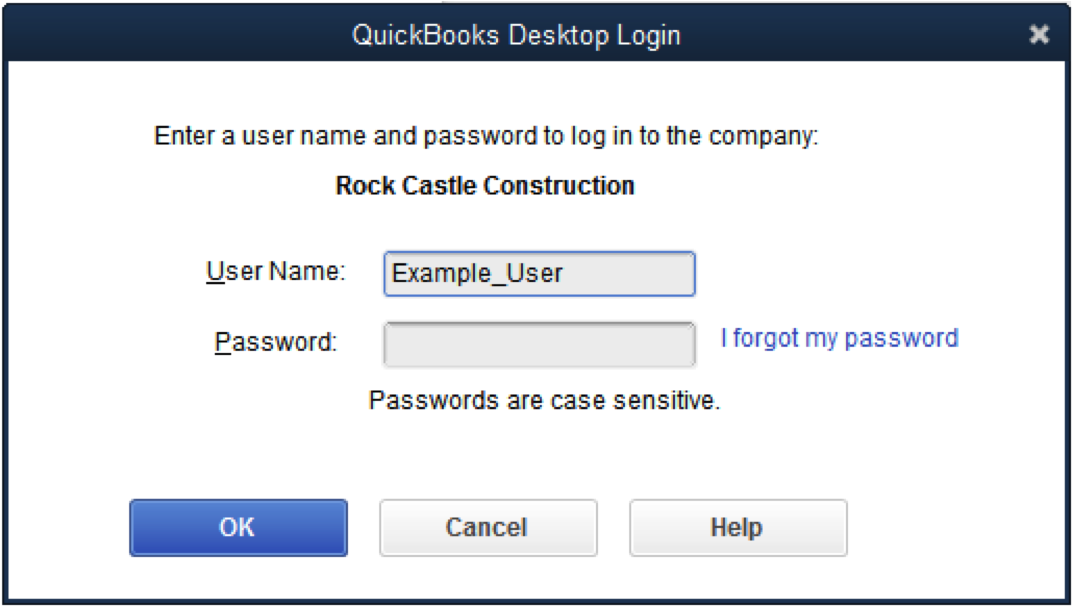
If a user has forgotten their password, the QuickBooks administrator can create a new one by following these steps:
- Open QuickBooks Desktop.
- Sign in using the admin account.
- Go to Company and select Set Up Users and Passwords.
- Click Set Up Users.
- Enter the admin password when prompted.
- From the User List, select the user whose password needs to be changed.
- Click Edit User.
- Enter a new password.
- Select Next twice.
- Click Finish to save the changes.
Method 2. Reset the Admin Password (QuickBooks 2020 and Later)
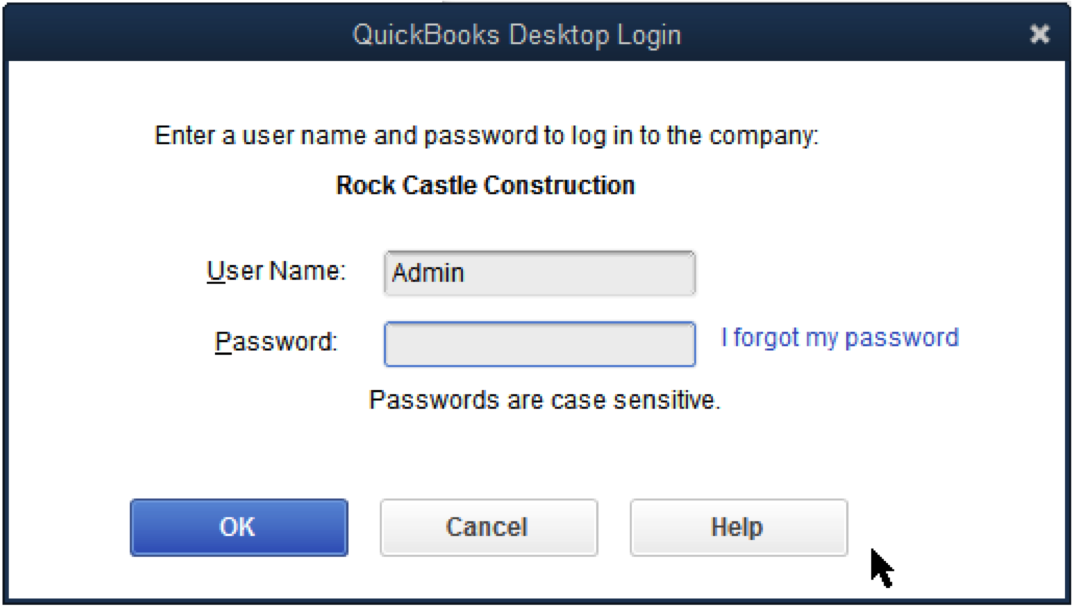
If you’re using QuickBooks 2020 or a newer version, you can recover QuickBooks admin password directly from the login screen.
- Open QuickBooks Desktop and access your company file.
- On the sign-in screen, click I forgot my password.
- Select the email address associated with your QuickBooks account.
- Click Next to receive a verification token.
- If your email address is not listed, select Don’t see your email in the list above? and follow the on-screen instructions.
- Open the email sent by QuickBooks and copy the token.
- Enter the token in QuickBooks.
- Follow the prompts to create a new admin password.
Note: Check your spam or junk folder if you don’t receive the verification email.
Method 3. Reset the Admin Password (QuickBooks 2019 and Earlier)
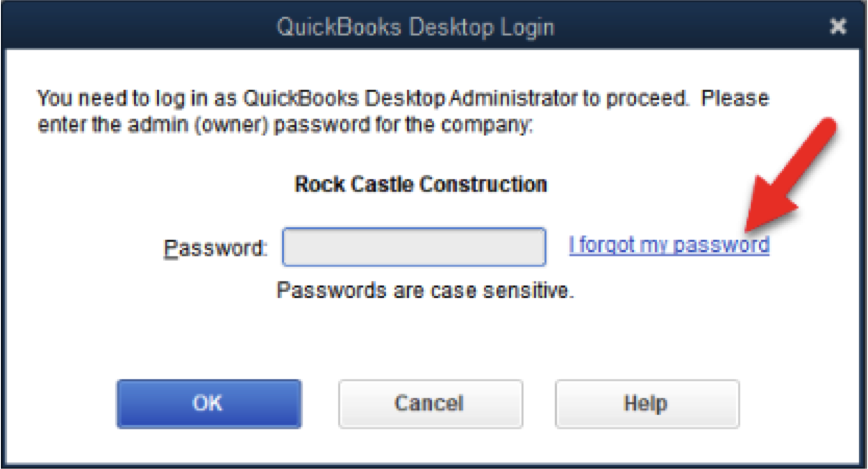
Users running QuickBooks 2019 or older versions can reset the admin password by verifying their account information.
- Open QuickBooks Desktop.
- From the login window, click I forgot my password.
- Complete the password recovery form.
- Enter your QuickBooks license number.
- Type the name, email address, phone number, and ZIP code used during product registration.
- Review the information carefully and click OK.
- If the details match, QuickBooks will send a verification code to your registered email address.
- Enter the verification code when prompted.
- Follow the on-screen instructions to create a new admin password.
Note: You can view your QuickBooks license number by pressing F2 on your keyboard from the login screen.
Read Quick Solution: QuickBooks Missing PDF Component – Fix PDF & Printing Issues
What to do If the Password Reset Process Doesn’t Work?
If you’re still unable to reset QuickBooks admin password after following the solutions above, there may be an issue with your account information or password recovery settings.
Before trying again:
- Verify that the email address, phone number, and registration details entered during the recovery process are correct.
- Make sure the information matches the details associated with your QuickBooks account.
- Check your spam or junk folder if you’re waiting for a verification code.
- Ensure you’re using the correct QuickBooks version while performing the password reset steps.
If the issue continues, you can use the Automated Password Reset Tool. This utility helps recover admin access when standard password recovery methods fail.
Tips to Avoid QuickBooks Admin Password Issues in the Future
Once you have successfully completed the Reset QuickBooks Admin Password process, it’s important to follow these preventive tips to avoid similar login problems in future.
Here are a few best tips:
- Store your admin password in a secure password manager.
- Update your recovery email and phone number regularly.
- Avoid sharing admin credentials with unauthorised users.
- Create strong passwords using a combination of letters, numbers, and special characters.
- Change passwords periodically to improve account security.
- Keep QuickBooks Desktop updated with the latest releases.
- Maintain a record of license and registration details in a secure location.
Following these practices can help reduce the chances of needing QuickBooks Password Recovery in the future.
In A Nutshell
Getting locked out of your QuickBooks company file can really slow things down, especially when you need quick access to important financial data. The good part is that you can easily Reset QuickBooks Admin Password without much trouble, whether you’re on a newer version or an older QuickBooks Desktop setup.
If you follow the steps shared above carefully, you should be able to recover the QuickBooks Admin Password and get back into your account without affecting your company file. And if nothing works, the Automated Password Reset Tool is still there as a backup option to help you regain access safely.
Frequently Asked Questions (FAQs)
-
How do I reset QuickBooks Admin Password if I forgot it?
You can reset the admin password directly from the QuickBooks login screen by selecting the “I forgot my password” option. QuickBooks will verify your identity and guide you through creating a new password.
-
Can I recover the QuickBooks Admin Password without losing company data?
Yes, resetting or recovering an admin password does not affect your company file or financial data. The process only restores access to your QuickBooks account.
-
What information is required for QuickBooks Password Recovery?
This depends on your QuickBooks version, you may need your registered email address, license number, phone number, ZIP code, and other account verification details.
-
Why am I not receiving the QuickBooks password reset email?
The verification email may be delayed or redirected to your spam or junk folder. Also, ensure that you’re using the email address currently associated with your QuickBooks account.
-
Can I change the QuickBooks admin password after logging in?
Yes, once you are logged in as the administrator, you can change the password from the user and password settings section to improve account security and prevent unauthorised access.
About The Author

Elora Havencrest
Elora Havencrest is an accomplished Accounting Writer with over 12 years of experience crafting clear, engaging, and informative financial content. She specializes in bookkeeping, tax planning, and financial analysis, making complex accounting concepts easy to understand for business owners and finance professionals.
Elora's dedication to accuracy and clarity ensures her writing not only educates but also empowers readers to make confident and informed financial decisions.
Recent Posts
-

How to Reset QuickBooks Admin Password? Easy Steps to Recover Access
-
Easy Methods to Troubleshoot QuickBooks Error 6000 301
-
How to Fix QuickBooks Error 15225 Payroll Download Errors Fast?
-
QuickBooks Error 15227: Easy Solutions to Resolve Update Issues
-
QuickBooks Tool Hub: Download, Install & Advanced Error Fixing Tool