QuickBooks Error 1311 Installation Problem: A Complete Repair Guide
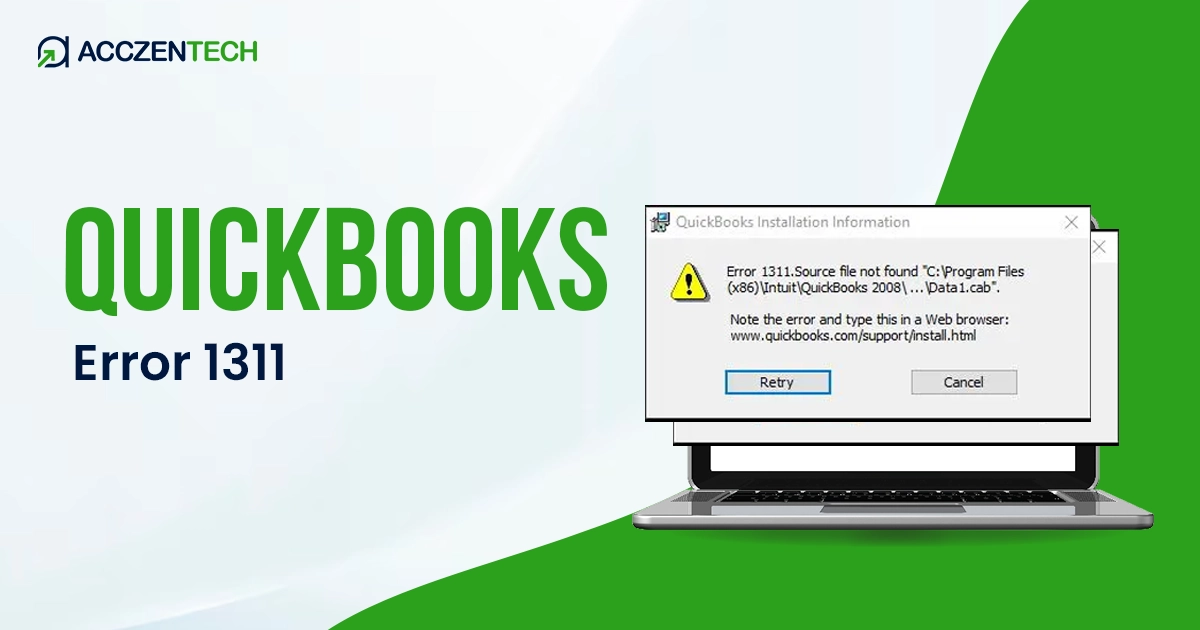
If you are seeing the QuickBooks Error 1311, that means your QuickBooks installer is facing a problem in reading the files needed to finish the setup. This error code usually occurs when the installer can not find the source folder, or it is being blocked from accessing it. This error can interrupt business operations and delay software setup.
In this guide, you’ll find clear symptoms, causes, and detailed step-by-step solutions to fix QuickBooks Error 1311 effectively.
QuickBooks Error 1311 – A Quick Overview
| Parameter | Details |
| Error Name | QuickBooks Error 1311 |
| Error Code | 1311 |
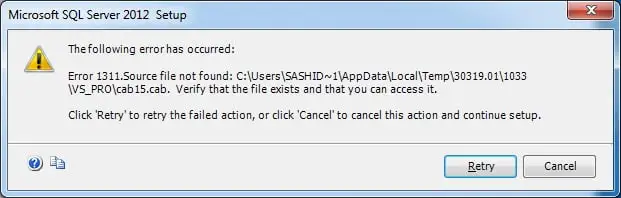
| Error Message | “Error 1311: Source file not found” |
| Description | Occurs when QuickBooks setup cannot locate required installation files (such as DATA1.CAB) during the installation or update process |
| Category | Installation / File Access / System Error |
| Common Causes | Corrupted or missing installation files, damaged CD/DVD, incorrect folder permissions, antivirus or firewall blocking, incomplete downloads |
| Affected Versions | All versions of QuickBooks Desktop (Pro, Premier, Enterprise) |
| Quick Fix | Copy installation files to the local drive, re-download setup files, fix permissions, or use QuickBooks Tool Hub (Install Diagnostic Tool) |
Common Symptoms of QuickBooks Error 1311
Here are the typical symptoms associated with QuickBooks Error 1311:
-
Installation or Update Failure
The error message appears mid-installation or during a software update, preventing QuickBooks from completing the process. -
Error Message Display
A pop-up message stating: “Error 1311: Source file not found” or “The file is not found in the specified path”. -
Unresponsive Setup Wizard
The QuickBooks installation wizard freezes, crashes, or becomes unresponsive after displaying Error 1311. -
Missing CAB or MSI File Warning
The system indicates that a specific.cab(cabinet) file or.msi(Windows installer) file is missing from the installation source. -
Inability to Launch QuickBooks After Installation Attempt
Even if the installation seems to complete, QuickBooks may fail to start or may show errors upon launch. -
System Slowdown During Installation
The computer may slow down significantly when the installation reaches the point where Error 1311 occurs. -
Prompt to Insert Disk or Browse for File
A dialog box may appear asking the user to insert the original installation CD/DVD or browse manually to locate the missing source file.
More Reading: Fix QuickBooks Error 6123 0 When Opening a Company File
Root Causes of QuickBooks Error 1311
- Corrupted Setup Files: The installation files downloaded to your computer may be incomplete or damaged.
- Damaged Installation Media: If you are using a CD, DVD, or USB drive to install the program, the hardware itself might be damaged.
- Insufficient Folder Permissions: Windows security settings may prevent the installer from having the necessary permission to write, modify, or create files in your installation folder.
- Antivirus or Firewall Interference: Your security software might mistakenly identify the QuickBooks installer as a potential threat and block it from accessing the files.
- Network Installation Issues: Installing from a shared network with broken paths can cause file errors.
Easy Methods to Fix QuickBooks Error 1311
Here are the some proven solutions to fix QuickBooks Error 1311:
1. Copy Installation Files to Your Desktop
Copying the files directly to your computer first creates a stable environment and helps the installer run without interruptions.
Steps:
- Click right on the empty space of your Desktop, select New Folder, and name it QB Install.
- Next, insert your QuickBooks CD or open the folder on your computer where your downloaded installation files are stored.
- Select all the files from your source (CD or download folder), right-click, and select Copy.
- After copying, open the “QB Install” folder you created in Step 1, right-click inside it, and select Paste.
- Once the files are copied, open the “QB Install” folder, find the Setup.exe file, and double-click it to begin the installation process.
- Follow the on-screen prompts to complete the process.
Why this works:
- It eliminates dependency on external media
- Prevents interruptions caused by slow or damaged sources
- Ensures faster file access during installation
2. Re-download or Replace Installation Files
If installation files are incomplete or corrupted, QuickBooks cannot read the required data.
Steps:
- You need to remove all the older QuickBooks installer files from your desktop.
- Next, move to the official Intuit website and download the latest version of QuickBooks. (Ensure the download finishes completely without any issues).
- Now, save the installer file to an easy location.
- Right-click the installer file you just downloaded and select Run as Administrator. This gives full permissions to run correctly.
Additional Tips:
- Must use a secure and stable internet connection.
- Bypass the pausing downloads.
- Verify file size, which should match the official specifications.
Why this works:
Fresh installation files remove corruption issues and ensure all required components are present.
Recommended To Read More: How to Fix QuickBooks Error 557 in Minutes
3. Check & Fix Folder Permissions
If Windows restricts access to your installation folders, the installer is unable to write the necessary files.
Steps:
- First, locate the QuickBooks installation folder on your system. This is usually found in C:Program Files or C:Program Files (x86).
- Once you find the folder, right-click on it and select Properties from the dropdown menu to open the folder settings.
- In the Properties tab, navigate to the Security tab, where all user permissions for the folder are listed.
- Select the Edit option to modify the permissions, then choose the user account from the list of users and groups.
- After selecting your account, enable the Full Control permission checkbox, allowing complete access to the folder.
- Click Apply, then OK to save the changes and confirm updated permissions.
- Finally, go back and retry the QuickBooks installation to check if the error has been resolved.
Advanced Tips:
- Open your File Explorer and go to this path: C:UsersYourUserNameAppDataLocalTemp
- Right-click the Temp folder and select Properties.
- Click the Security tab.
- Click Edit, then choose the user account from the list and check the box for Full Control, and click on Apply, then click OK to save your new changes.
- Once these permissions are updated, try running the QuickBooks installation again.
Why this works:
Proper permissions allow QuickBooks to read, write, and execute required files without restriction.
4. Disable Antivirus and Firewall Temporarily
Sometimes antivirus software incorrectly identifies QuickBooks files as threats.
Steps:
- First, open your antivirus software settings on your system. You can usually find it in the system tray or by searching for the antivirus name in the Start menu.
- Once the antivirus dashboard is open, locate the option for real-time protection. This feature actively monitors your system and can sometimes block installation files.
- Now, temporarily disable real-time protection to allow QuickBooks installation files to run without interruption.
- Next, check your firewall settings. If the installation still gets blocked, you may need to turn off the firewall temporarily as well.
- After disabling security features, proceed to install QuickBooks normally by running the setup file.
- Once the installation is successfully completed, make sure to re-enable antivirus protection and firewall settings to keep your system secure.
Important Note:
- Disconnect from the internet if needed while the antivirus is off
- Add QuickBooks as an exception after installation
Why this works:
Prevents security tools from blocking essential installation files.
5. Use QuickBooks Tool Hub
The QuickBooks Tool Hub is a built-in tool to fix installation-related errors automatically.
Steps:
- First, go to the official QuickBooks website and download the QuickBooks Tool Hub.
- Once the download is complete, open the setup file and install QuickBooks Tool Hub on your system by following the on-screen instructions.
- After installation, launch the QuickBooks Tool Hub from your desktop.
- Inside the Tool Hub, navigate to the “Installation Issues” section, which is created specifically to fix setup-related errors like Error 1311.
- Now, click on the “QuickBooks Install Diagnostic Tool” option to start the automated repair process.
- Let the tool scan your software. This may take 10–20 minutes.
- When the scan is completed, you can restart your computer to apply all fixes accurately.
What it fixes:
- Microsoft .NET Framework issues
- MSXML and C++ component errors
- Repair damaged QuickBooks installation filesion files
6. Install QuickBooks in Selective Startup Mode
Background programs can interfere with installation processes.
Steps:
- Press Windows + R on your keyboard, type msconfig, and press Enter.
- From the General tab, select Selective startup and uncheck “Load startup items.”
- Go to the Services tab, check the box to Hide all Microsoft services, and then click Disable all.
- Click Apply, then OK, and restart your computer. Now, try installing QuickBooks.
- Once the installation is finished, open msconfig again and switch back to Normal startup mode.
7. Verify Your CD/DVD Drive
If you’re installing via physical media, the drive itself could be faulty.
Steps:
- Try inserting your QuickBooks CD into a different computer. If it works there, the issue is likely your computer drive.
- If the disc is not clean, clean it with a soft microfiber cloth. Always wipe from the center outward in straight lines.
- If the drive still fails to read the disc, copy the installation files onto a USB flash drive using a computer that can read the disc.
- Then, plug that USB into your main computer and run the setup from there.
Read More: QuickBooks Error 30159: Causes, Symptoms, and Proven Solutions
Best Prevention Tips to Stop QuickBooks Error 1311
- Always use official QuickBooks download sources
- Keep Windows and system drivers updated
- Avoid installing from damaged CDs or unreliable USBs
- Maintain full access permissions for installation folders
- Disable unnecessary background apps before installing
- Regularly scan your system for malware
Conclusion
QuickBooks Error 1311 can be frustrating when you are trying to get the software installed. This error usually comes due to corrupted files, strict security settings, or your antivirus software blocking the setup. But by following the correct methods, you can fix it. Follow the steps below to clear these common issues and get your QuickBooks installation back on track.
Frequently Asked Questions
1. Can this error still occur after a successful download?
Yes, even if your download finished, the installation can still fail if the files were damaged when your computer tried to “offload” them, or if Windows security settings are blocking the installer from reading them.
2. Why does the installer ask me to find missing files?
The installer needs specific data to continue. If it keeps asking you to find it, it means the connection to that file is broken, or the file didn’t copy over correctly during the initial setup.
3. Can insufficient disk space cause 1311 error?
Yes, when you install software, your computer needs extra space to organize the files. If your space is full, the installer can not do their job, which leads to errors.
4. Is QuickBooks Error 1311 related to hardware issues?
Sometimes, if you are using a CD or DVD, a scratched disc or a failing drive can physically prevent your computer from reading the information. If the data cannot be read, the installation can not finish.
5. Will reinstalling Windows fix QuickBooks Error 1311?
This error is usually a simple issue with file permissions or corrupted installer data, which can be fixed using the QuickBooks Tool Hub or by simply following the steps listed above.
About The Author

Elora Havencrest
Elora Havencrest is an accomplished Accounting Writer with over 12 years of experience crafting clear, engaging, and informative financial content. She specializes in bookkeeping, tax planning, and financial analysis, making complex accounting concepts easy to understand for business owners and finance professionals.
Elora's dedication to accuracy and clarity ensures her writing not only educates but also empowers readers to make confident and informed financial decisions.