Troubleshooting QuickBooks Update Error 1603 – A Complete Guide
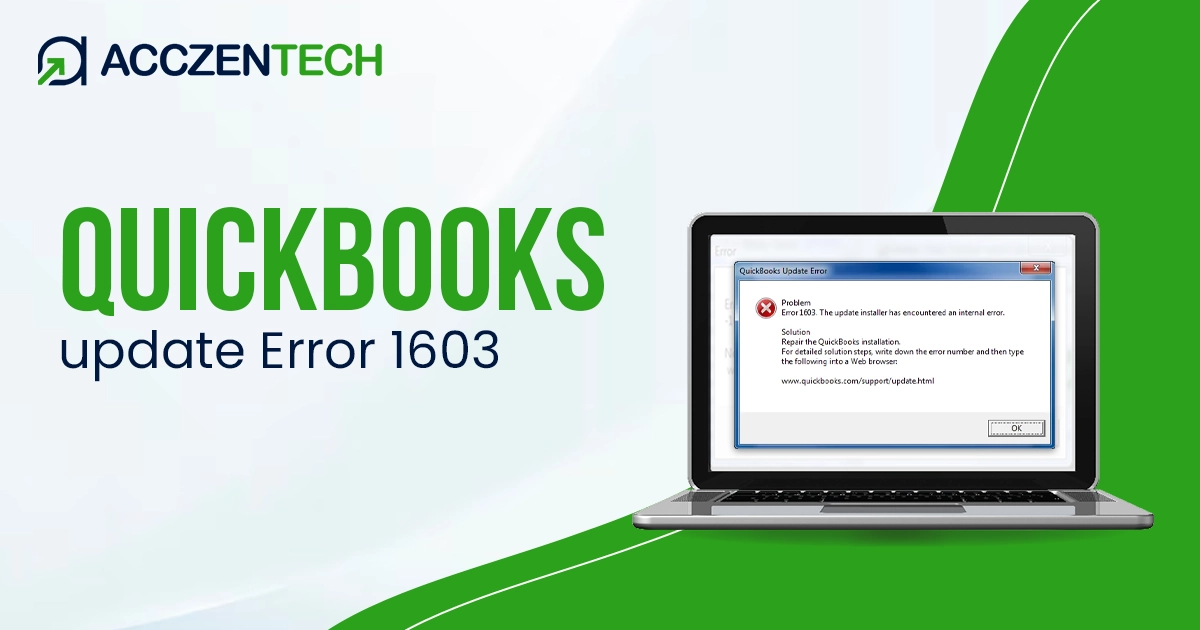
QuickBooks Update Error 1603 is a common installation and update issue. You can run into it when the QB fails to install or update due to system-level conflicts. The problem is often linked to damaged Windows components and permission issues.
It can also result from interference by background tasks or third-party applications. If left unresolved, it can prevent your software from functioning properly.
QuickBooks Error 1603: Quick Summary
| Parameter | Details |
| Error Name | QuickBooks Update Error 1603 |
| Error Code | 1603 |
| Error Message |
“Error 1603: There was a problem installing Microsoft .NET Framework.” “QuickBooks installation has failed with error 1603.” “Update cannot be completed due to an unexpected error (1603).” |
| Description | Occurs when QuickBooks Desktop fails to install or update due to issues with Windows Installer, .NET Framework, or corrupted installation files |
| Category | Installation / Update Error |
| Common Causes | Damaged Microsoft .NET Framework, corrupted Windows Installer, incomplete QuickBooks installation, insufficient permissions, background programs blocking installation, or malware interference |
| Affected Versions | QuickBooks Desktop (Pro, Premier, Enterprise) |
| Quick Fix | Run QuickBooks Install Diagnostic Tool, repair Microsoft .NET Framework, use Quick Fix My Program, reinstall QuickBooks, and run installer as administrator |
What You Might Experience When Facing Error 1603
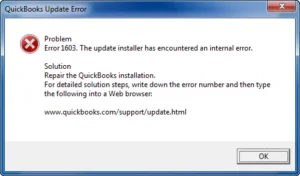

“Error 1603: The update installer has encountered an internal error.”
- The system freezes during the installation process.
- Incomplete installation leading to software malfunction
- QuickBooks installation or update halts and results in a failure
- Sudden crash of the setup window
- Repeated update failures despite retries
Recommended Reads: How to Resolve QuickBooks Error PS032 Payroll Update Issue
Possible Causes of QuickBooks Desktop Error 1603
There can be a handful of factors that can lead to QuickBooks error 1603:
- Damaged Microsoft .NET Framework, which is required for QuickBooks installation and updates
- Corrupted Microsoft Visual C++ components, which cause installation conflicts
- Windows Installer issues that result in improper configuration lead to installation failure
- Insufficient user permissions, which restrict access to install required files
- Antivirus or firewall interference that blocks installation processes
- Incomplete or corrupted QuickBooks setup files
Top Solutions to Fix QuickBooks Update Error 1603
Now, we will go through the detailed instructions for troubleshooting error code 1603 in QuickBooks Desktop.
1. Use QuickBooks Tool Hub (Install Diagnostic Tool)
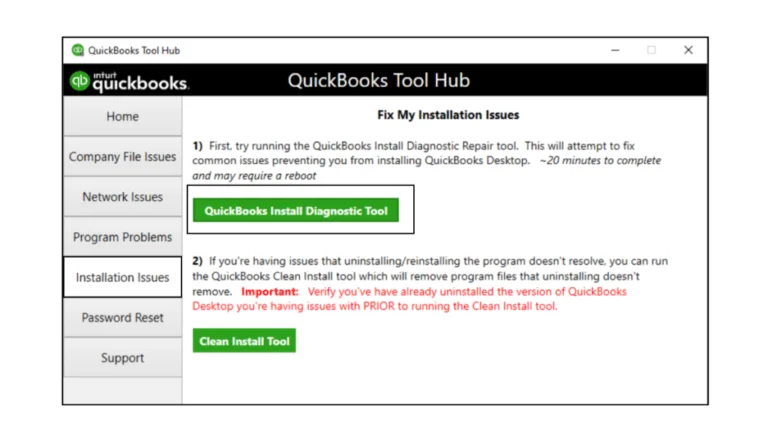
Start by downloading the QuickBooks Tool Hub from the official website.
- Install and open the tool. Navigate to Installation Issues and click on QuickBooks Install Diagnostic Tool.
- Allow the tool to scan your system completely.
- This process may take around 10-20 minutes.
- Once finished, restart your computer.
This tool automatically repairs damaged Microsoft components such as the .NET Framework, MSXML, and C++ libraries, which are common causes of error 1603.
2. Launch Installation as Windows Administrator User
Lack of permissions can block installation.
- Locate the QuickBooks setup file.
- Right-click on it
- Choose Run as Administrator.
- This gives the installer full system access to install required components.
Administrator privileges prevent permission-related installation failures.
3. Repair Microsoft Components (.NET Framework & C++)
Corrupt Microsoft components are a major cause.
- Go to Control Panel > Programs and Features.
- Locate Microsoft .NET Framework and Microsoft Visual C++ Redistributable packages.
- Select each and click Repair.
If a repair option is not available, uninstall and reinstall them from official sources.
These components are essential for QB to function correctly.
Read More: Troubleshooting QuickBooks Error H202: A Step-by-Step Guide
4.Install QuickBooks in Selective Startup Mode
Background applications can interfere with installation. So, you should try running the installation in selective startup mode.
- Open the Run window by pressing Windows + R, and type msconfig.
- Choose Selective Startup.
- Disable startup items and third-party services (while keeping Microsoft services active).
- Finally, restart your system and install QB.
After installation, switch back to normal startup mode. This creates a clean environment for successful installation.
5. Update Windows Components Manually
Outdated or damaged Windows components can lead to this error.
- Open the Control Panel and go to Windows Update.
- Check for pending updates and install all available updates.
- After updating, restart your system.
If needed, manually repair or reinstall .NET Framework from Microsoft’s official site.
Keep your operating system (such as Windows or macOS) updated to ensure compatibility with QB installation files.
6. Disable Antivirus and Firewall Temporarily
Security software may block installation processes.
- Open your antivirus settings.
- Now, temporarily turn off real-time protection.
- Moreover, turn off the firewall if required.
Install QuickBooks again, then re-enable the security settings. This prevents false blocking of QuickBooks installation files.
7. Perform a Clean Installation of QuickBooks
If the error persists, perform a clean installation.
- Uninstall QB from the Control Panel.
- Then rename installation folders by adding .old to the end of the folder names.
- Reinstall QuickBooks using fresh installation files.
A clean installation removes corrupted files and ensures proper setup.
Discover More Topics: Fix QuickBooks Error 6123 0 When Opening a Company File
Expert Tips to Prevent Error Code 1603 During Installation
Follow these pro tips to avoid running into QBDT error 1603 when installing the application or its updates.
- Keep Windows and Microsoft components updated.
- Always run installations as an admin user and avoid interrupting the installation process.
- Use trusted QB download sources such as the Intuit official site
- Disable unnecessary background applications during setup
Moreover, regularly scan your system for malware.
Final Words
QuickBooks update error 1603 is a system-related issue that can prevent installation or updates from completing. However, with the right approach, such as running QB Tool Hub, repairing MS components, and adjusting system settings, you can address it without taking a lot of time.
Follow the prevention tips to help ensure a smooth QuickBooks installation and also avoid similar errors in the future.
Frequently Asked Questions
Why do I see QuickBooks error 1603 during installation or updates?
QuickBooks error 1603 usually occurs when essential Windows components required for installation are damaged, missing, or outdated. It can be because of corrupt Windows Installer files, or when you have inadequate permissions.
Is it possible to resolve error 1603 without reinstalling QB Desktop?
Yes, in many cases, error 1603 can be resolved without reinstalling QB. You can utilize tools like the QB Tool Hub to repair installation issues or fix damaged Microsoft components such as the .NET framework. Running system repairs, updating Windows, or adjusting permissions often resolve it for you, Thus, you might not need a complete reinstallation unless the problem stays stubborn and refuses to be gone.
How is QuickBooks error 1603 connected to the Windows Installer service?
Error 1603 is closely linked to the Windows Installer service, which manages application installations on your system. If it is (the service) is disabled, corrupt, or malfunctioning, QB installation may fail. You might face this problem because of incomplete installer configurations or registry issues. Ensuring the Windows Installer service is running correctly is crucial for a smooth installation.
Can antivirus or security software cause QuickBooks error 1603?
Yes, antivirus or firewall software can sometimes interfere with QB installation or updates. Security programs sometimes mistakenly flag installation files as threats and block them. This can lead to incomplete installations and result in 1603.
How long does it usually take to fix QuickBooks error 1603?
The time required to fix error 1603 depends on how complex the case is and what methods will be used. Quick hacks, such as running repair tools or restarting services, can take around 15 to 30 minutes. But a lot of times, they might not resolve the issue. More advanced fixes, like repairing system components or resolving deeper conflicts take longer.
About The Author

Elora Havencrest
Elora Havencrest is an accomplished Accounting Writer with over 12 years of experience crafting clear, engaging, and informative financial content. She specializes in bookkeeping, tax planning, and financial analysis, making complex accounting concepts easy to understand for business owners and finance professionals.
Elora's dedication to accuracy and clarity ensures her writing not only educates but also empowers readers to make confident and informed financial decisions.