QuickBooks Missing PDF Component – Fix PDF & Printing Issues
Failed to print, email, or save as a PDF using QuickBooks Desktop? Failure to print or save as a PDF can stem from various reasons, causing delays in obtaining copies of your tax forms, paychecks, pay orders, or other documents.
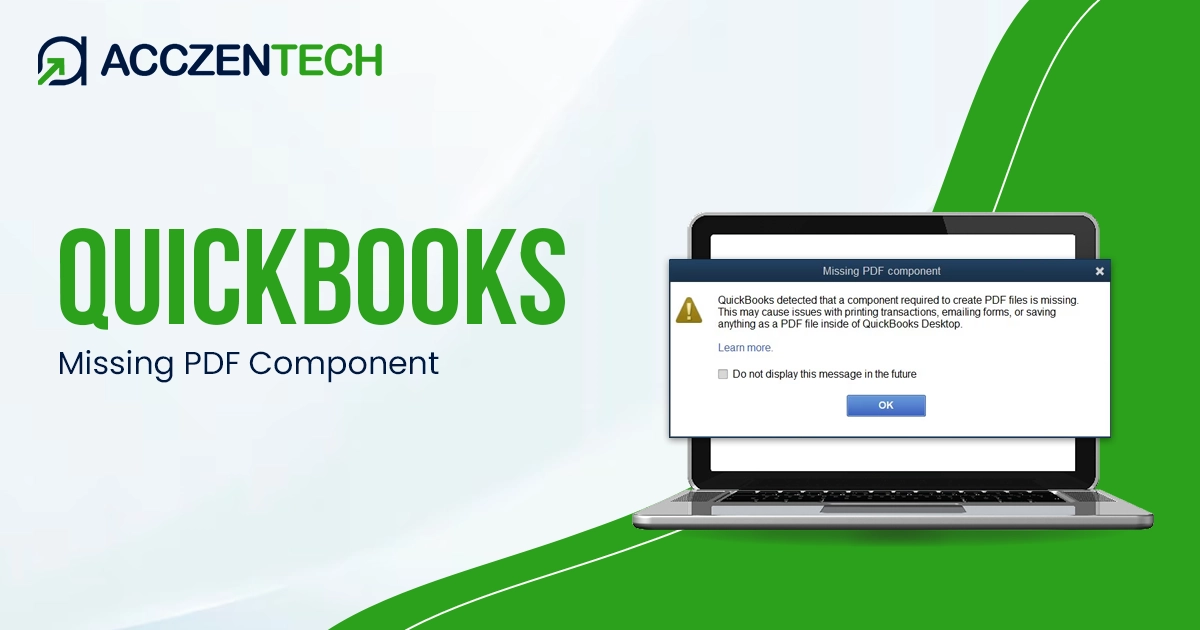
Such an interruption often triggers warning messages such as “QuickBooks detected that a component required to create a PDF file is missing.“
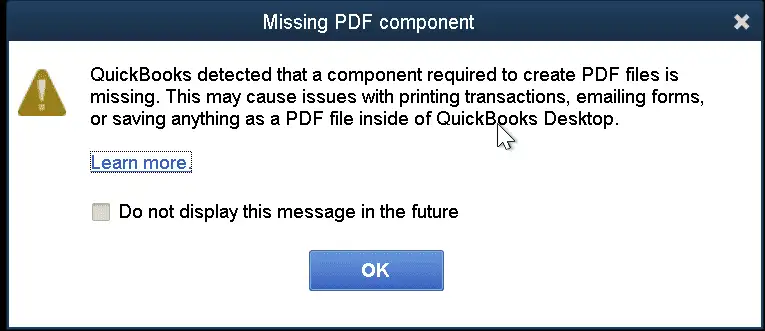
If you are wondering why the PDF or printing components aren’t working or what you can do to resolve the QuickBooks Missing PDF Component error, this guide is for you. Know more about the error, possible error printing or PDF errors, causes, and detailed steps to resolve the error.
QuickBooks Missing PDF Component Error – Key Details
| Parameter | Details |
|---|---|
| Error Name | QuickBooks Missing PDF Component |
| Error Code | N/A |
| Error Message | “QuickBooks could not complete the action because the PDF component is missing or not functioning properly.” |
| Description | Occurs when QuickBooks is unable to create, save, print, or email PDF files such as invoices, pay stubs, reports, or forms. |
| Category | PDF / Printing Error |
| Common Causes | Damaged Microsoft XPS Document Writer, corrupted PDF converter, missing Windows components, QuickBooks installation issues, or printer driver problems. |
| Affected Versions | All QuickBooks Desktop versions |
| Quick Fix | Reinstall or enable Microsoft XPS Document Writer and run the QuickBooks PDF & Print Repair Tool. |
Common PDF & Printing Issues You May Encounter
From printing delays to PDF display errors, these common issues can arise for a variety of technical reasons:
- There is a problem connecting to your currently selected printer, Microsoft XPS Document Writer on the XPS port.
- Could not print to the printer.
- QuickBooks can’t complete the current action due to a missing component: Missing pdf file component.
- QuickBooks is not responding.
- PDF Converter shows offline.
- You cannot print directly to the QuickBooks PDF Converter.
- The device is not ready.
- Unable to save as a .pdf file.
- QuickBooks could not save your form or reports as a .pdf.
- QuickBooks freezes when you try to reconcile accounts.
- Print Driver Host for 32-bit Applications has Stopped Working.
- Unrecoverable error.
- QuickBooks PDF Converter Activation Error -20, -30, or -41.
- Error 1722 or 1801 when installing PDF Converter.
- Problems printing transactions or reports.
- Reconcile window disappears or doesn’t show
More Fixes: QuickBooks Error 15101 When Updating Desktop or Payroll
Possible Reasons Why the QuickBooks PDF Component is Missing
The QuickBooks PDF component may go missing due to installation issues, damaged files, or conflicts within the Windows operating system.
- Corrupted QuickBooks PDF converter
- Common issues with the Print Spooler Service
- Insufficient Temp folder permissions
- Damaged or corrupted Form or Template
- PDF converter showing Offline
- Third-party PDF software conflicts
- Printer Driver problems
- Damaged XPS services or components
- Background processes interfering with QuickBooks
How to Fix the QuickBooks Missing PDF Component Error?
The following solutions can help restore the missing PDF component and ensure QuickBooks functions properly again.
1. Run the QuickBooks Print & PDF Repair utility
Start by running the QuickBooks Print & PDF Repair Tool, which automatically detects and fixes common PDF and printing-related issues within QuickBooks.
a. Download and install QuicKBooks Tool Hub
The QuickBooks Tool Hub lets you resolve the common errors and issues. Make sure QuickBooks Desktop is closed when using the Tool hub.
- Quit QuickBooks Desktop.
- Download QuickBooks Tool Hub in the latest version (1.6.0.8). Save the downloaded file (.exe) somewhere you can easily access.
Note: If QuickBooks Tool Hub is already installed, make sure you use the latest version. Go to the Home tab and check the version at the bottom.
- Locate the download file (QuickBooksToolHub.exe).
- Follow the instructions on your screen, agree to the terms and conditions to install.
- When done, double-click on the QB Tool Hub icon to open it.
Note: If you can’t locate the icon, search for QuickBooks Tool Hub in the Windows desktop, then choose the program to open it.
b. Run QuickBooks Print & PDF Repair
- Launch the QuickBooks Tool Hub.
- Choose Program Problems in the left pane.
- Hit on QuickBooks Print & PDF Repair Tool. The tool may take a minute or more to open.
- When done, try printing, emailing, or saving as a PDF from QuickBooks Desktop again.
Further Reading: QuickBooks Error 1603: Installation Update Error Guide
2. Restart and reset the temp folder permissions
Restart your computer and reset the permissions for the Temp folder to ensure QuickBooks can properly create and access PDF files.
a. Restart your computer
Restart your computer and then try again. If this doesn’t fix the issue, reset the permissions on your temp folder.
b. Reset your temp folder permissions
- Launch the Run command on your computer.
- In the Run, type %TEMP% and press Enter.
- Now, right-click on the empty area of the temp folder and choose Properties.
- Click on Security.
- Allow Full Control to all the user names and groups in Security.
- Once you set the permissions, save it as a PDF again in QuickBooks.
c. Test if you can print to your XPS
QuickBooks uses the XPS Document Writer components to save the file as a PDF. Let’s test whether you can print to your XPS Document Writer.
- Launch Notepad.
- Type test in the file.
- Go to File and choose Print.
- Choose the XPS Document Writer.
- Then, click on Print.
Note: If XPS Document Writer is missing, you’ll have to permit your computer to print using the XPS printer feature
- Name the file and save it to your desktop.
- Return to your desktop and view the XPS document you printed from Notepad.
If you’re unable to print to your XPS printer (or regular printer) beyond QuickBooks, you’ll need to reach out to your IT expert or Microsoft for assistance.
d. Allow your computer to print using the XPS printer
- Launch the Windows Control Panel.
- Now, switch the panel to Category view.
- Go to Programs.
- Choose Turn Windows features on or off.
- In the list of services, select Microsoft XPS Document Writer.
- Finally, click OK.
3. Create a new template or form
Let’s create a new template or form, as damaged or corrupted templates can sometimes trigger PDF-related errors in QuickBooks:
- Choose or create a new template for your form.
- Modify the template on your transaction.
- Now, create your .pdf.
4. Update the Print Spooler service properties
Ensure the service starts automatically and applies the new configuration settings:
- Right-click on the Windows Start menu.
- Type Run, then type Services.msc and select Ok.
- Now, search for the Print Spooler service.
- Right-click on the Print Spooler service.
- Choose Properties.
- Move to the Startup type.
- Click on Automatic.
- Select Apply and then OK.
- Right-click on the Print Spooler service.
- Finally, select Start to start the service.
Prevention Tips for QuickBooks Missing PDF Component Error
To avoid encountering the QuickBooks Missing PDF Component Error, follow these preventive measures:
- Keep QuickBooks Updated: Always install the latest QuickBooks updates and maintenance releases. Updated versions contain bug fixes and compatibility improvements that help prevent PDF-related issues.
- Regularly Update Windows: Outdated Windows components can interfere with QuickBooks PDF functions. Make sure your operating system receives the latest security patches and feature updates.
- Maintain Microsoft XPS Document Writer: QuickBooks relies on the Microsoft XPS Document Writer for creating PDF files. Periodically verify that the XPS Document Writer is installed, enabled, and functioning correctly.
- Avoid Interrupting QuickBooks Installation: Incomplete or corrupted QuickBooks installations are a common cause of PDF component errors. Ensure a stable internet connection and avoid closing the installation process before it finishes.
- Run System Maintenance Checks: Perform regular disk cleanup, system scans, and file integrity checks to keep your computer free from corrupted system files that may affect QuickBooks PDF services.
- Configure Antivirus and Firewall Settings: Some security applications may block QuickBooks components required for PDF creation. Add QuickBooks as a trusted application and review security settings regularly.
- Install QuickBooks PDF Repair Updates Promptly: Whenever Intuit releases fixes related to printing or PDF functionality, install them immediately to reduce the risk of component-related errors.
- Create Regular System Backups: Maintain backups of your QuickBooks company files and important system settings. Backups help you recover quickly if a PDF component issue causes unexpected disruptions.
- Avoid Unnecessary Registry Modifications: Improper changes to Windows registry entries can damage QuickBooks-related components. Only make registry changes when necessary and after creating a backup.
- Monitor Third-Party Software Conflicts: PDF creators, print management tools, and system optimization utilities can sometimes interfere with QuickBooks PDF functions. Keep such applications updated and remove any that cause conflicts.
Helpful Guide: How to Fix QuickBooks Compile Error in Hidden Module?
Summing It Up
The QuickBooks missing PDF component error can disrupt essential tasks such as printing invoices, emailing forms, saving reports as PDFs, or reconciling accounts. In most cases, the issue is linked to damaged QuickBooks PDF components, inactive XPS services, printer spooler problems, or insufficient system permissions.
If the error still persists after trying all the solutions, consider updating QuickBooks Desktop and Windows or consulting an IT professional for advanced troubleshooting assistance.
Frequently Asked Questions
-
How to enable PDF in QuickBooks Desktop?
To enable the PDF function in QuickBooks Desktop, you can either repair the built-in PDF converter through the QuickBooks Tool Hub or ensure the Microsoft XPS Document Writer is enabled in your Windows settings.
-
Why am I getting a “missing PDF component” error when printing from QuickBooks?
The “missing PDF component” error happens when QuickBooks cannot connect to your system’s virtual PDF printer or the Microsoft XPS Document Writer, which are required to print, email, or save forms as PDFs.
-
Why does the QuickBooks PDF component error occur?
The QuickBooks Missing PDF Component error occurs when the software cannot access the system tools required to generate, save, or email documents in PDF format. This usually happens because the underlying Windows components that QuickBooks uses for PDF creation are disabled, damaged, or outdated.
-
How do I fix a missing PDF component in QB Desktop?
To fix a missing PDF component in QuickBooks Desktop, run the QuickBooks PDF & Print Repair Tool via the QuickBooks Tool Hub. If the error persists, you can repair your QuickBooks and Adobe Acrobat installations, or manually enable the Microsoft XPS Document Writer.
About The Author

Elora Havencrest
Elora Havencrest is an accomplished Accounting Writer with over 12 years of experience crafting clear, engaging, and informative financial content. She specializes in bookkeeping, tax planning, and financial analysis, making complex accounting concepts easy to understand for business owners and finance professionals.
Elora's dedication to accuracy and clarity ensures her writing not only educates but also empowers readers to make confident and informed financial decisions.
Recent Posts
-

How to Fix QuickBooks Error 15225 Payroll Download Errors Fast?
-
QuickBooks Error 15227: Easy Solutions to Resolve Update Issues
-
QuickBooks Tool Hub: Download, Install & Advanced Error Fixing Tool
-
QuickBooks Desktop Unrecoverable Error: How to Fix Sudden Crashes
-
How to Fix QuickBooks Error 6129 When Opening a Company File?